
HR document management, from template to signature

Generate contracts from templates, split one payroll PDF into personal payslips, collect e-signatures and see who has signed — without filing each document by hand.

HR document management, from template to signature

Folders

Role-based document folders

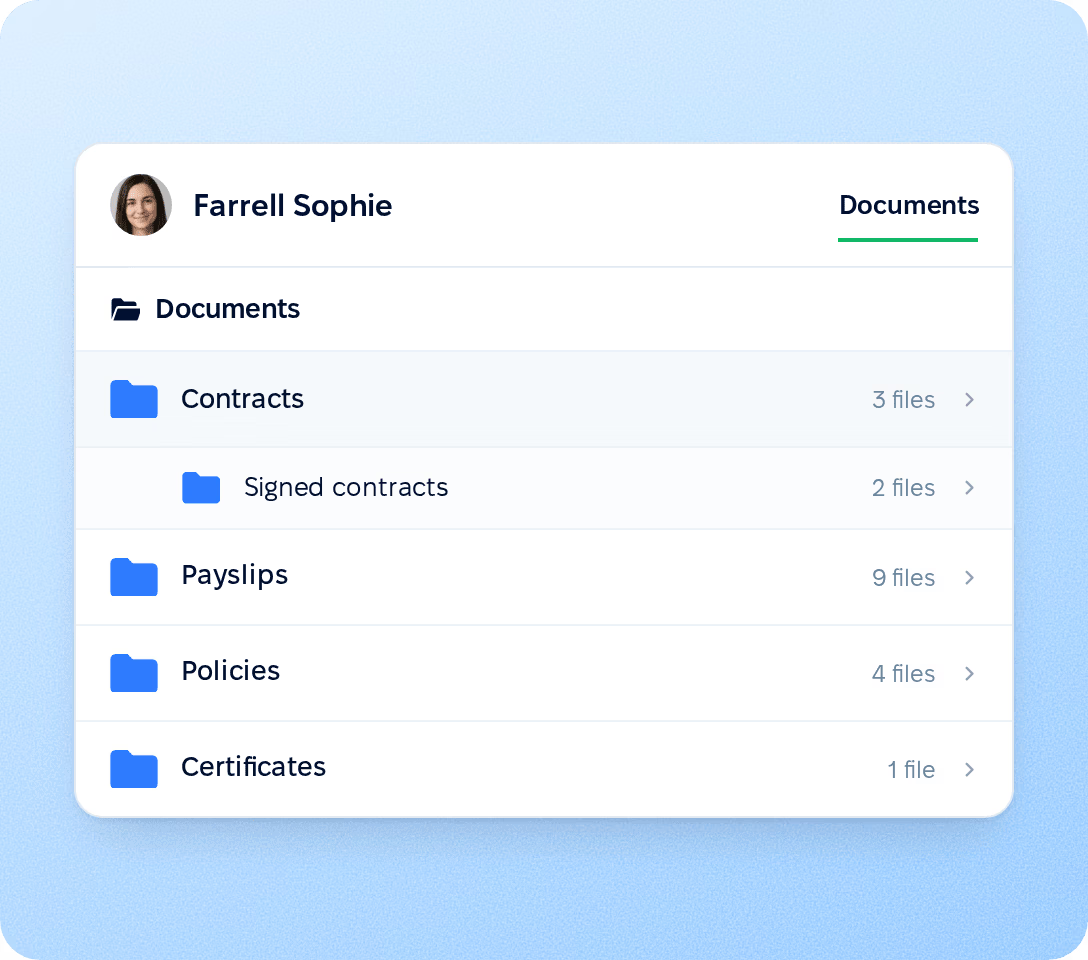
Folders are set up once for the company and appear in every employee profile. For each folder, you decide what the employee, their manager and other roles can do: no access, view or edit. Payslips can stay visible to the employee only, while contracts stay with HR.

  • Nested folders

    Group files into folders and subfolders that repeat across all profiles, so every contract, policy or certificate has a fixed place.

  • Access per folder

  • Links to cloud files

preview

Templates

Document templates with employee data

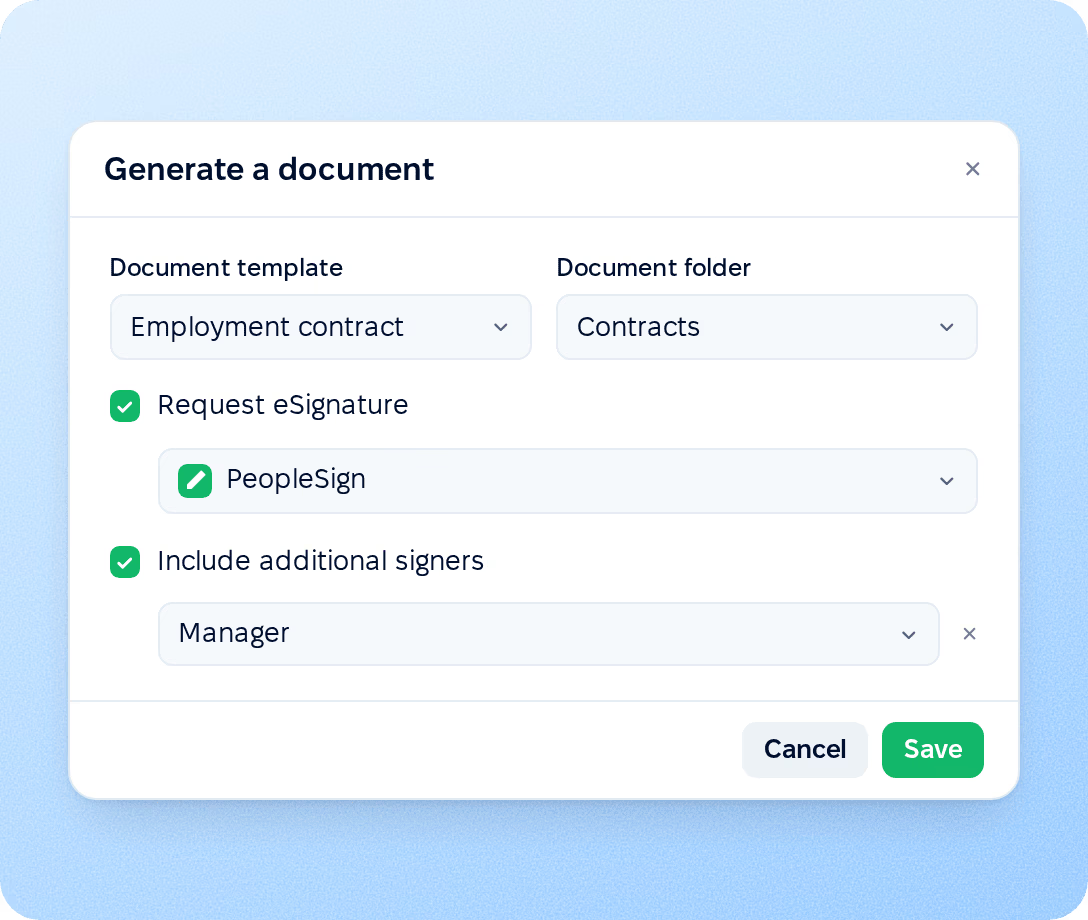
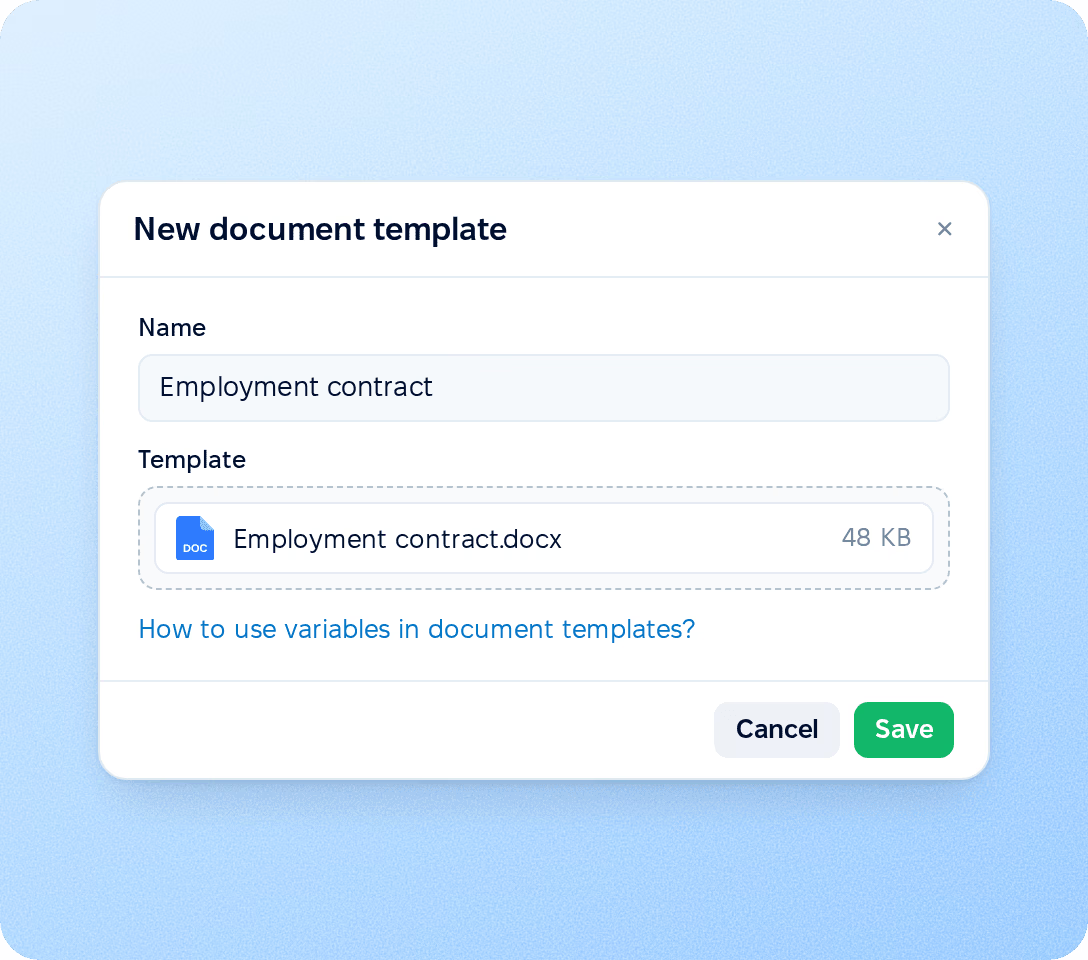
Build a template once and generate a personalised document for any employee. Core HR fills in profile data, saves the file to the folder you choose and notifies the employee if they can access it.

  • Templates from your own Word files

    Upload a Word (.docx) file with variables. Every document generated from it is a filled DOCX.

  • Profile, manager and salary variables

  • Permission-aware generation

preview

eSignature

E-signature and signing status tracking

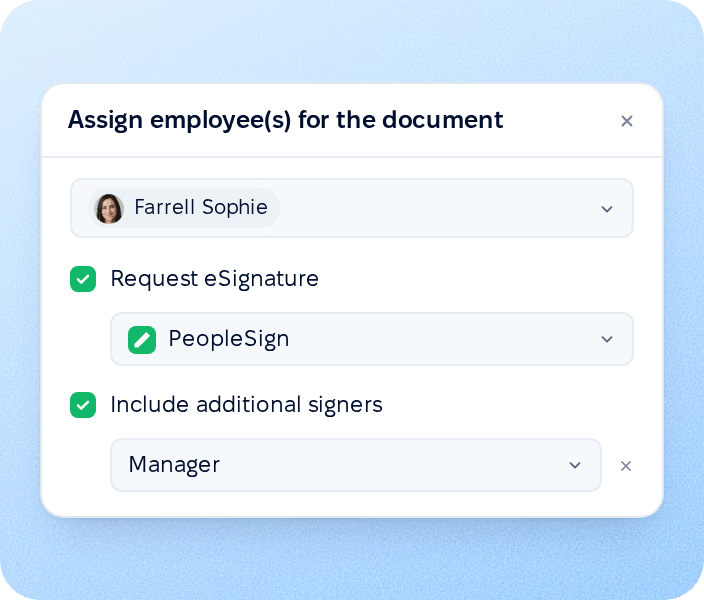
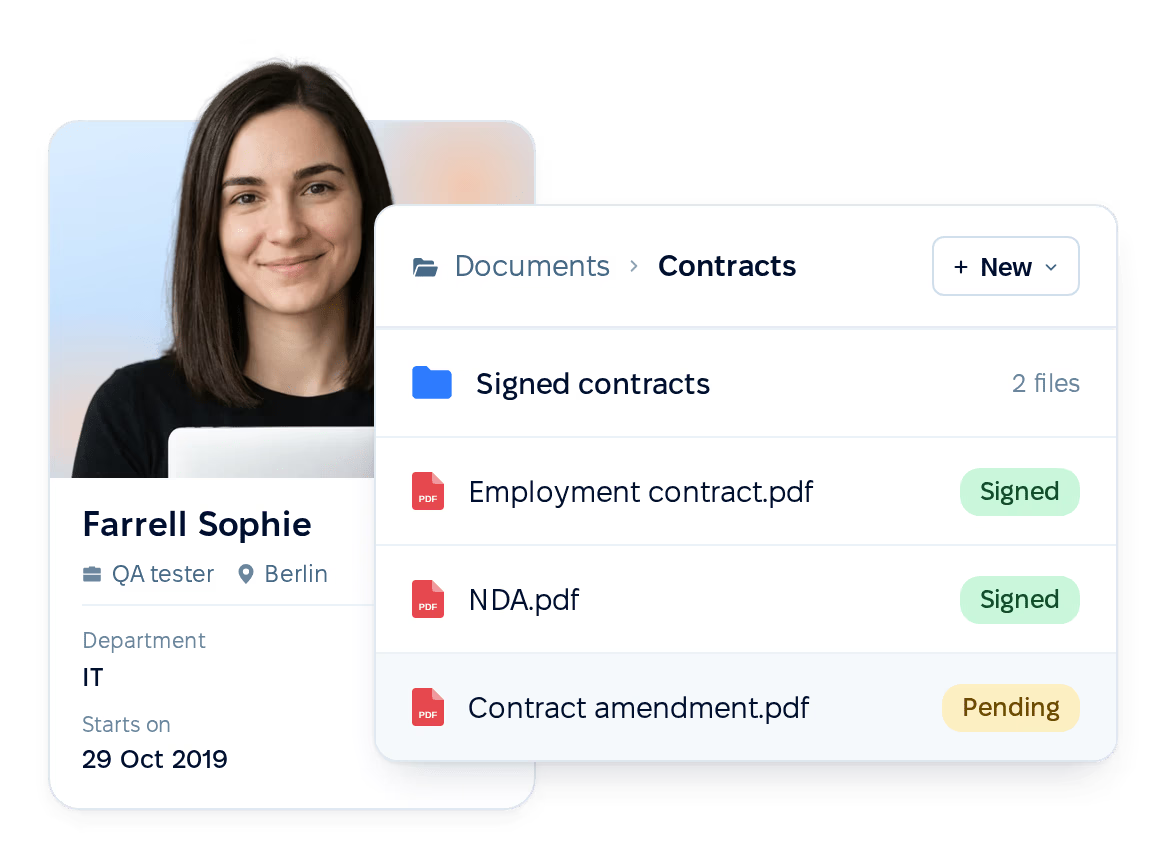
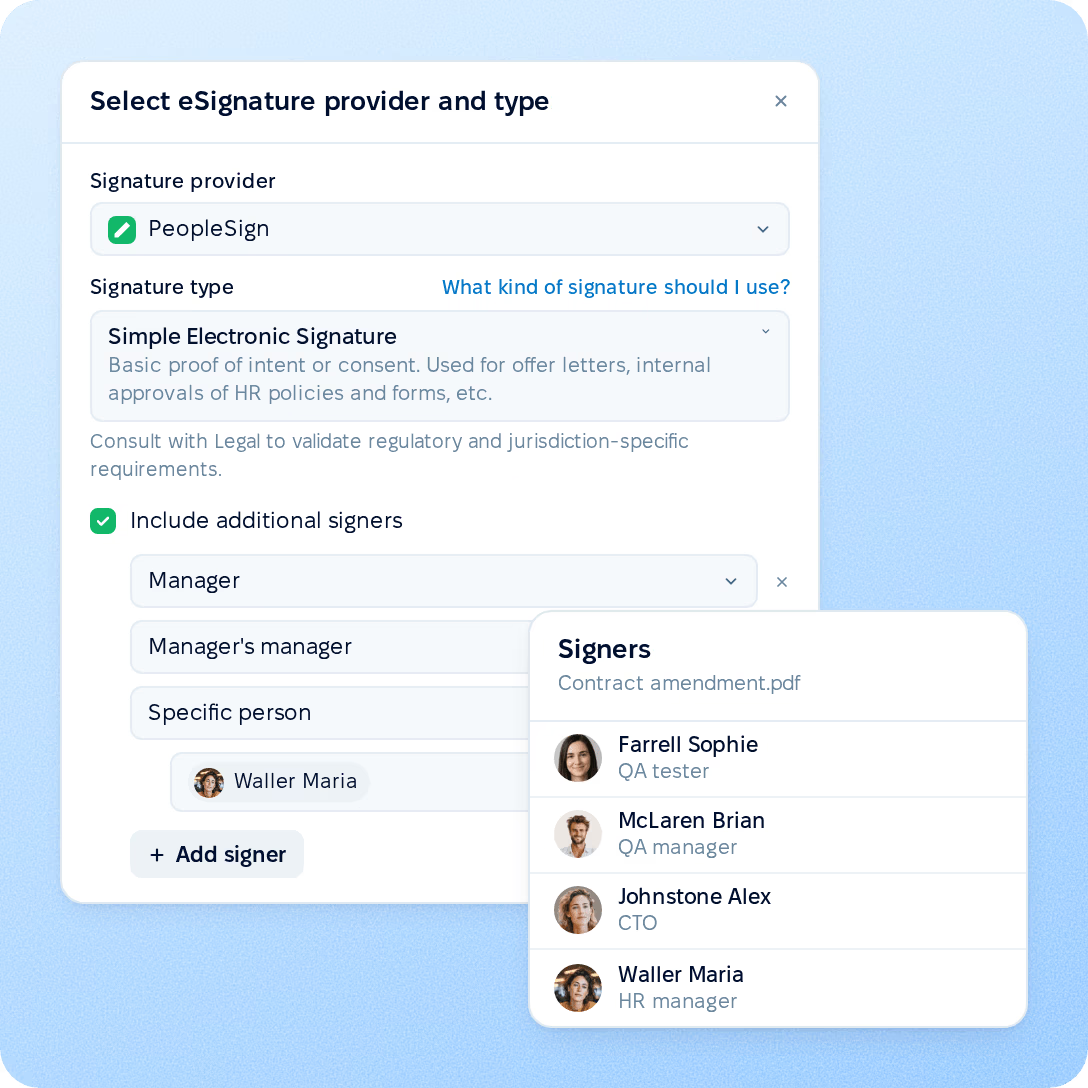
Request a signature on any uploaded or generated document, or for a whole batch during distribution, and add signers beyond the employee: their manager, the manager's manager, the team lead, the department's manager or a specific person. The company documents page shows each request's status, so HR sees who hasn't signed yet.

Learn more about eSignature
  • Additional signers

    Add signers based on their relation to the employee, so the same setup works for every person in a bulk request.

  • Signing statuses

  • Reminders and audit trail

preview

Bulk distribution

PDF splitting and automatic employee matching

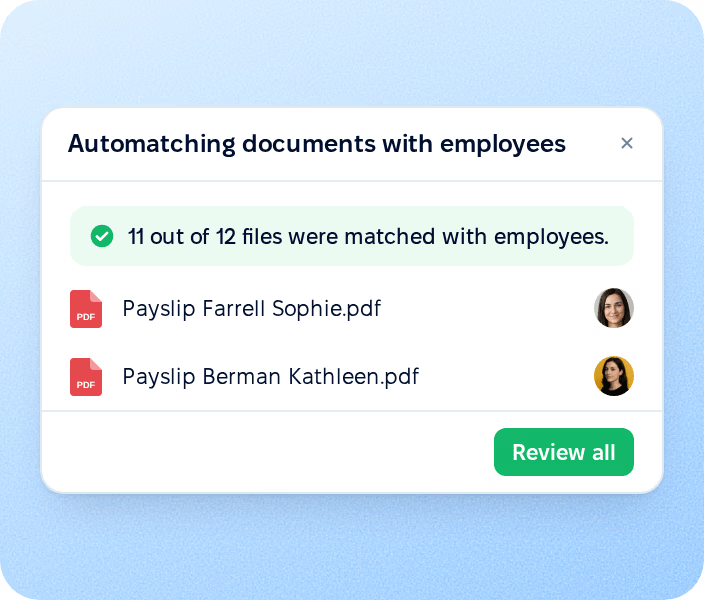
Upload payroll's monthly payslips as one PDF. Core HR splits it by page and matches each page to an active employee by the fields you choose, such as name or ID. You review the results before the files reach employee folders.
Step 1
Automatic employee matching

Automatic employee matching

Core HR reads the text of each file and compares it with profile data. A match requires every configured field to be found in the document.

Step 2
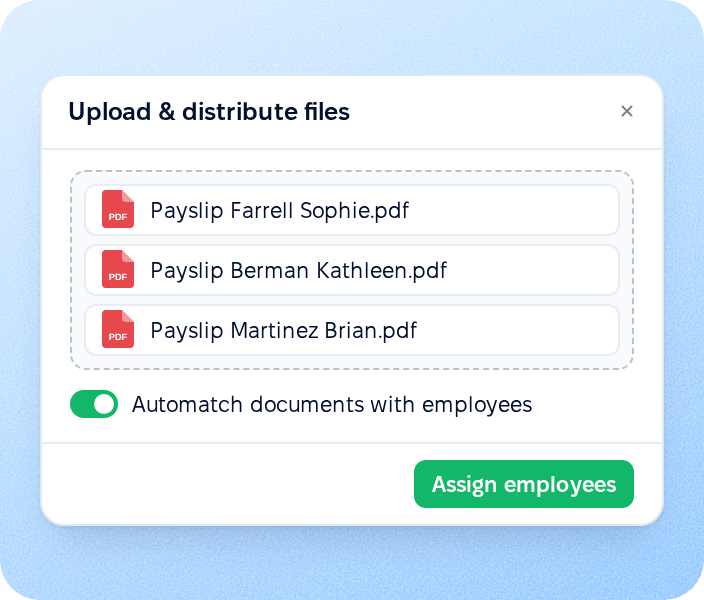
Bulk upload

Bulk upload

Upload many separate files at once and assign them to employees in one pass instead of opening each profile.

Step 3
Signature request on distribution

Signature request on distribution

Request e-signatures from every employee in the same step, with additional signers if the document needs them.

Automation

Document automation in workflows and hiring

Documents can be created as part of HR processes, not only by hand. A workflow step generates a document from a template or adds an uploaded file to the right folder, and a generated document can go out for signature. If document transfer is turned on in settings, a hired candidate's files from Recruit are copied into the new employee profile.

  • Workflow document actions. Add a step that generates a document or uploads a file to the folder you select. A generated document can be sent for signature to the employee and additional signers.

  • Candidate documents on hire. When document transfer is on, files attached to the candidate, the resume and the accepted offer as a PDF are copied into the folder set in settings. Identical files already in the folder are skipped.

Document automation in workflows and hiring

Employee document access and signing

My documents and the signing page opened from the email link.

My documents

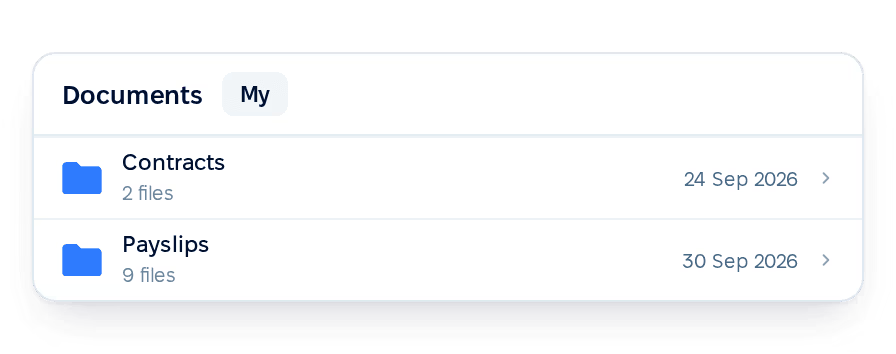
Employees see their documents in My documents, limited to the folders they have access to.

My documents

Signing from the email link

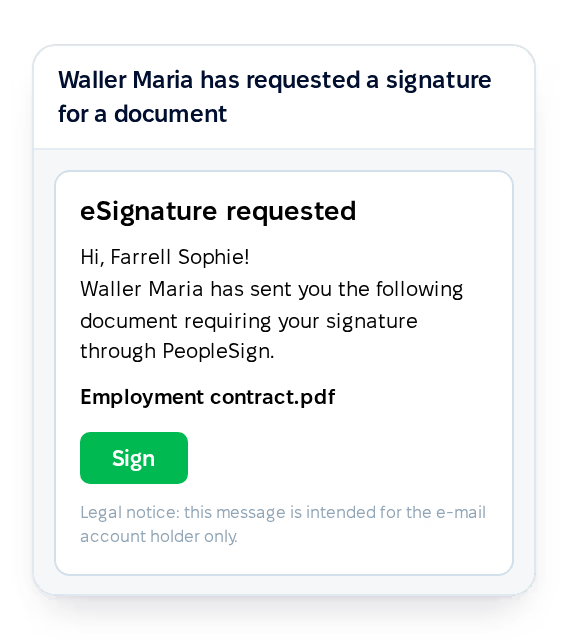
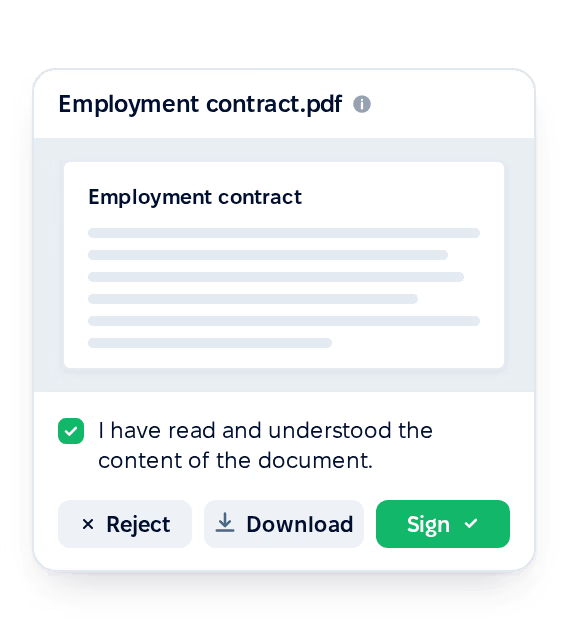
A signature request arrives by email, and the document opens from the link without logging in to PeopleForce.

Signing from the email link

Sign or reject

The employee can sign or reject it on the same screen.

Sign or reject

New document notifications

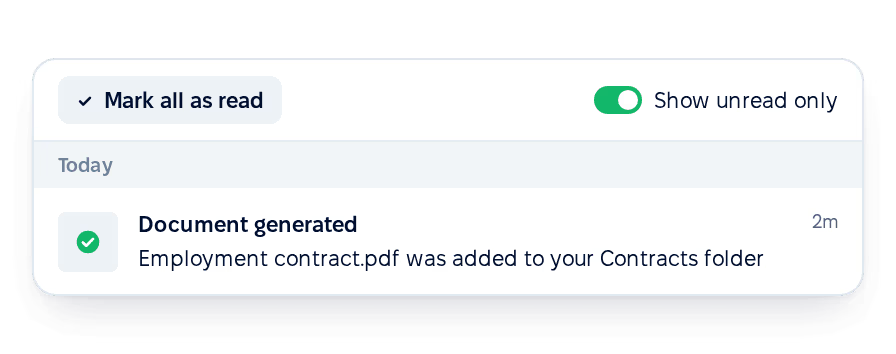
The employee receives a notification when a generated document is saved to a folder they have access to.

New document notifications

More in Core HR

Explore the rest of Core HR

Everything around your documents, from employee records and the org chart to preboarding, policies, workflows and access rules, in one connected system.

All employee data in one place

Profiles with job, contact and personal details: the same records that document templates pull their variables from.

Learn more
Employee directory

Beyond the features

Why HR teams choose PeopleForce

We get you live in weeks, not months — with real people answering after go-live, and room to add the rest of HR when you're ready.

Live in about four weeks

A dedicated success manager sets everything up with you — it's included in the plan, not a paid add-on.

Support in your language

Real people, not a ticket queue: a ~2-minute first reply and 98% satisfaction.

Room to grow

Start with Core HR and add recruiting or performance later — same employee record, no second system.

icon

Leader

Summer 2026
icon

Users Love Us

Milestone Summer 2026
icon

Regional Leader

Europe Summer 2026
icon

High Performer

Europe Summer 2026

Security and operational continuity

Certifications, granular access and full control over what happens to your data and equipment.

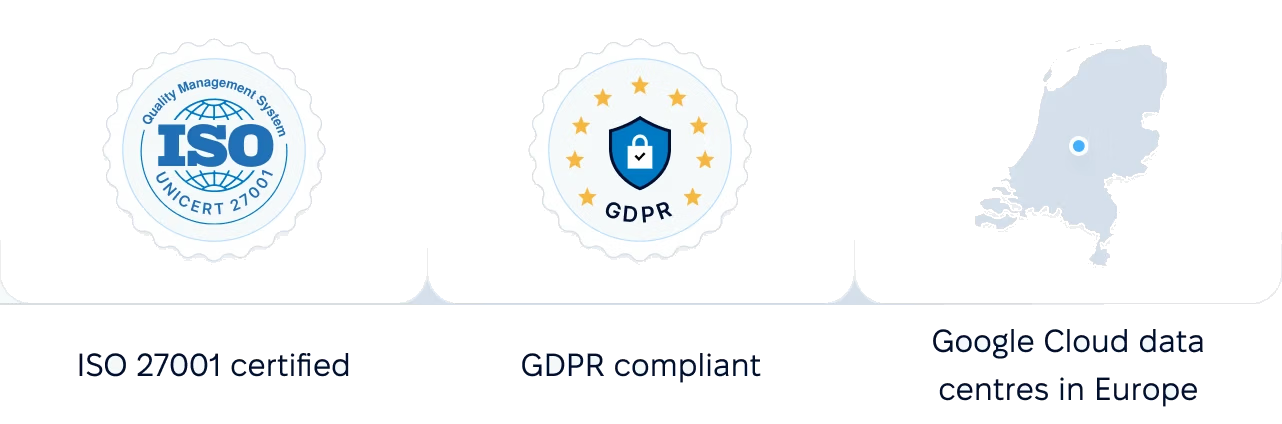
ISO 27001 certified, GDPR compliant, Google Cloud data centres in Europe
G2Best Support

Questions about document management

Who can see an employee's documents?

How do payslips reach each employee?

Can a document be signed by more than one person?

Do employees need to log in to sign?

See document management on your own files

Walk through folders, templates, PDF splitting and e-signature with a product specialist.