



How it works
From extra hours to approved overtime
Overtime often reaches HR at month end, in a spreadsheet or a chat, with the rates worked out by hand. In PeopleForce every overtime request goes through the same steps before it counts.

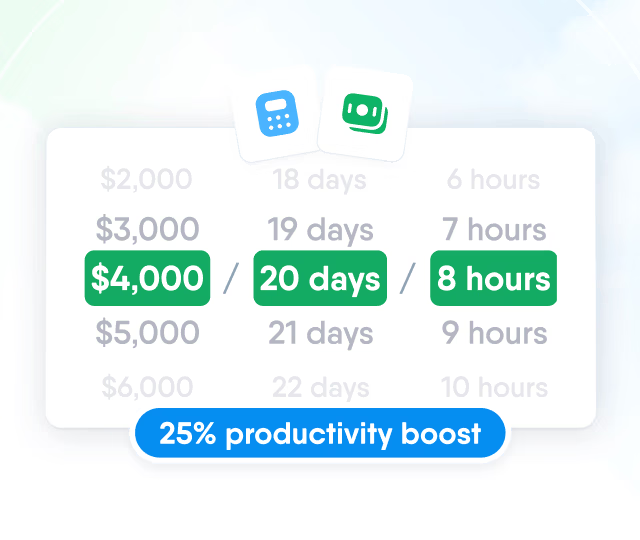
HR efficiency estimator
How does the HR efficiency estimator from PeopleForce work.
Calculate your impact
Employees request extra hours from the day they worked them, with a reason. Approvers sign each request off in the order your attendance policy sets, and approved hours are split into your weekday, weekend and holiday rates for the payroll export.
How it works
Overtime often reaches HR at month end, in a spreadsheet or a chat, with the rates worked out by hand. In PeopleForce every overtime request goes through the same steps before it counts.
Flagged on the day
When a day's hours go past the employee's work pattern, the timesheet shows the extra time and offers an overtime request.
Requested with a reason
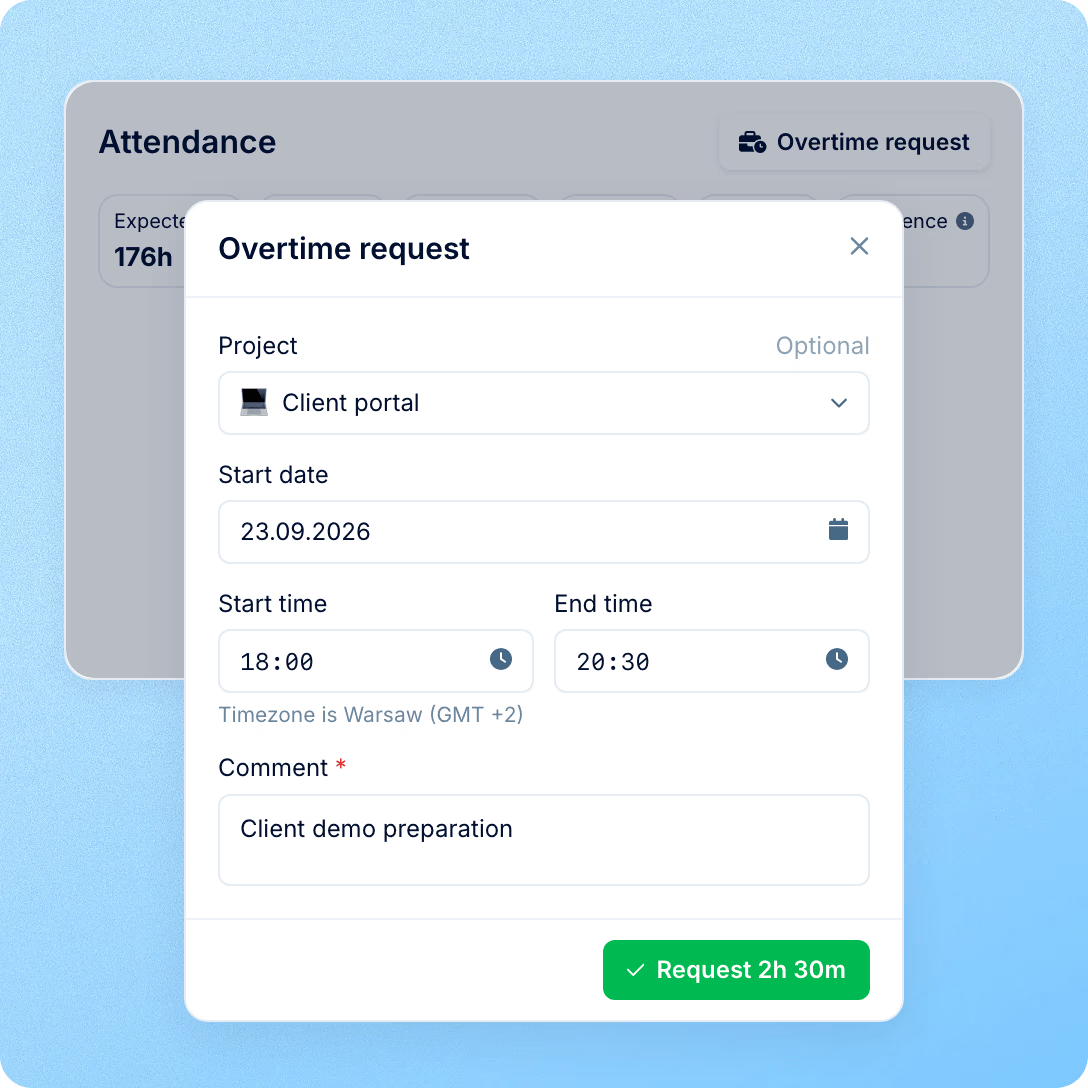
The employee checks the pre-filled time, adds why the work was needed and sends the request.
Approved in order
The request goes to the approvers in the attendance policy, one after another. Until it's approved, the hours don't count as overtime.
Split by rate
Approved time is divided across your overtime types, such as weekday, weekend or holiday, and appears in the totals and the export.
Overtime types
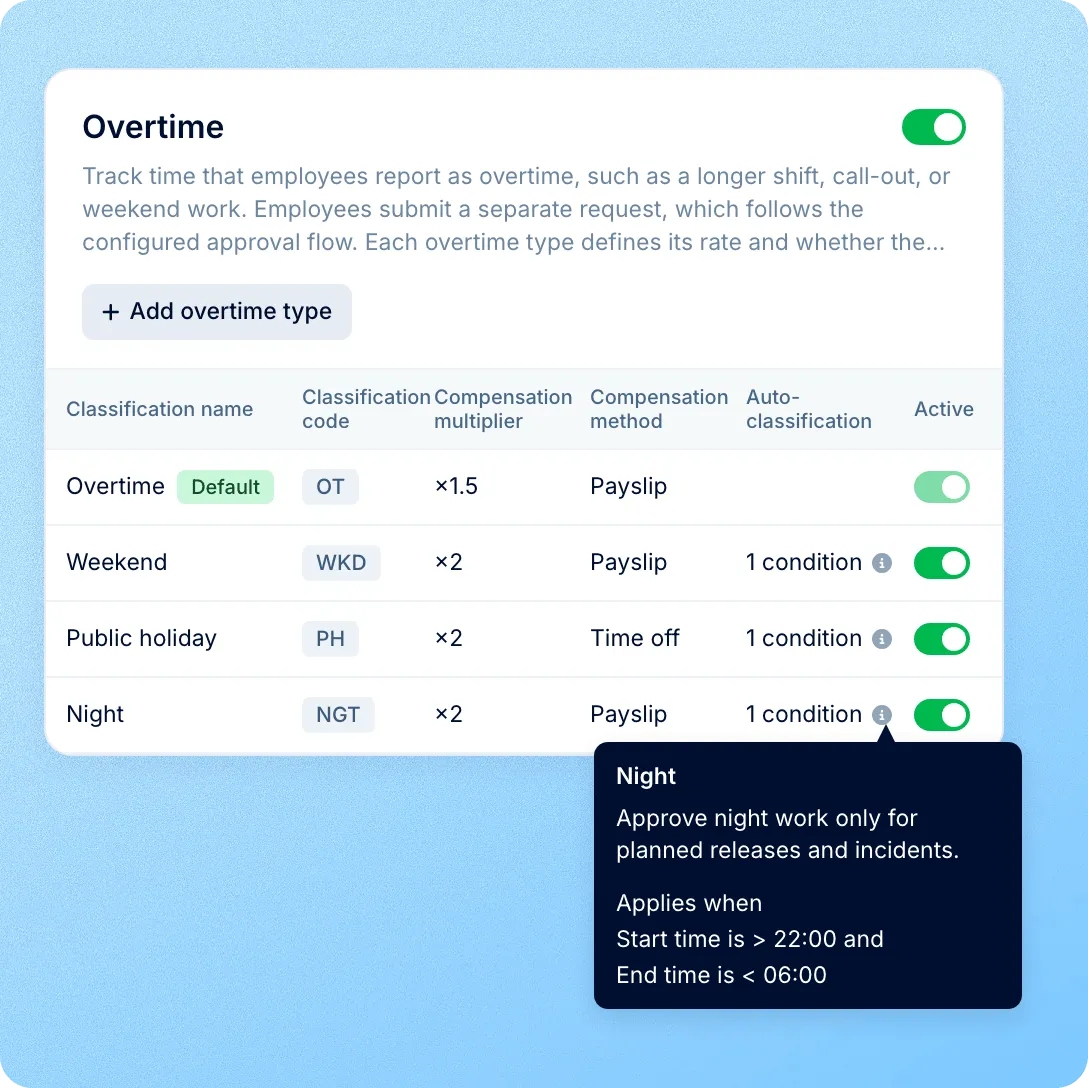
Where an hour on Sunday is paid differently from an hour on Tuesday, someone usually sorts every shift into 50% and 100% by hand before payroll. In PeopleForce the rules live in the attendance policy, and each request is sorted as it comes in.
Approvals
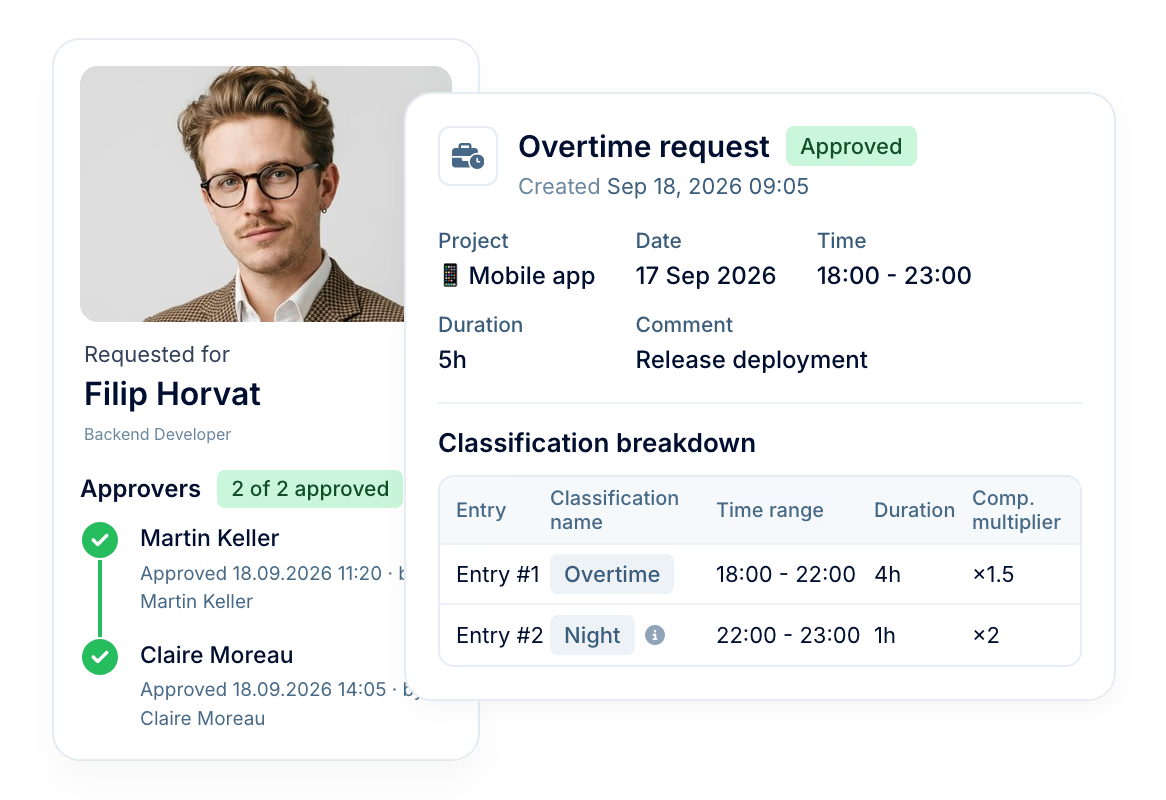
Paid overtime has to be justified: a client ordered it or a manager agreed to it. Every request carries its reason and goes through the approval chain before any hour counts as overtime.
Detection
Overtime entered weeks later, in a batch, is the overtime that misses the payroll cut-off and starts the arguments. PeopleForce compares each day's hours with the employee's work pattern, so the extra time is raised while everyone still remembers why it happened.

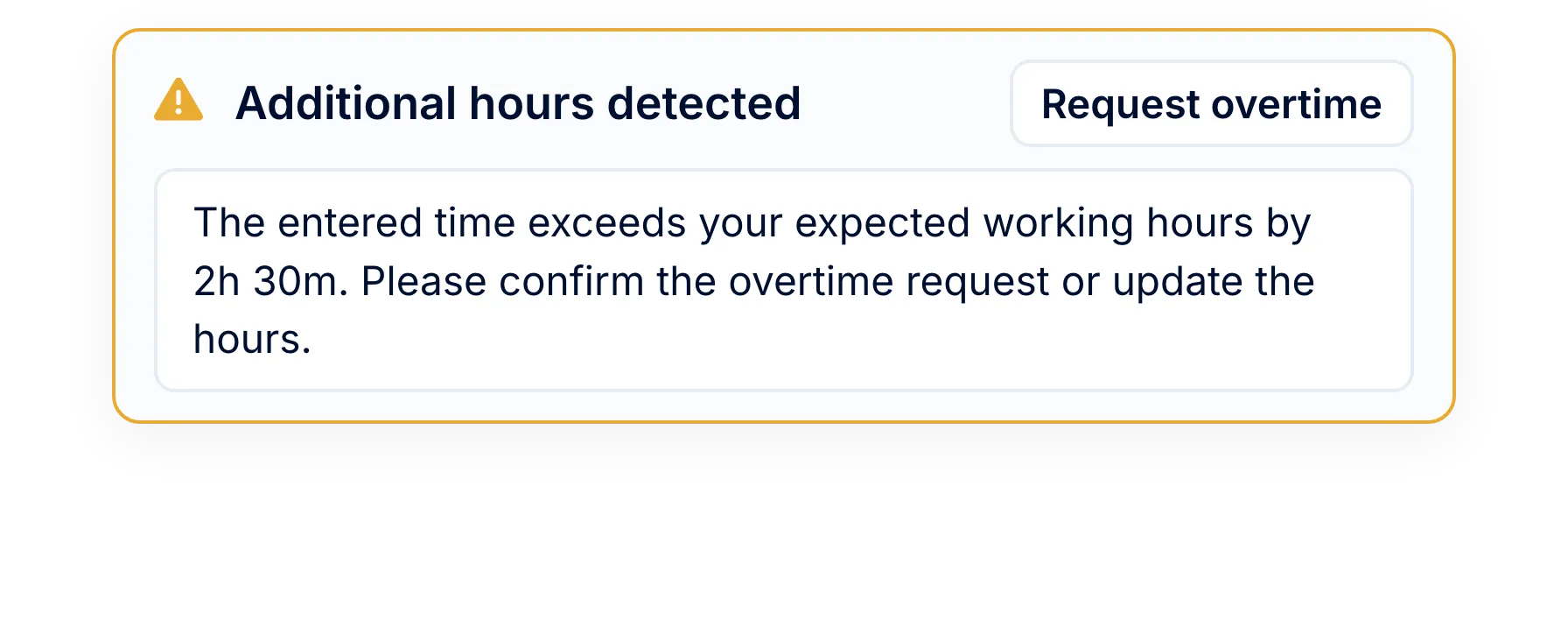
A day with more hours than expected shows Additional hours detected, with the request time already filled in.
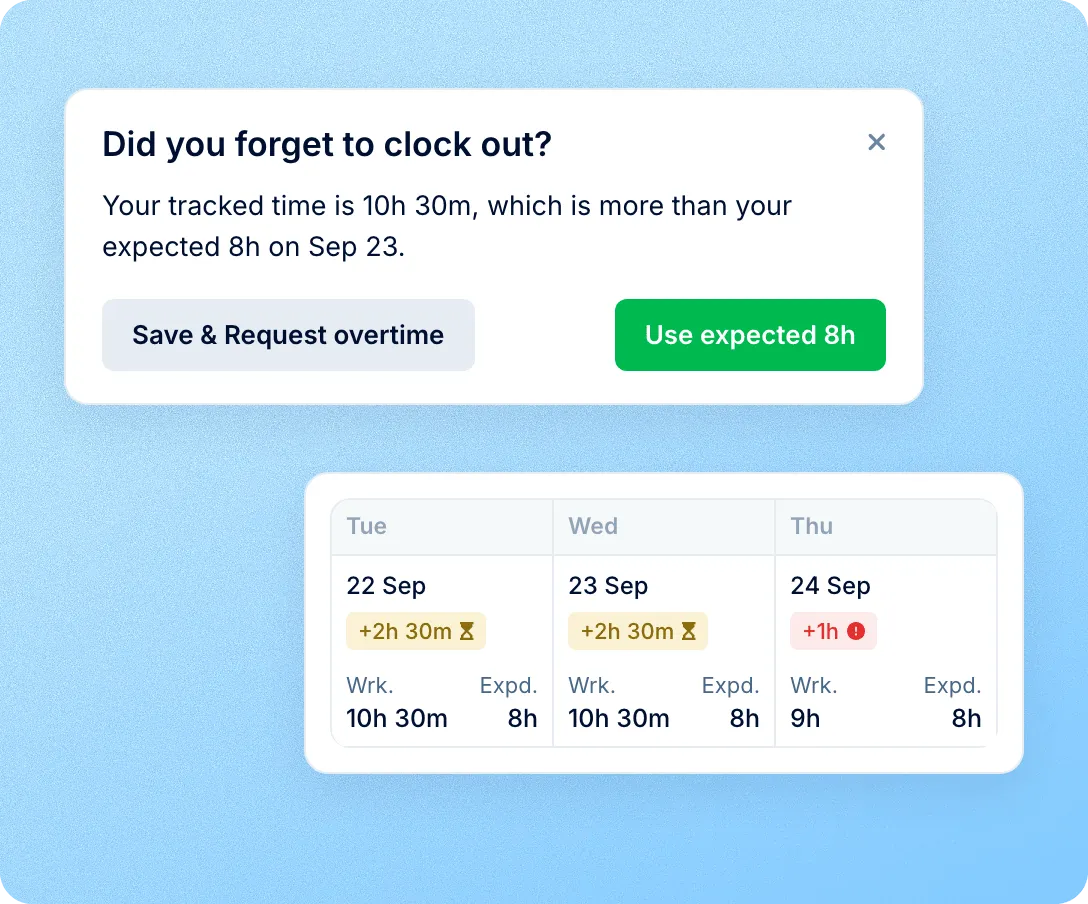
When a running timer passes expected hours, the employee gets an email and a mobile push, and at clock-out chooses between keeping the expected time and requesting overtime.
Days with extra time and no request are marked in red on the month calendar.
Approved overtime
Month-end disputes start when the employee, the manager and payroll each have their own number. Here there is one: the approved requests, with who approved each of them and when.
Employees see the status of every request they send and the name and time of each approval.
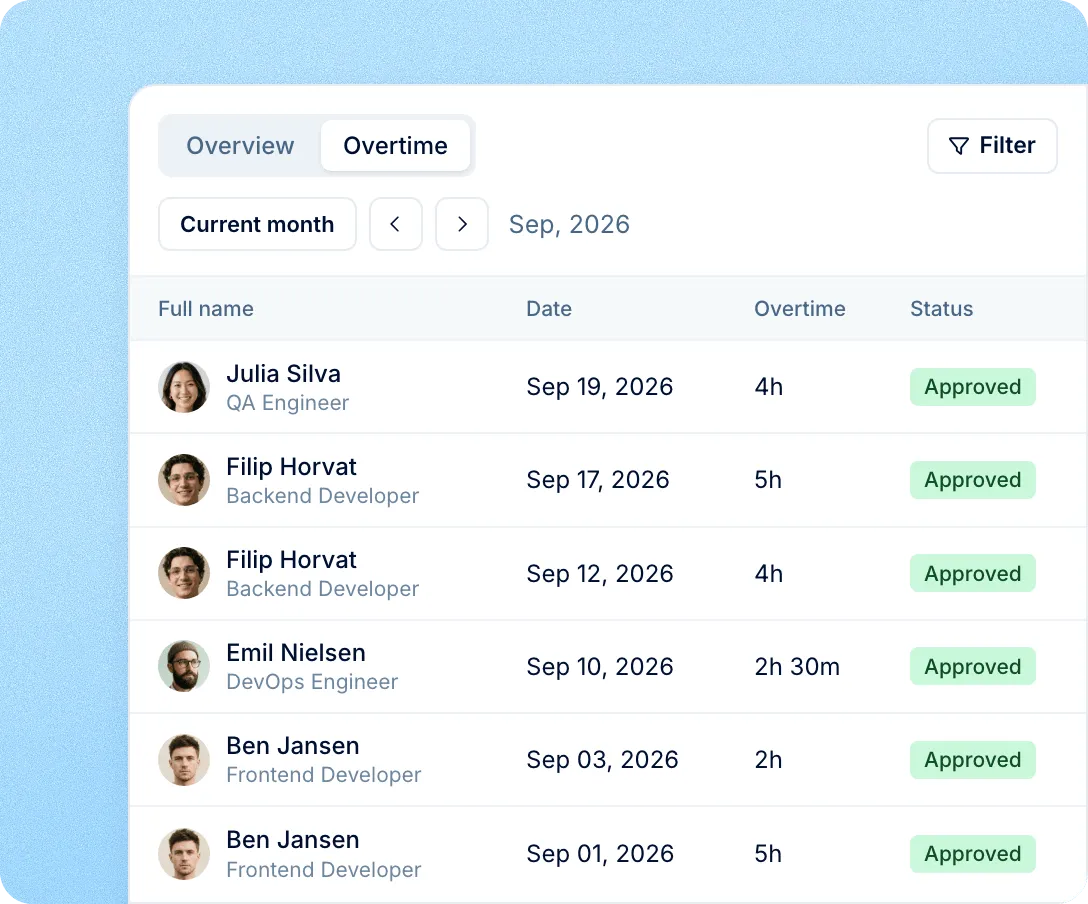
Attendance → Company → Overtime lists the month's approved overtime, filtered by department, location, manager, project or compensation method.
Pending requests stay out of the Overtime totals and the export until they're approved.
Overtime runs on the same people, work patterns and approval chains as the rest of PeopleForce Time, so there's no separate sheet to keep in step.
For employees: requests from the timesheet
The extra time is already filled in. The employee adds the reason and follows the request to its final approval.
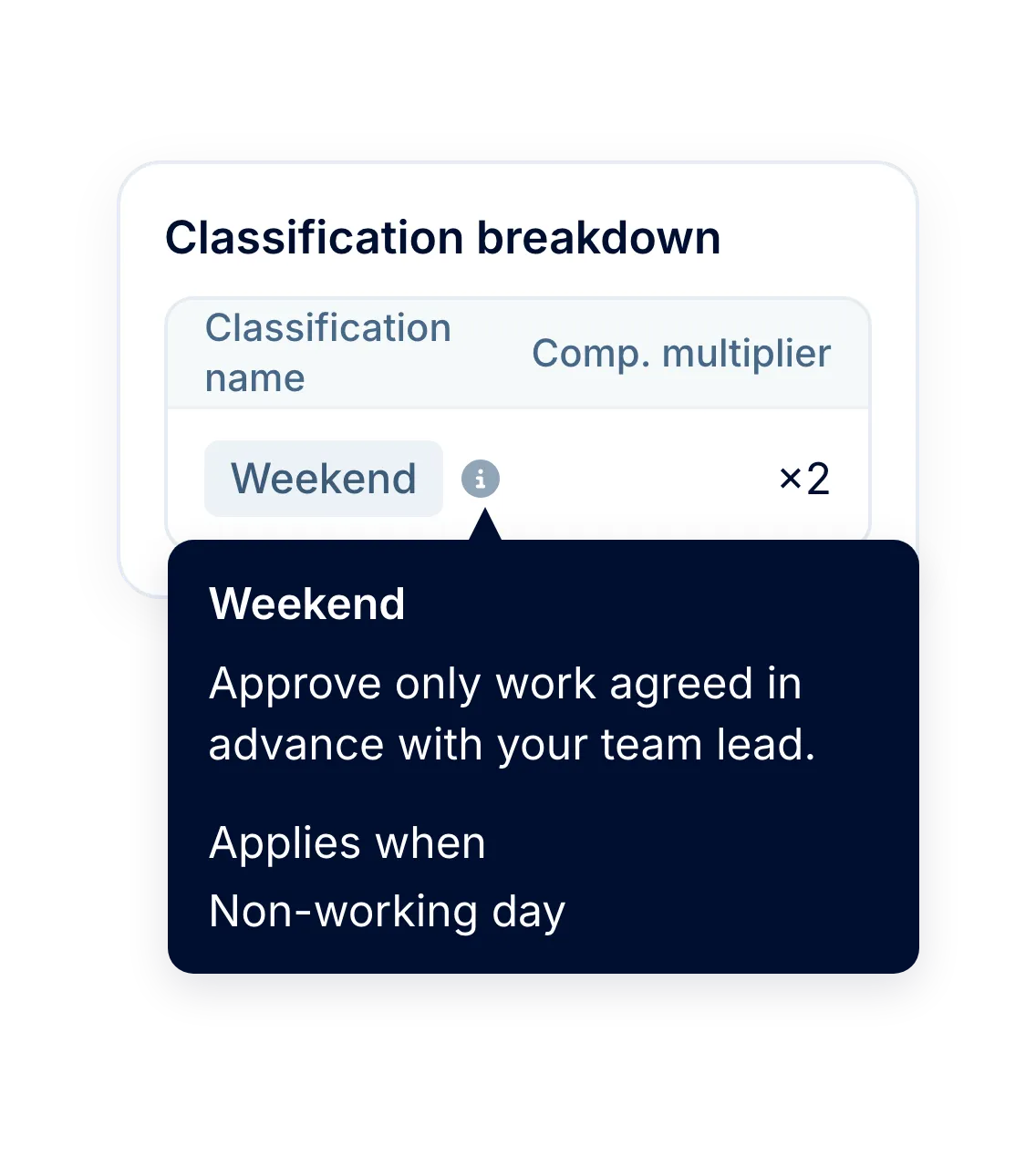
For approvers: the reason and the rate in one place
Each request shows why the work was done, how it splits across overtime types and the instructions for each type.
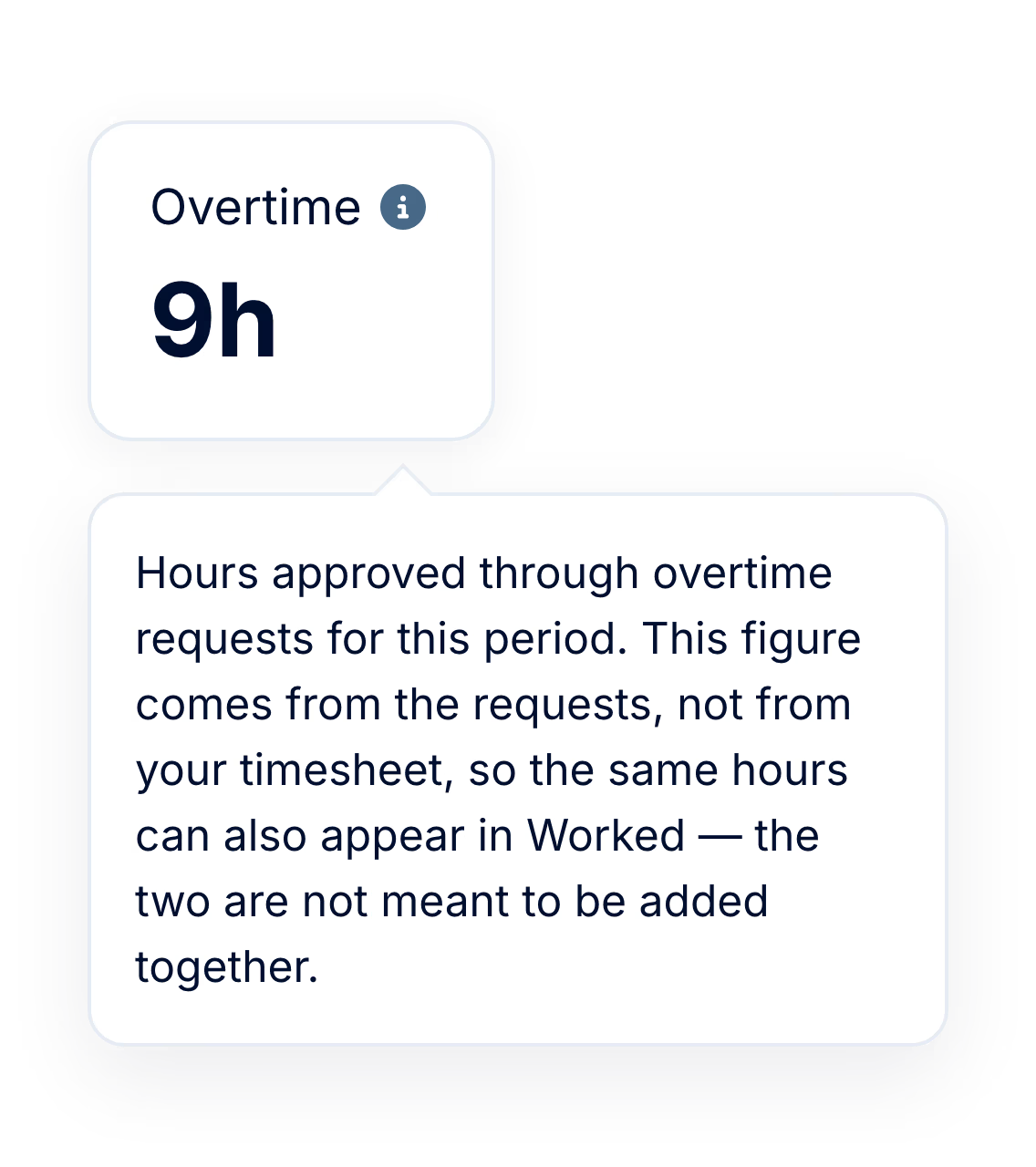
For HR: approved hours only
Totals, the Overtime list and the export count approved requests, and tracking runs only in the locations whose policy has it on.
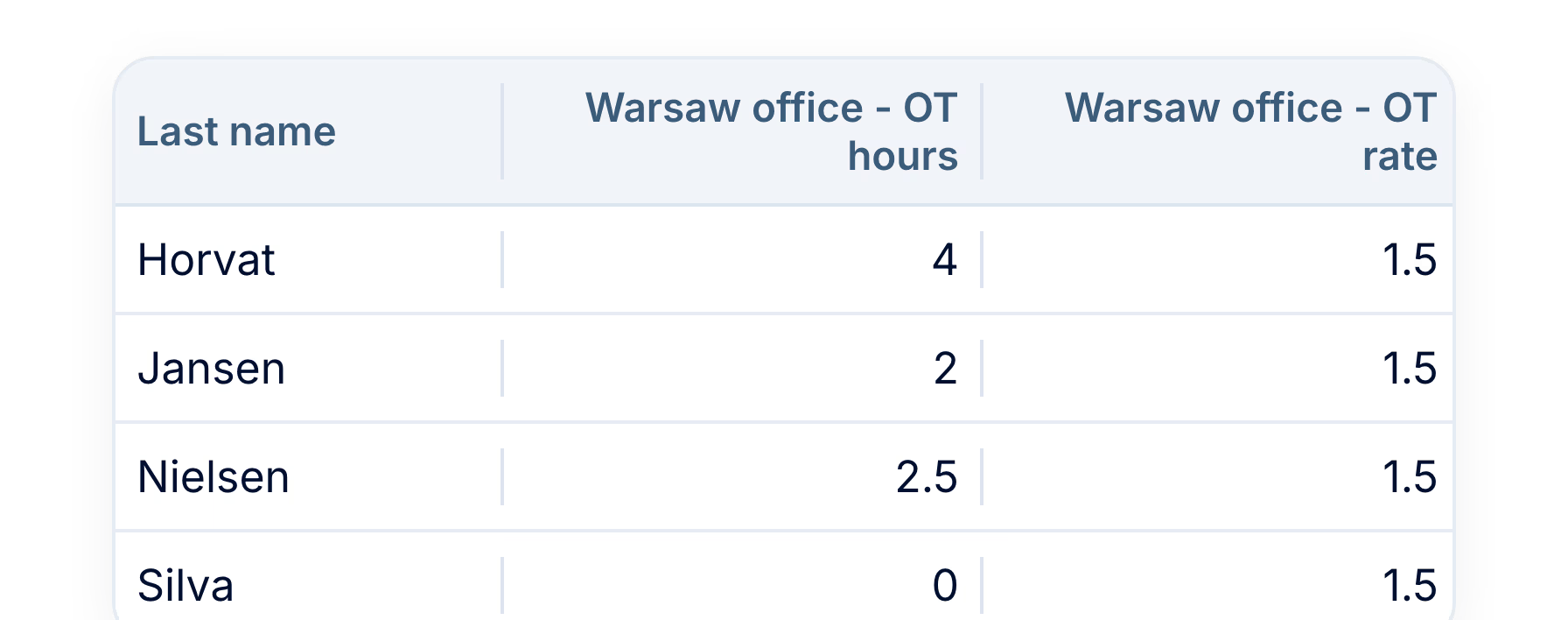
For payroll: hours by rate
Each overtime type has its own hours and rate columns in the attendance export by person or day.
More in PeopleForce
Timesheets, attendance policies, projects and leave decide when extra hours appear and how they are counted.
The month behind every request
One timesheet per employee per month, counted against the work pattern and approved leave, with the Overtime figure next to worked hours.

The month behind every request
One timesheet per employee per month, counted against the work pattern and approved leave, with the Overtime figure next to worked hours.

Leader

Users Love Us

Regional Leader

High Performer
Certifications, granular access and full control over what happens to your data and equipment.


 Best Support
See how an extra hour goes from the timesheet to the payroll export in a short demo.