



How to start
Built into your review cycle
The grid sits on the Insights tab of a manual review cycle, so there’s no separate tool to set up.

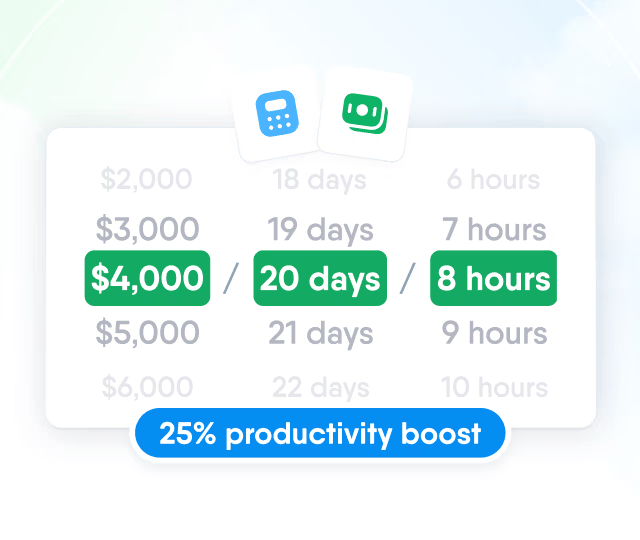
HR efficiency estimator
How does the HR efficiency estimator from PeopleForce work.
Calculate your impact
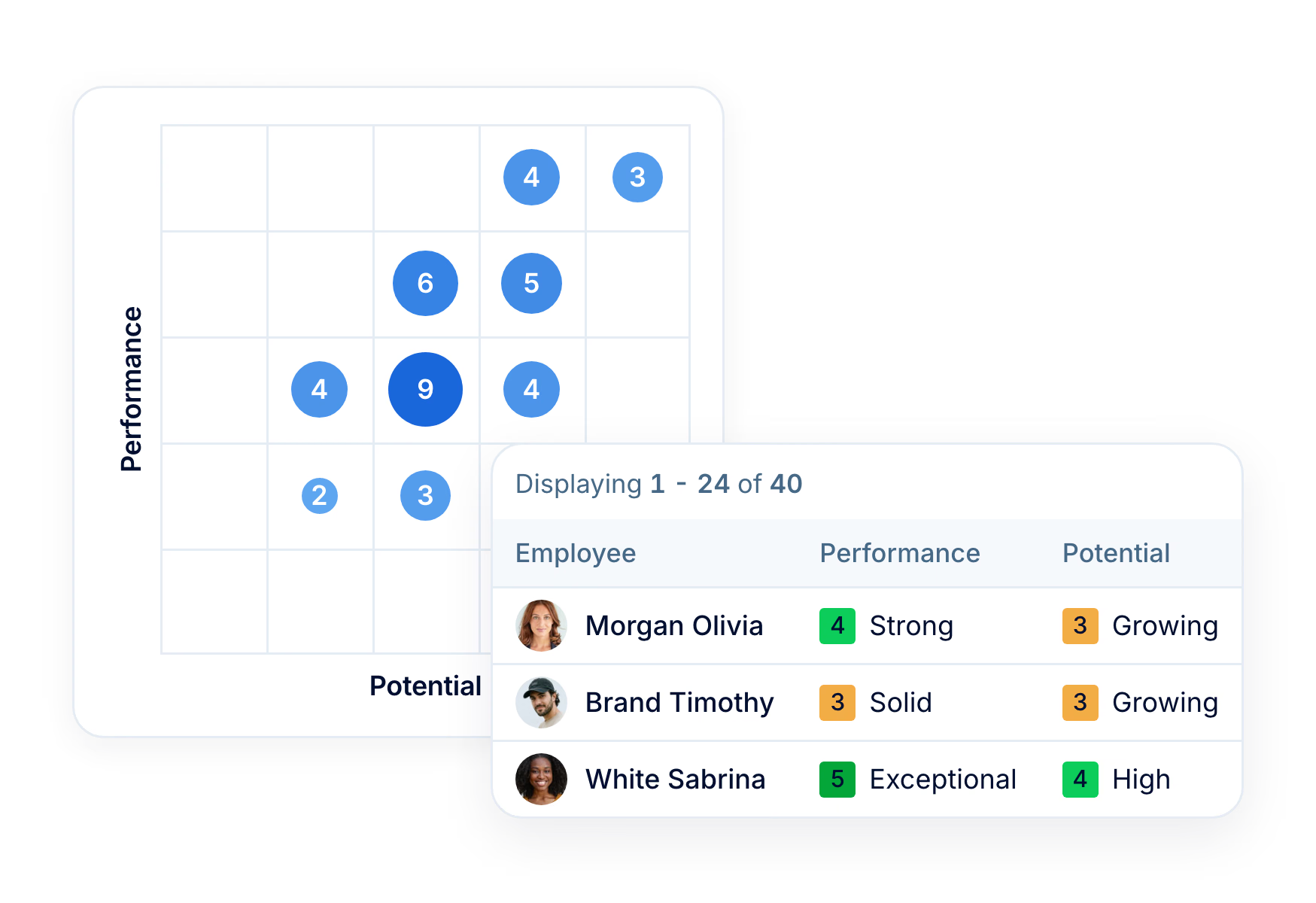
Choose the two questions your leadership wants to compare, and the grid places each person according to their manager’s answers, so your calibration session can focus on the people you still need to agree on.
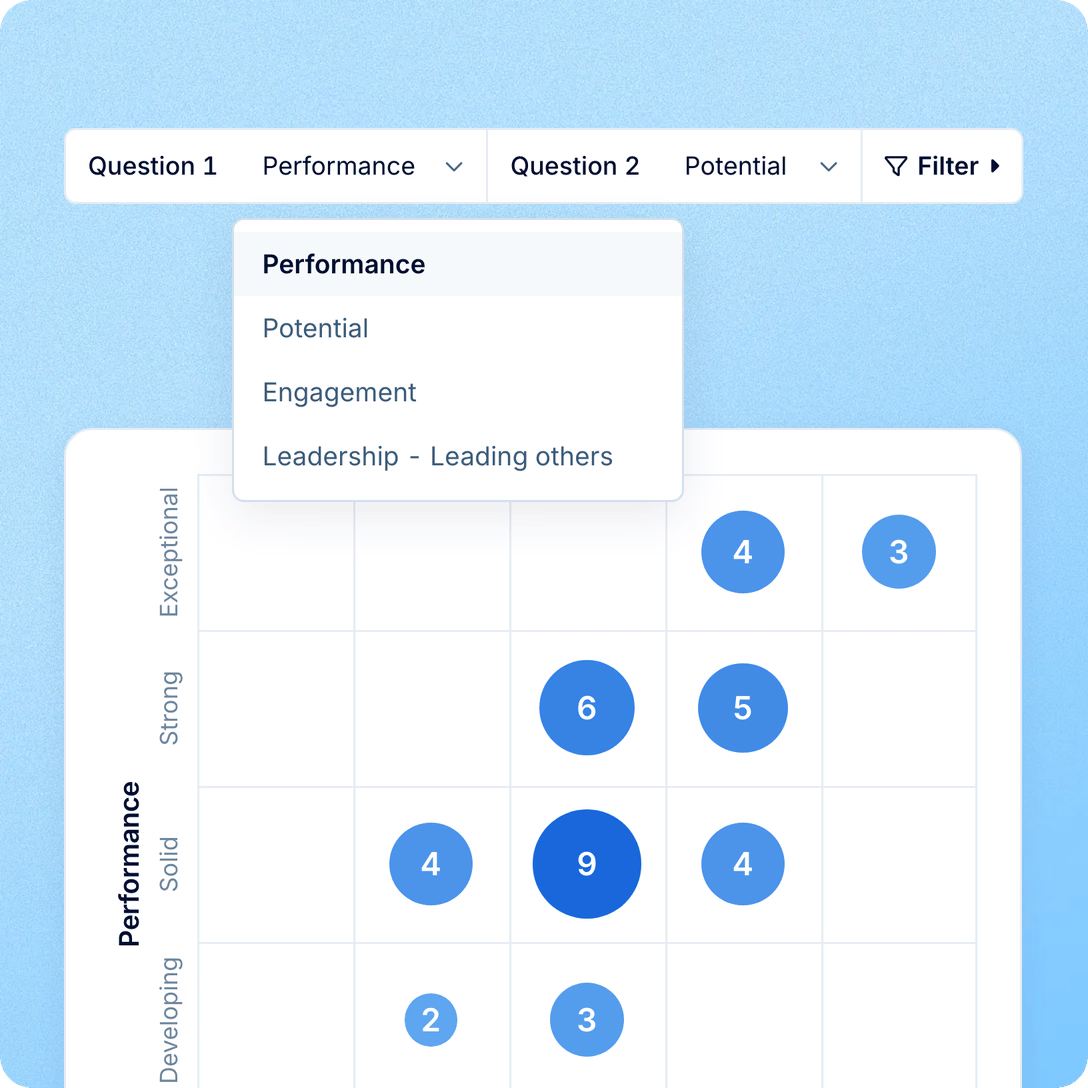
Axes
Performance against potential is the classic comparison, but your leadership may want a different one, such as whether your strongest performers are also the people managers rate as most engaged, or where leadership potential sits. Put any two rating or competency questions from the Manager reviewer’s question template on the axes and read the answer off the grid.
In the session
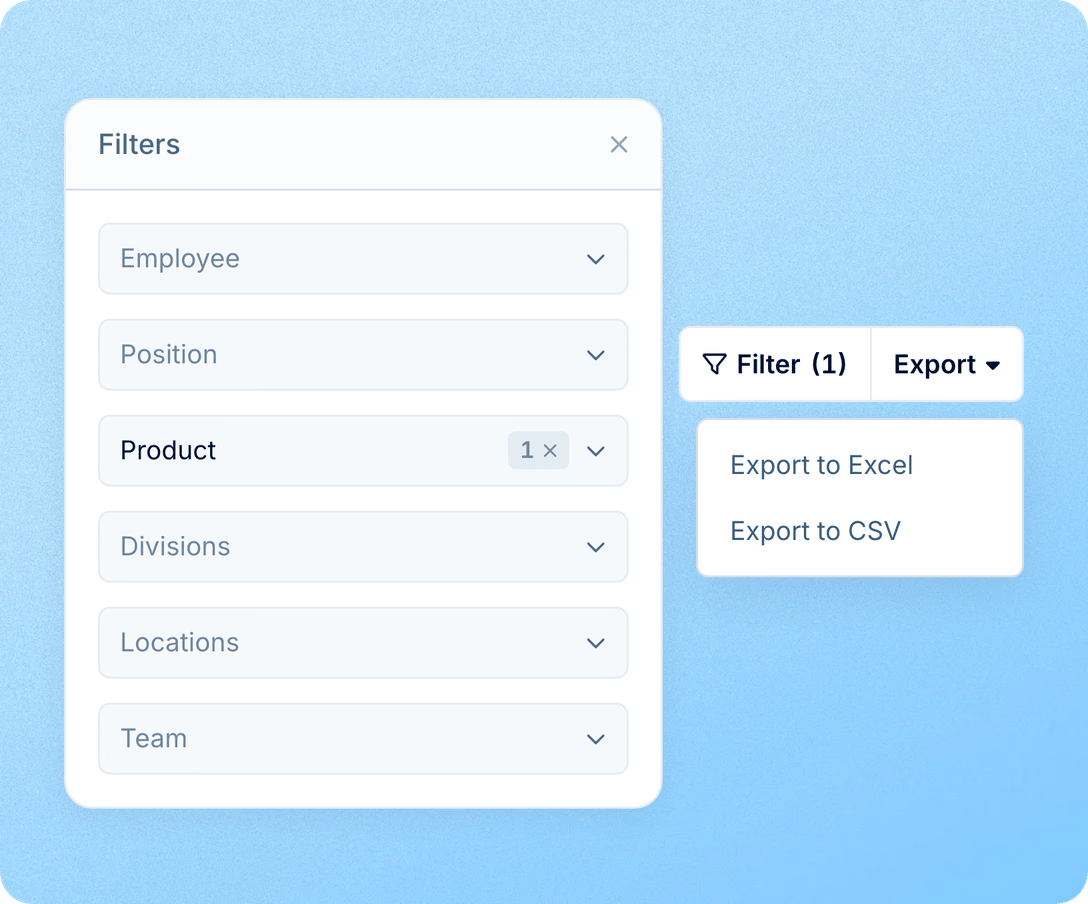
A calibration session rarely covers the whole company at once. Narrow the grid to the people you’re discussing, and export that same list for the session.

Narrow to one team, department, division, location, position or person, and both the grid and the table update.
See each person with their manager and both answers in the table under the grid.
Export the filtered list to Excel or CSV, every page included.
How to start
The grid sits on the Insights tab of a manual review cycle, so there’s no separate tool to set up.
Add a Manager reviewer
Include managers among the cycle's reviewers and give them a question template.
Use rating or competency questions
Any rating or competency question in the Manager reviewer's question template can become an axis.
Publish the cycle
Once the cycle starts, its Insights tab fills in as managers answer.
Choose the two questions
On the Insights tab, set Question 1 and Question 2 as the axes.
More in Perform
The calibration grid is one part of how people grow at your company. Perform also covers feedback, recognition, development plans and competencies.
Employee feedback
Give and request feedback, with visibility chosen on every note.

Beyond the features
You go live in weeks and can add the rest of HR when you’re ready.

Live in up to four weeks
A dedicated success manager guides your setup, and it’s included in your plan at no extra cost.
Support in your language
Real people on our support team answer, with a first reply in about two minutes and 98% satisfaction.
Room to grow
Start with Core HR and add Recruit or Perform later, all on the same employee record.

Leader

Users Love Us

Regional Leader

High Performer
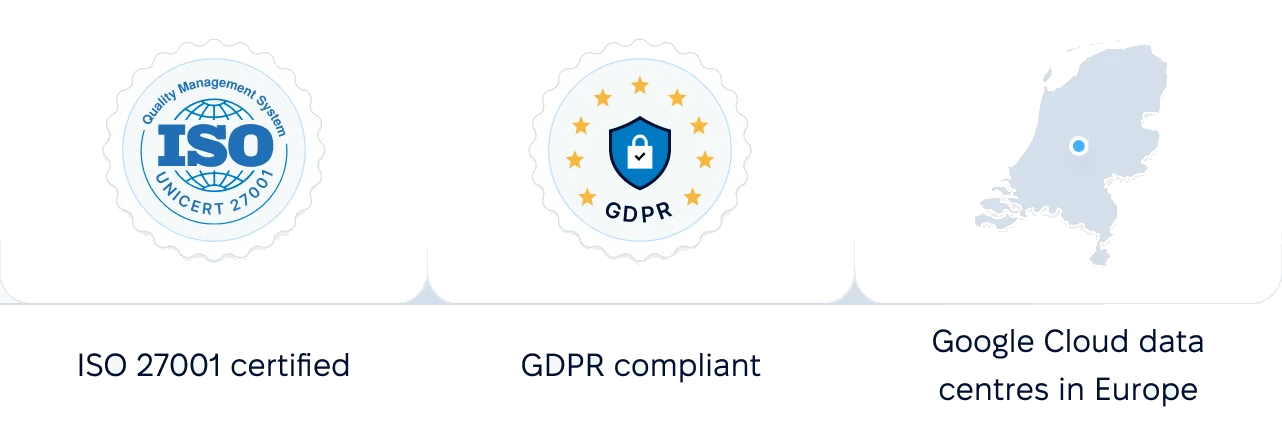
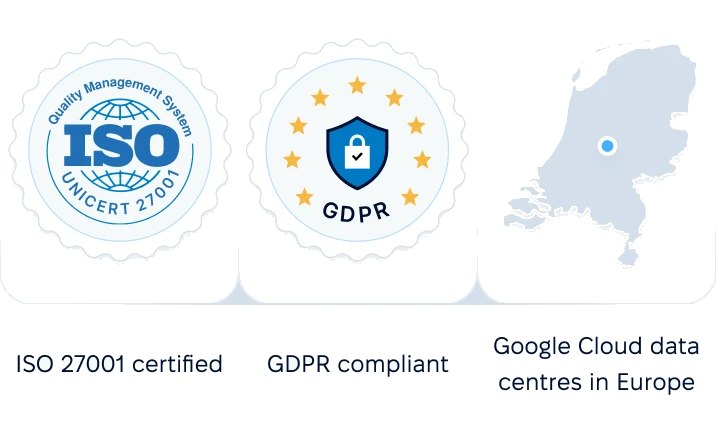
Certifications, granular access and full control over what happens to your data.
 Best Support
We’ll walk you through the grid with an example that matches your teams.