



The attendance policy sets
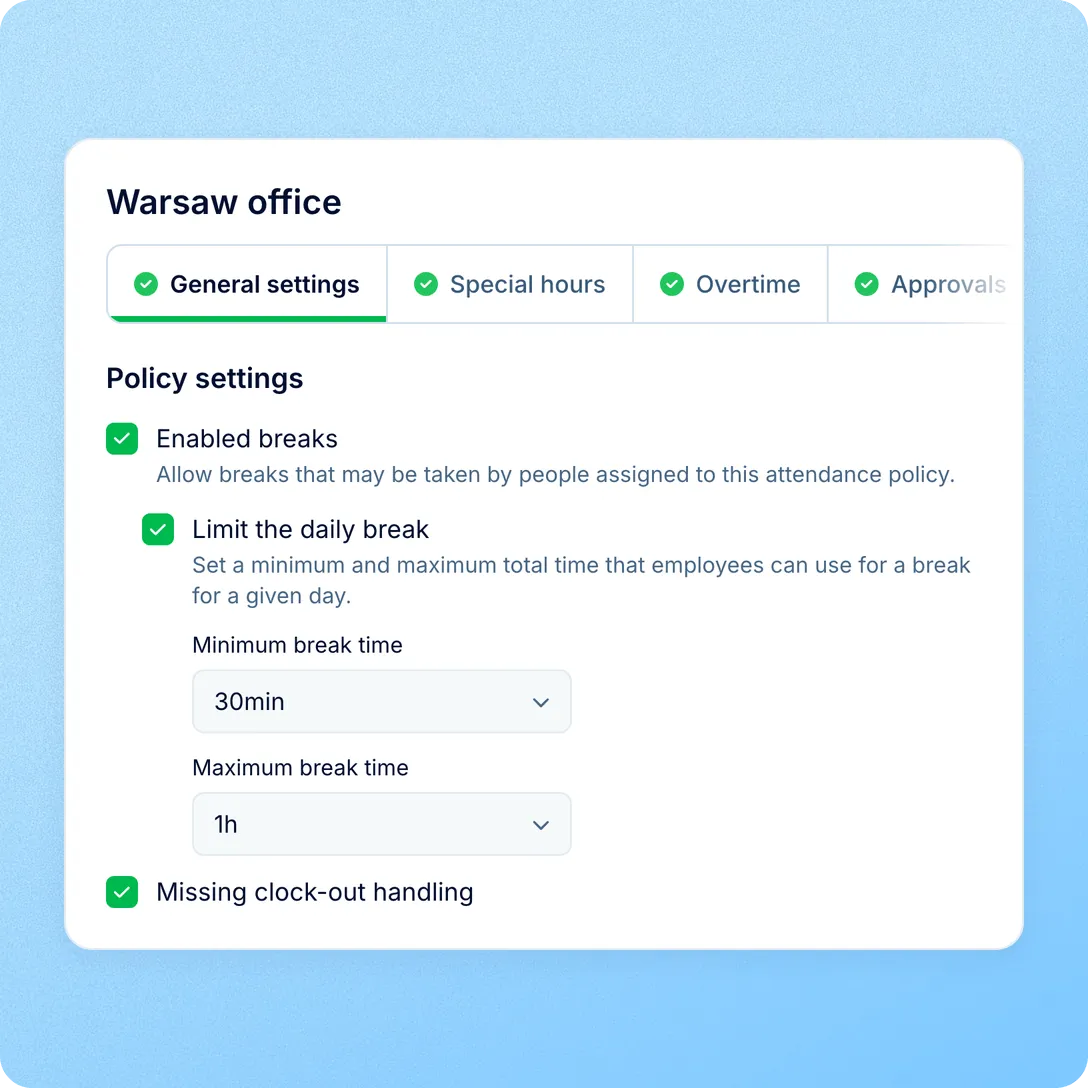
- Breaks and their daily limits.
- Autofill, early submission and required fields.
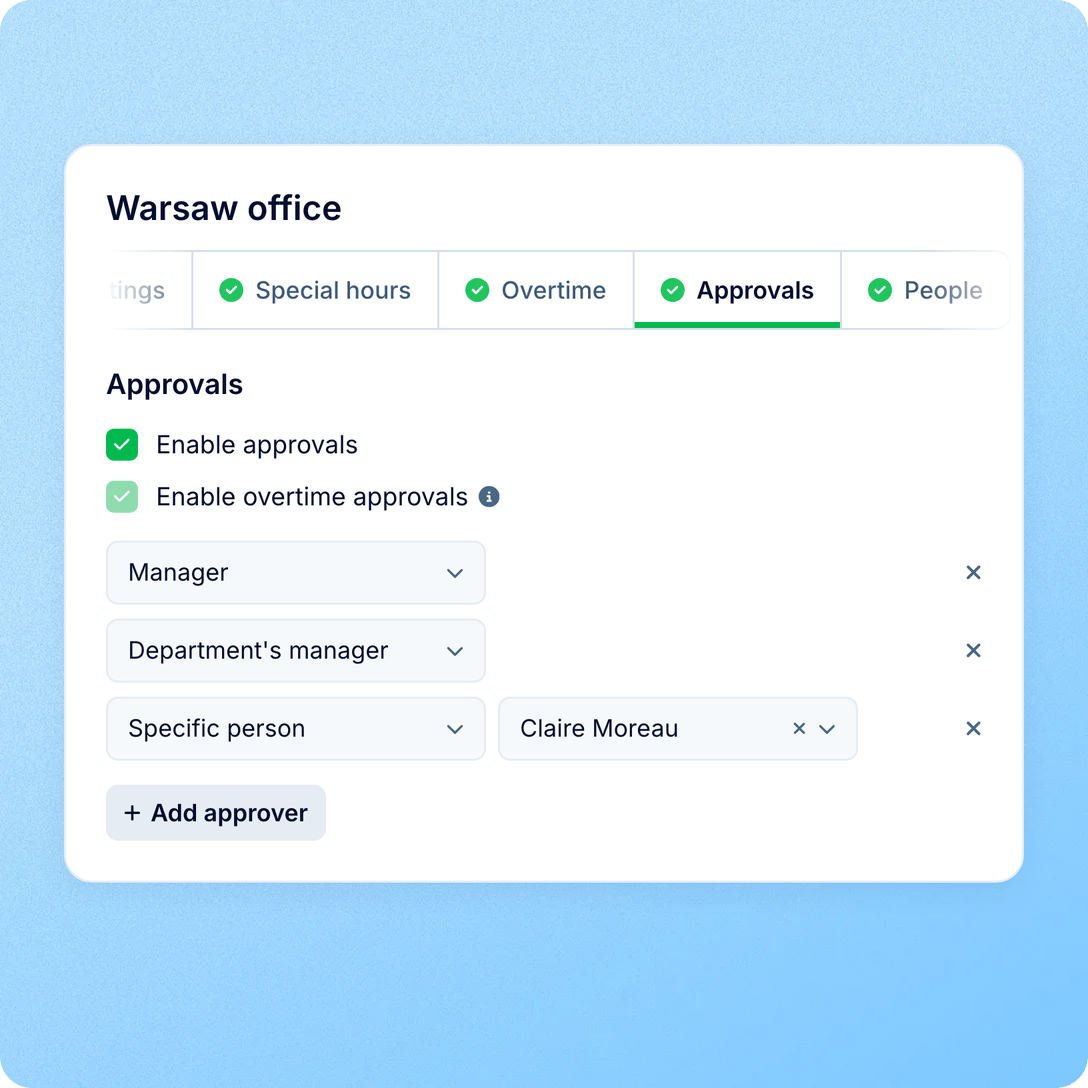
- Who approves the month, and their substitutes.
- Overtime tracking and special hours.

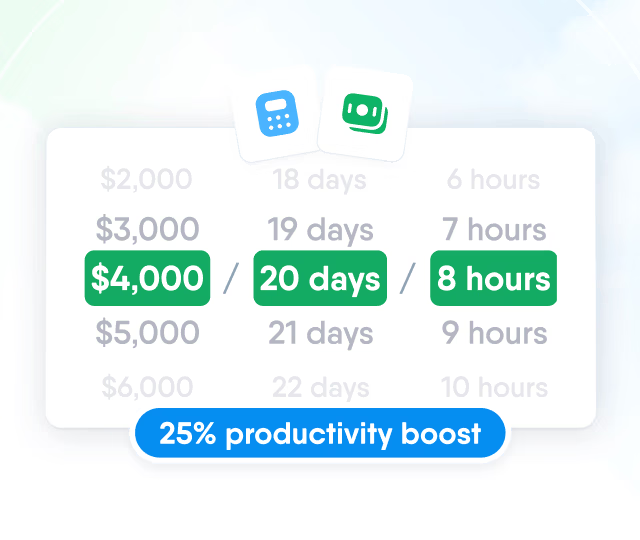
HR efficiency estimator
How does the HR efficiency estimator from PeopleForce work.
Calculate your impact
Every office has its own rules for breaks, projects and who signs off the month. Set them once in an attendance policy, and everyone at those locations works to the same settings. The rules that apply are checked when entries are created, autofilled or completed, not at month end.
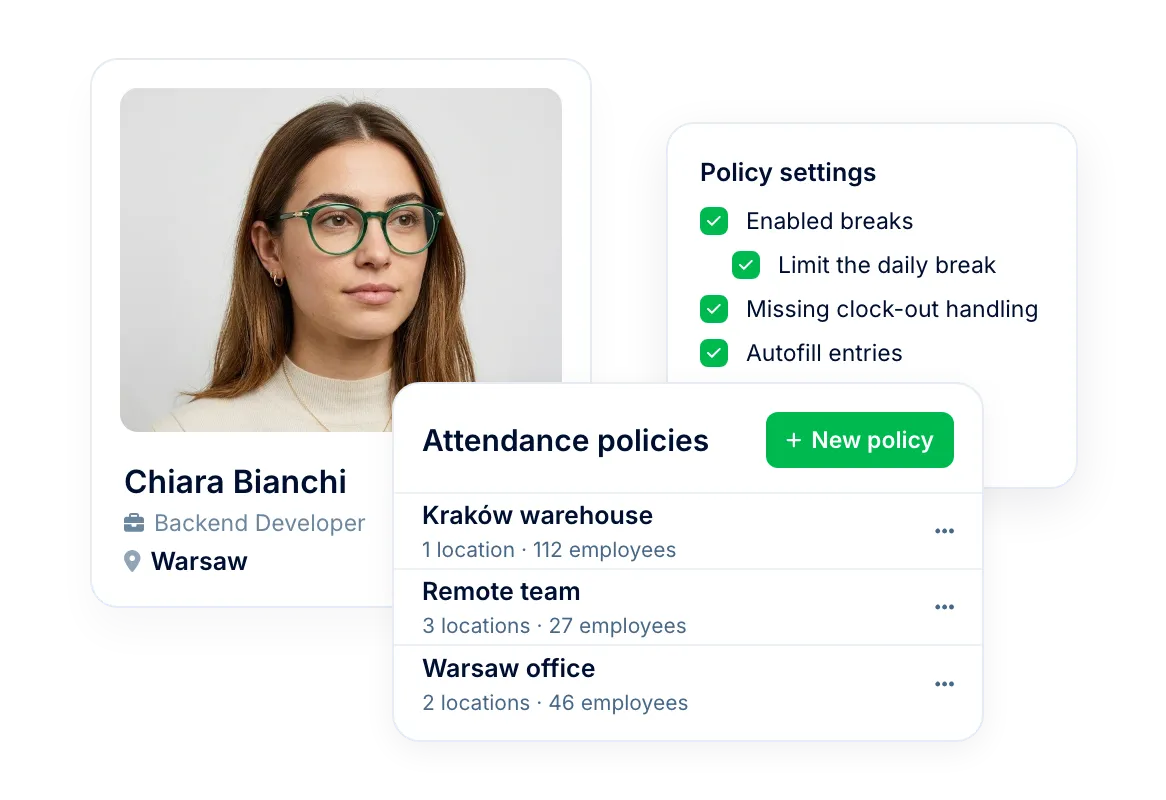
How it works
A policy is a short wizard. When you complete it, the people it covers get Attendance with your rules already in place.
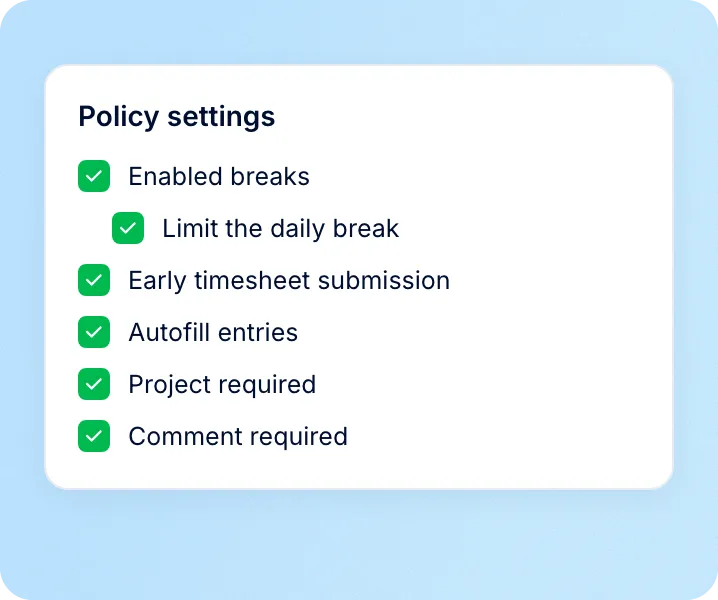
Set how time is recorded
Turn on breaks and their daily limits, autofill, early submission, and the fields every entry needs.
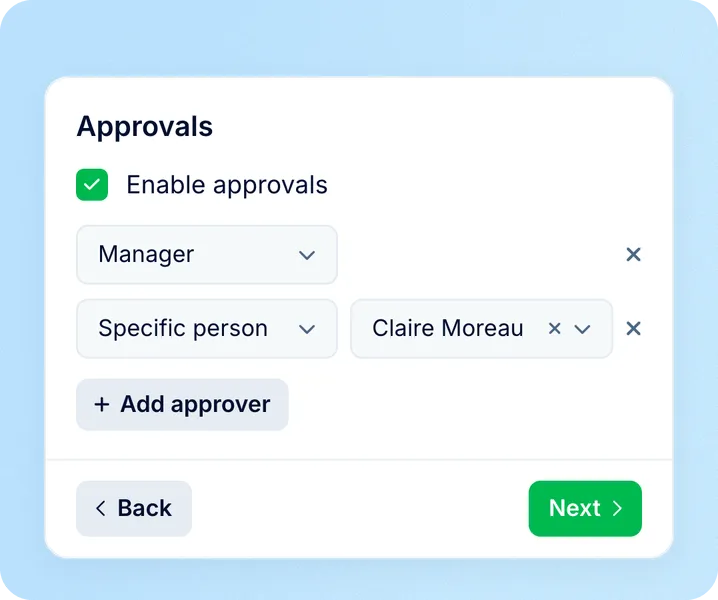
Name the approvers
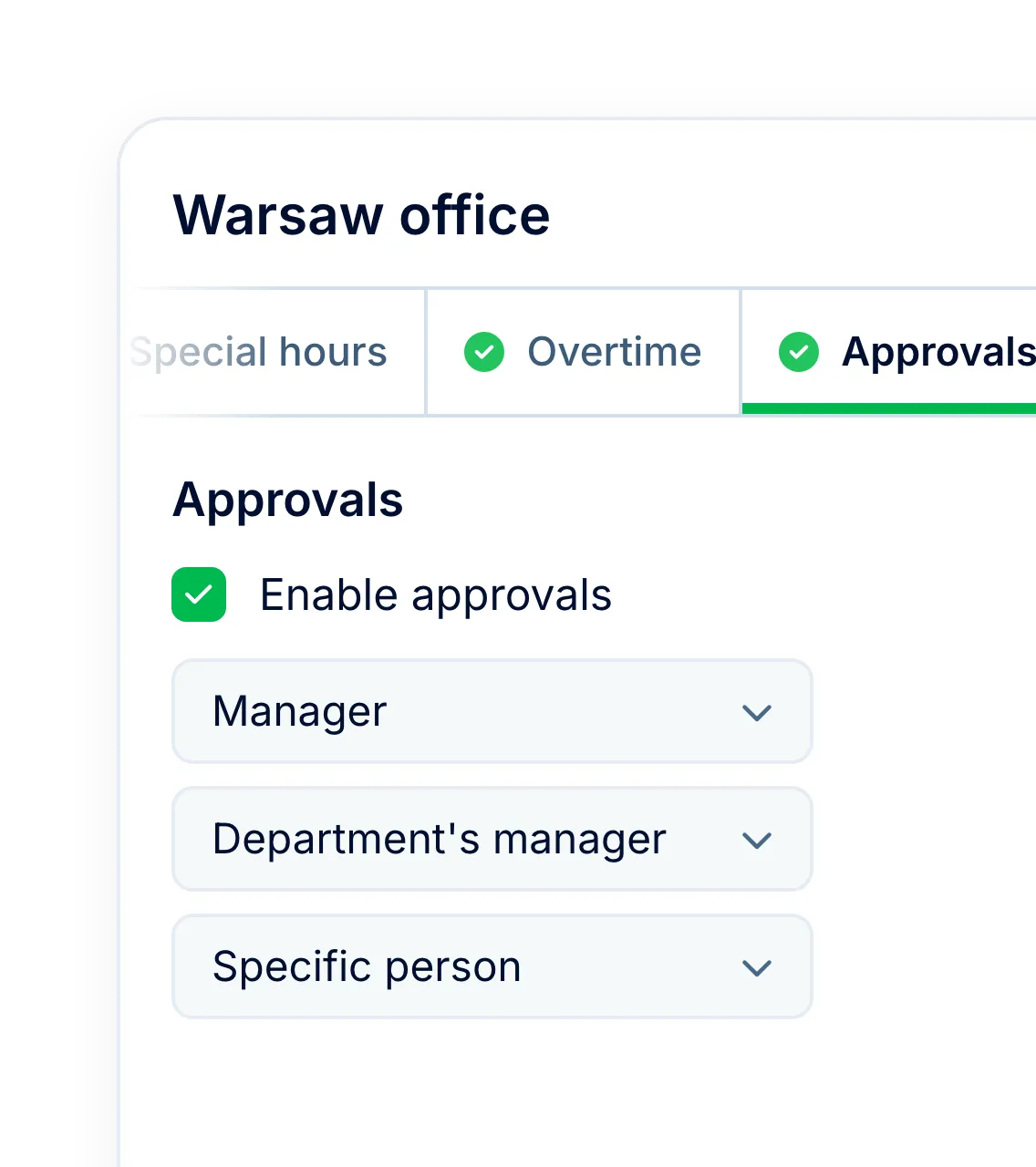
Decide whether a submitted month needs approval and who signs it off, in order.
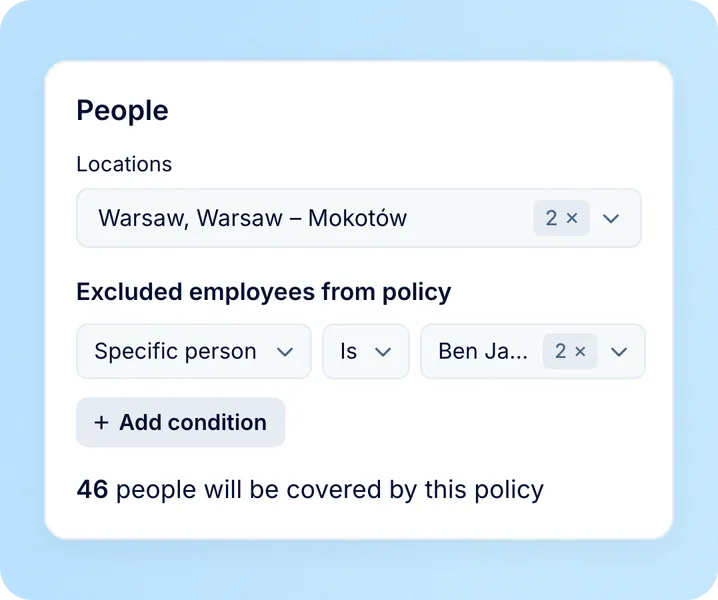
Choose who it covers
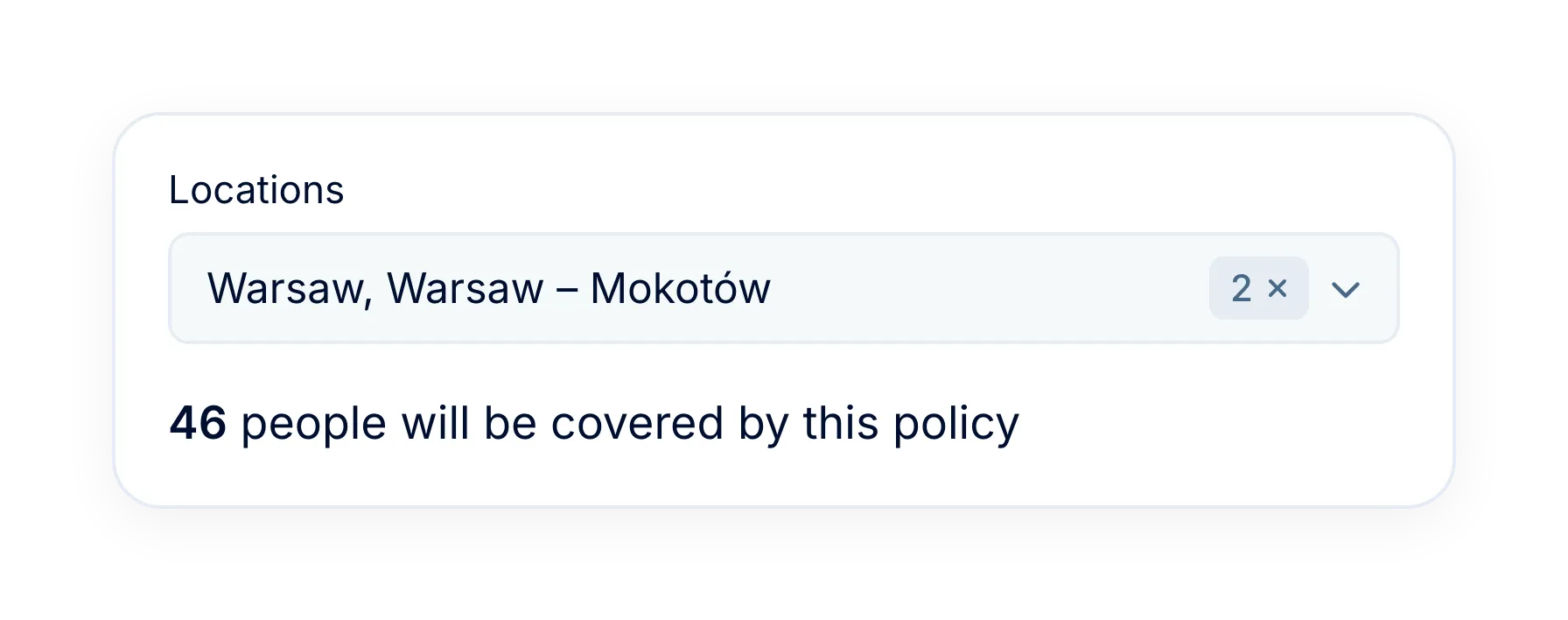
Pick the locations the policy applies to and leave out anyone who shouldn't track time. The count shows how many people it will reach. Complete the wizard and the policy starts applying.
Recording rules
Rules kept in a handbook get applied differently by every manager, and the gaps show up at month end, when payroll is already waiting. In an attendance policy they're part of the timesheet itself. The Time tracker, manual entries and autofill all work from the employee's policy.
Approvals
A month waiting on one person on holiday holds up everyone behind them, and payroll with them. Name the approvers once in the policy, step by step, and decide in advance what happens when one of them is out.
Policies and work patterns
A common setup question is how to give part-time staff their own policy. Usually they don't need one. The policy sets how time is recorded, and each person's work pattern sets how many hours are expected, so people on different hours can share the same rules.
Missing clock-outs
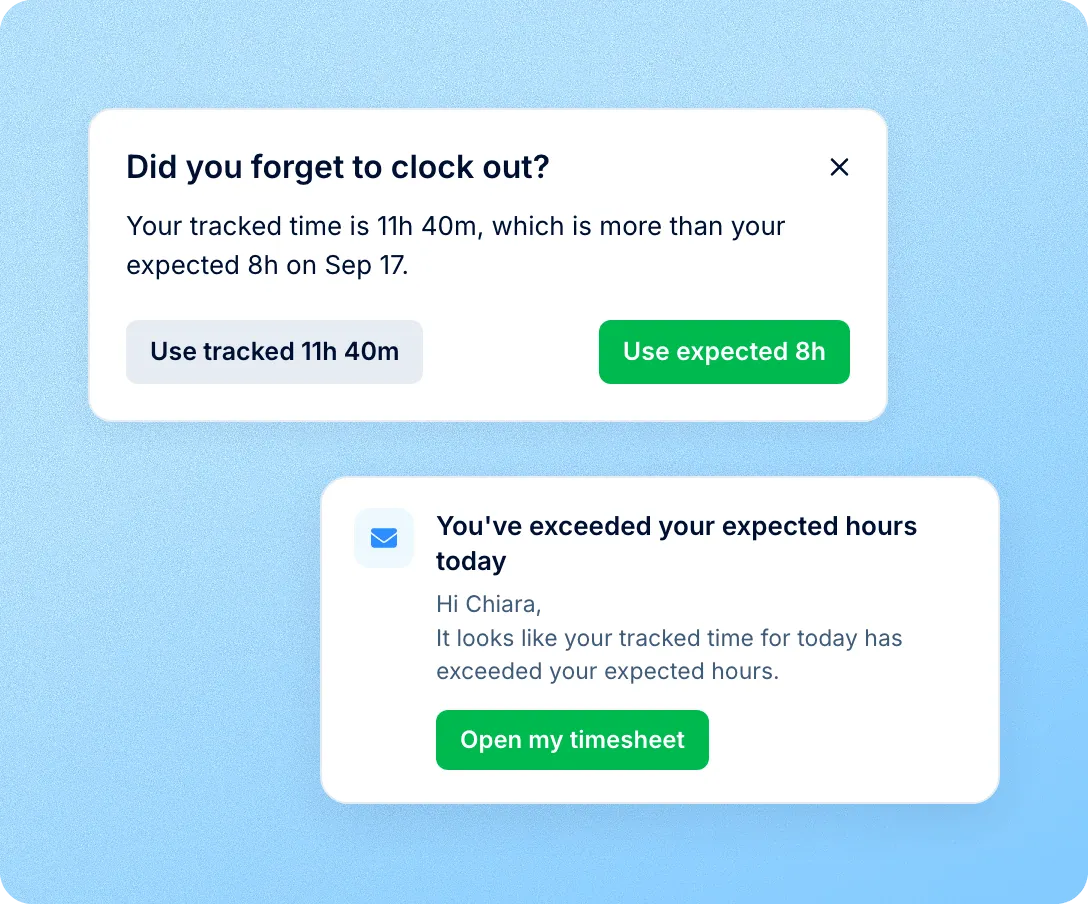
A timer left running overnight becomes a working day nobody worked, and someone in HR has to spot it and fix it by hand. Turn on Missing clock-out handling, and once a shift passes the person's expected hours, they get an email and a push notification while it's still open. Policies with overtime tracking on get the same check. At clock-out on the web, they keep either the expected end time or the time tracked. Where overtime tracking is on, keeping the tracked time also opens an overtime request for the extra time. The entry reaches reports only after they confirm.
Overtime and special hours
A warehouse on night shifts and an office on day hours rarely need the same settings. Overtime tracking and special hours are switched on per policy, so each location gets only the rules it uses. With overtime on, employees request extra hours and the requests go through the policy's approvers. Special hours mark time worked in a set window, such as 22:00 to 06:00, with its own rate and no request needed.
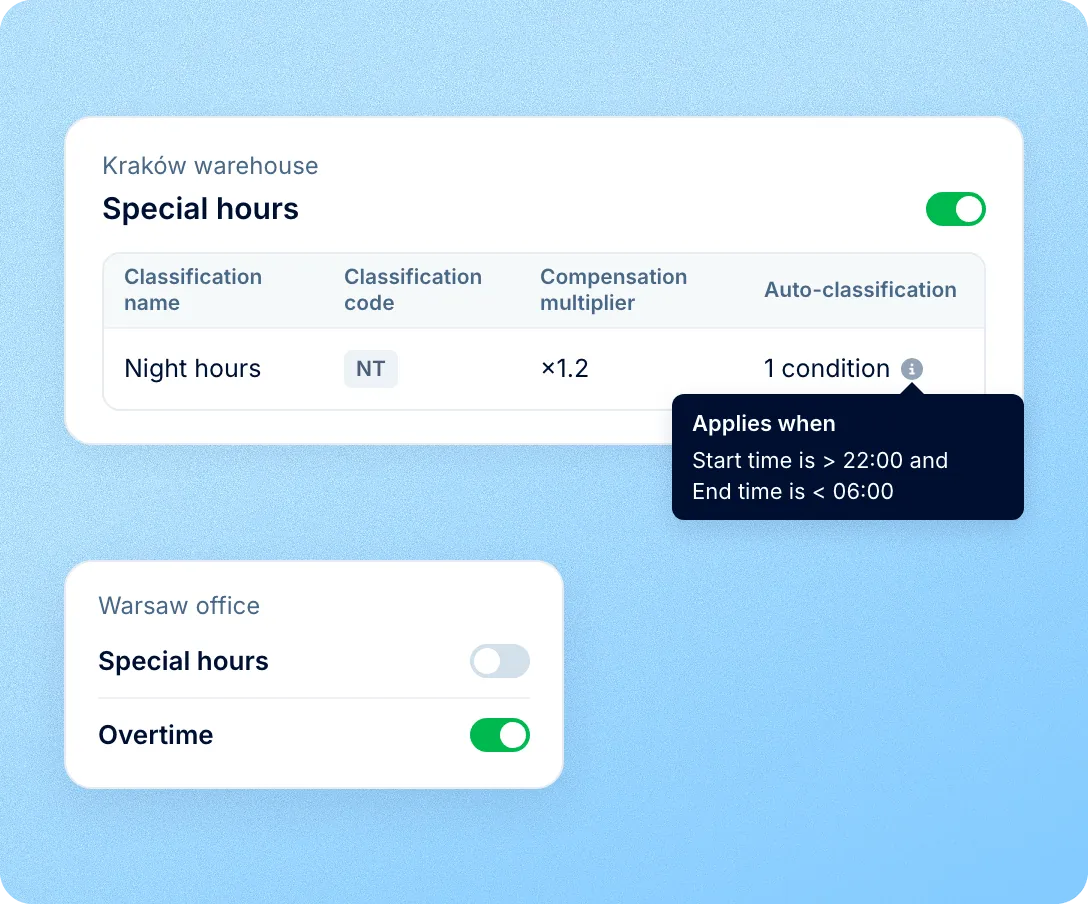
An attendance policy is what switches Time on for people: those it covers get Attendance, the rules it holds and the approvers it names.
Coverage check before publishing
The People step counts the active people currently matched by the selected locations and exclusions, so you know who gets Attendance before anyone asks why they don't.
Exclusions for people who don't track time
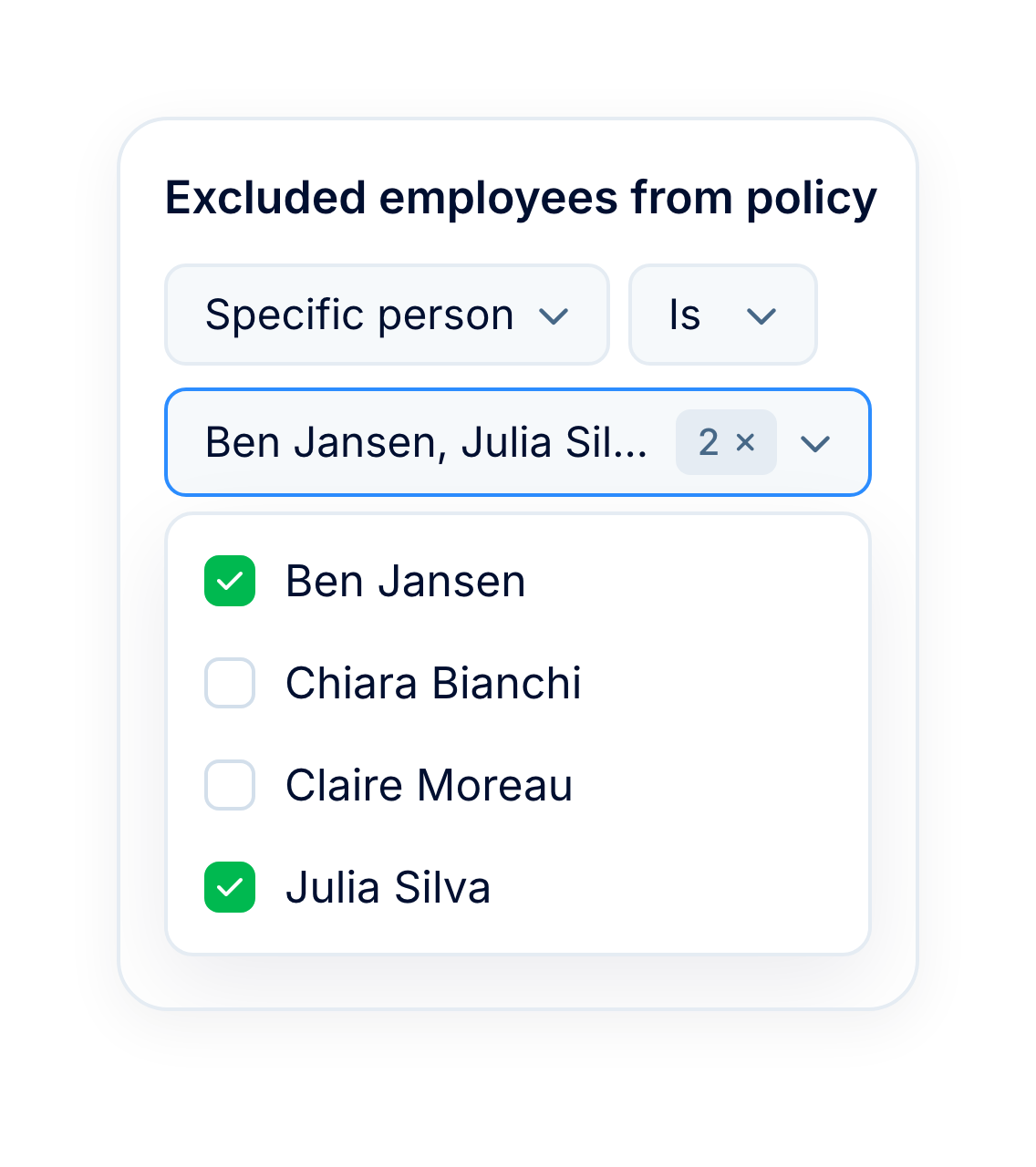
Leave specific people off a policy, such as board members or field sales, while everyone else at their location keeps it.
Changes to one step at a time
Once a policy is published, every step opens on its own, so updating breaks or approvers means one change, not the whole wizard again.
Separate rules for each group of locations
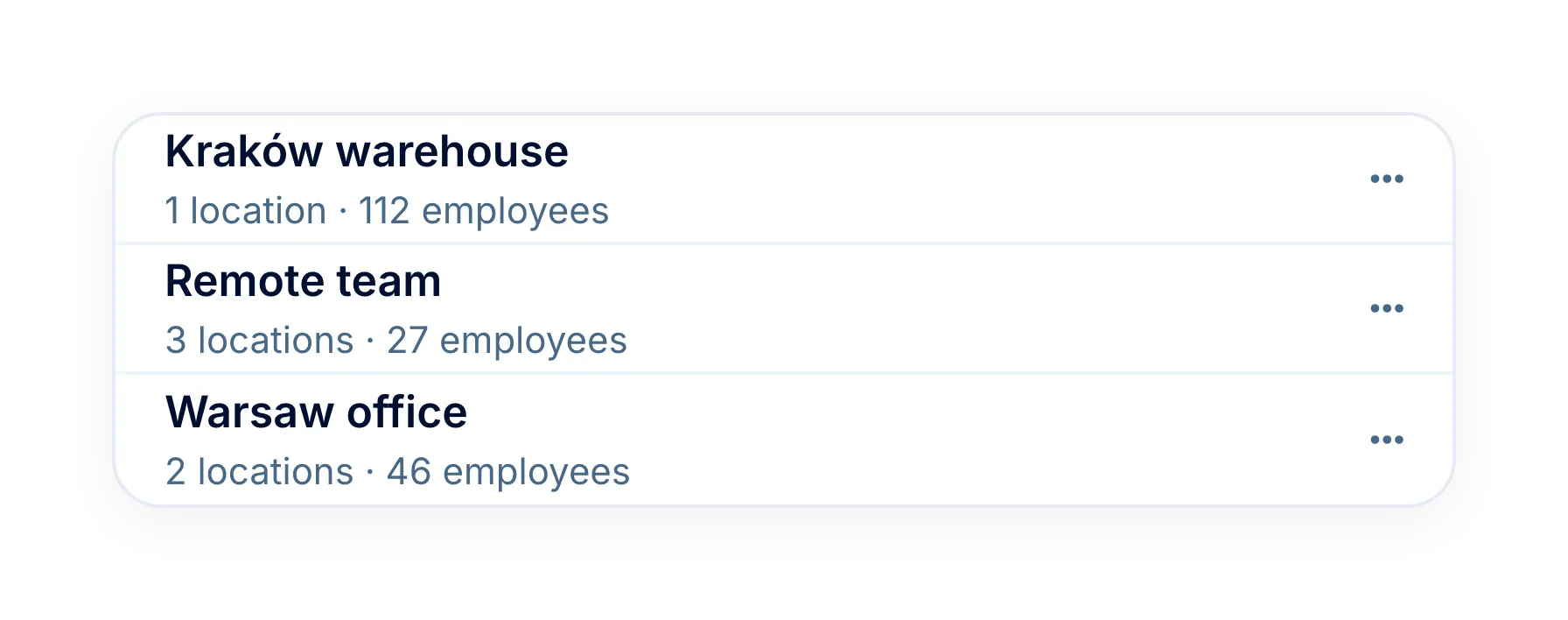
Create a policy for each office, warehouse or country, with its own settings and approvers.
More in Time
The rules you set in a policy carry into timesheets, overtime requests and project hours.
Monthly timesheets with approvals
Employees clock in and out or add entries through the month, then submit it, and it goes to the approvers named in their policy when approvals are on.

Monthly timesheets with approvals
Employees clock in and out or add entries through the month, then submit it, and it goes to the approvers named in their policy when approvals are on.

Leader

Users Love Us

Regional Leader

High Performer
Certifications, granular access and full control over what happens to your data and equipment.


 Best Support
In a demo, we'll build an attendance policy with you: the locations it covers, breaks and required fields, missing clock-out handling, approvers and overtime.