



Group by Project
- One row per project, with its project code.
- Worked and break hours for the month.
- Approved overtime logged on the project.

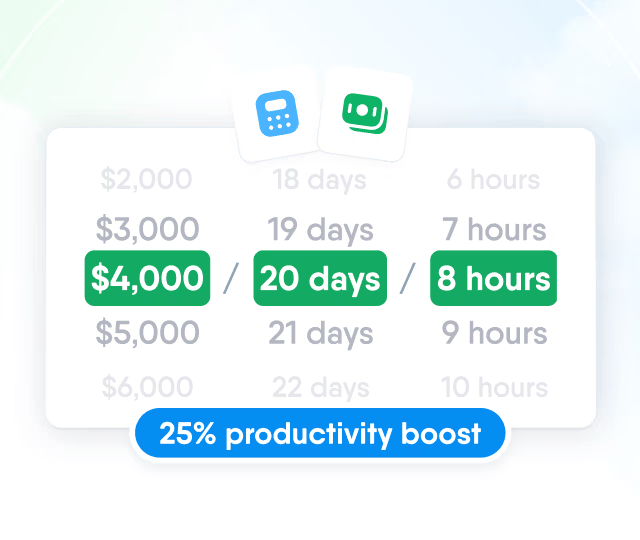
HR efficiency estimator
How does the HR efficiency estimator from PeopleForce work.
Calculate your impact
Know where working hours go, project by project, without collecting spreadsheets at month end. Employees pick one of their assigned projects when they clock in or add an entry, and each project's monthly hours are ready to review and export.
How it works
Set projects up once. From then on, each entry carries the project picked when it's logged, so there is nothing to sort out later.
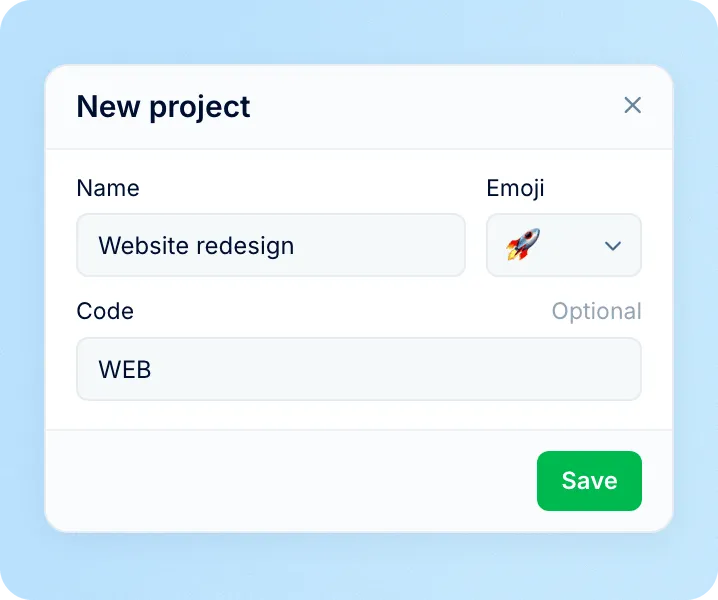
Create projects and assign people
Add a project with a name and an emoji, plus a code and a description if you use them, then assign the employees who work on it.
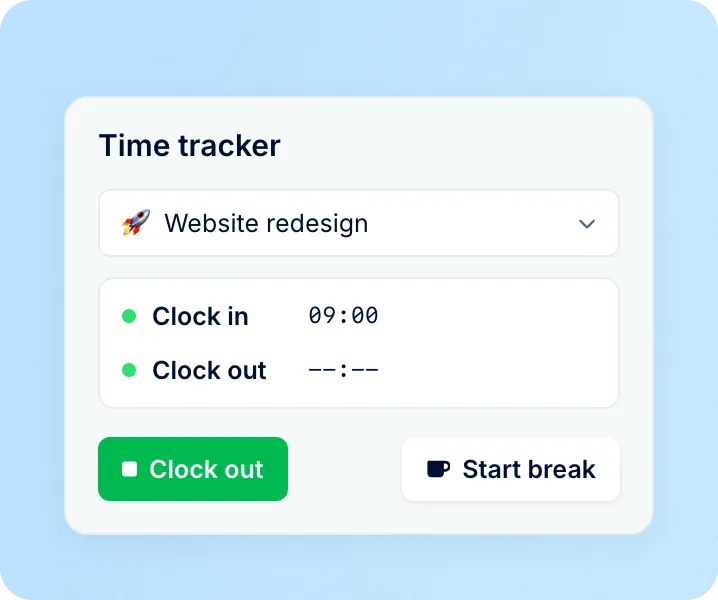
Clock in to a project
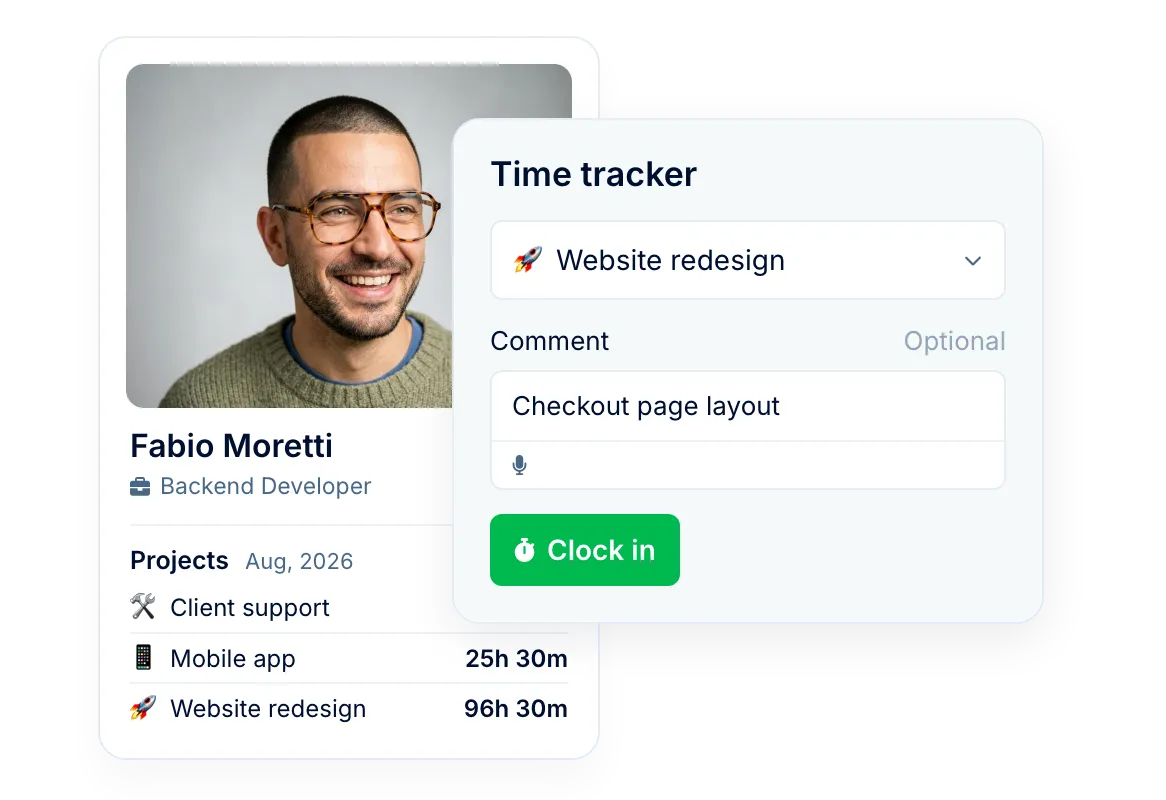
Employees pick one of their projects in the Time tracker before Clock in, or on an entry they add for a past day.
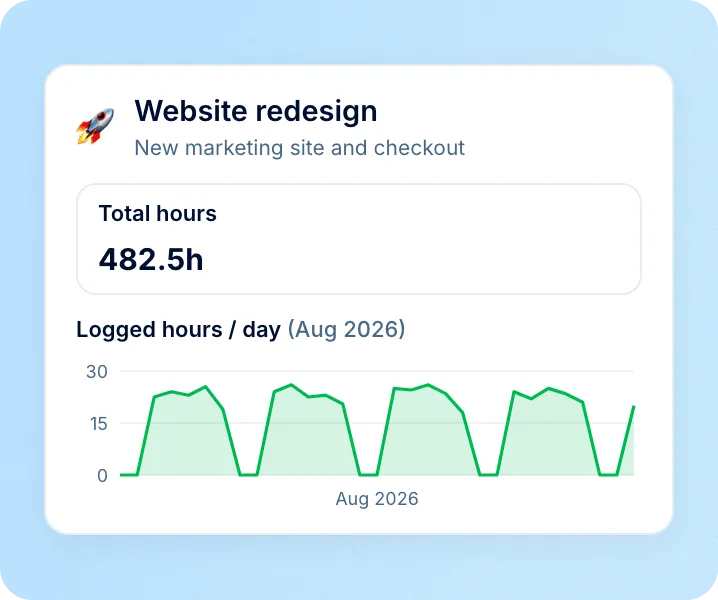
Review hours per project
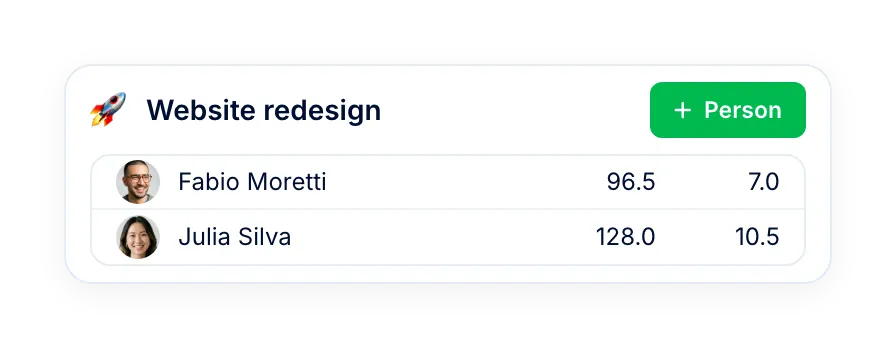
Each project has a monthly view with the hours logged per day and each person's worked and break hours.
Project hours
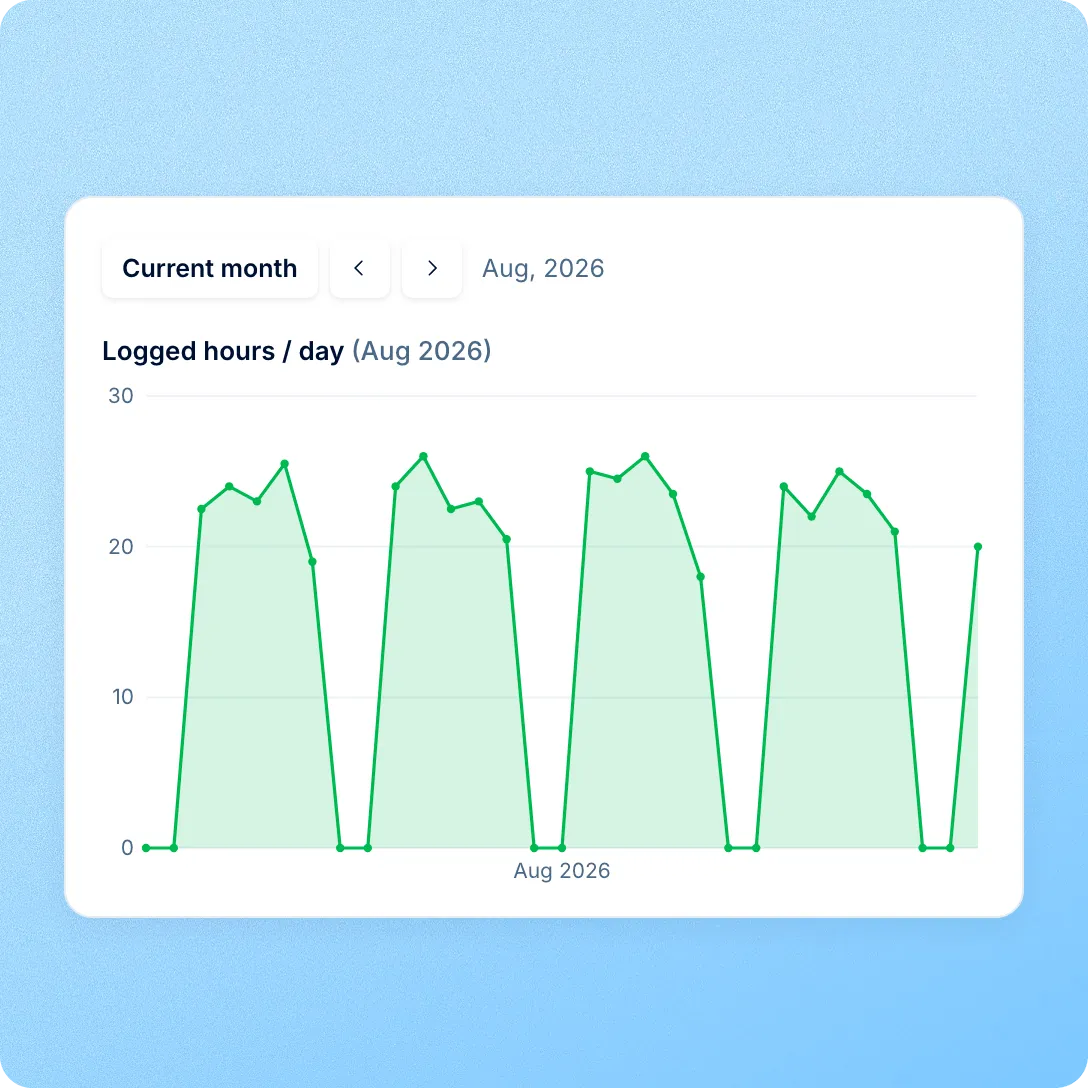
When project time lives in spreadsheets and chat, the start of every month goes on chasing team leads for numbers that rarely match attendance. Here each project has its own monthly page, built from the timesheets people already fill in.
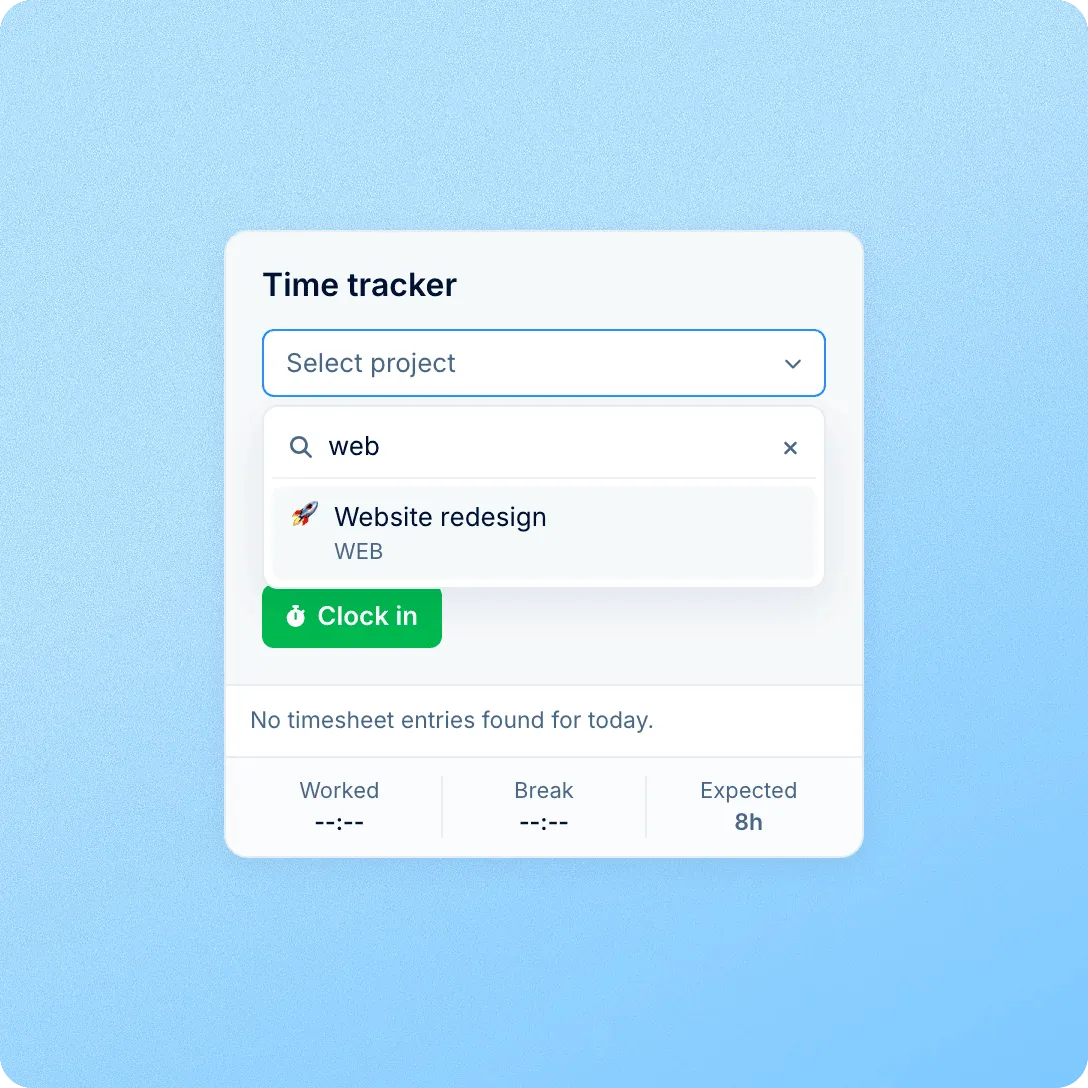
Logging time
Hours pieced together at the end of the week tend to come out rounded and incomplete. When the project is picked at clock-in, the record is right from the first minute. Employees see only the active projects they're assigned to, and can search them by name or code.
Export
Each of them needs the same numbers in a different shape. Export a month of attendance to Excel or CSV, grouped by project for totals or by entry for detail, and nobody retypes hours from one file into another.
Attendance policy
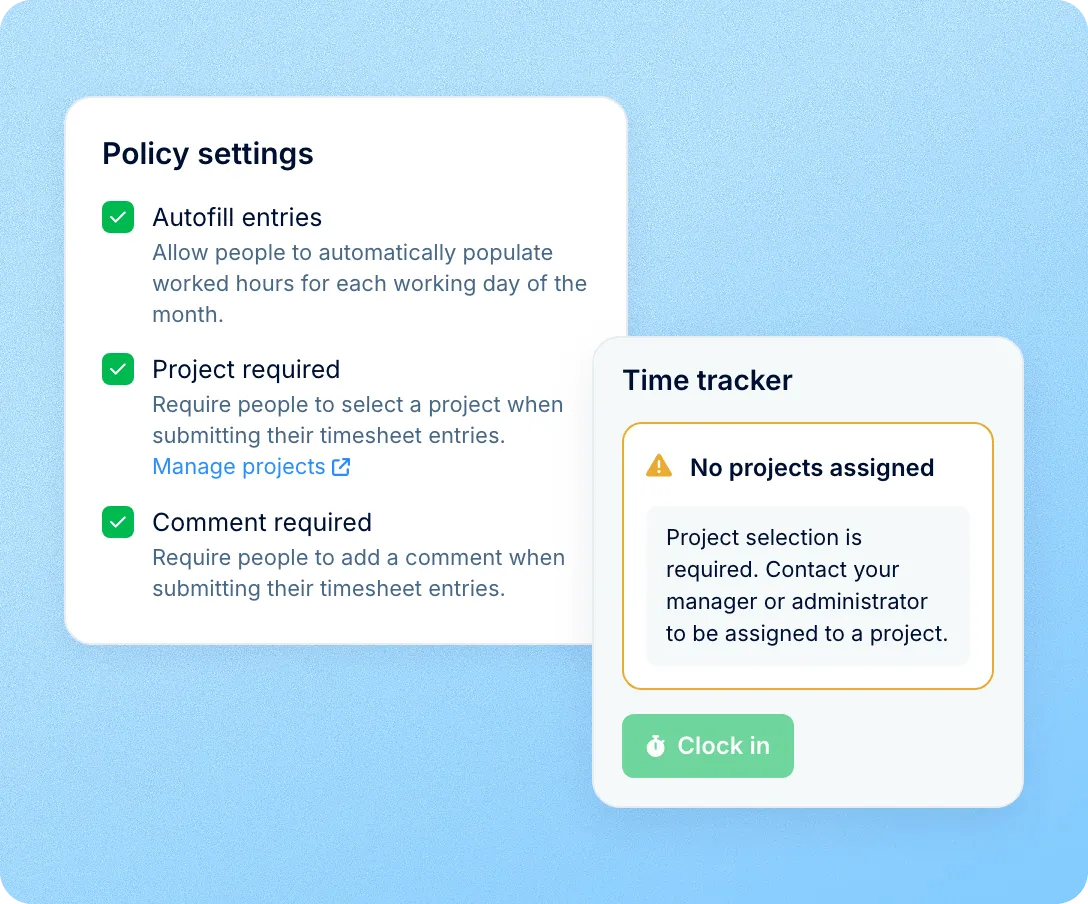
An optional field gets skipped, and a free-text note turns one project into five spellings. Turn on Project required in an attendance policy, and every entry from the people on it needs a project from their list. Add Comment required when you also want a note on the work. People on other policies log time with the project field optional. An employee on that policy who has no projects yet sees a message to contact their manager, and can clock in once they're assigned to a project.
Employee time
When someone splits the week across several projects, the split is usually the first thing people ask about. In an employee's Time section, the Projects view lists their hours on each project for the month, with worked and break time. In the timesheet, the project filter switches the Worked, Break and Overtime totals to one project.
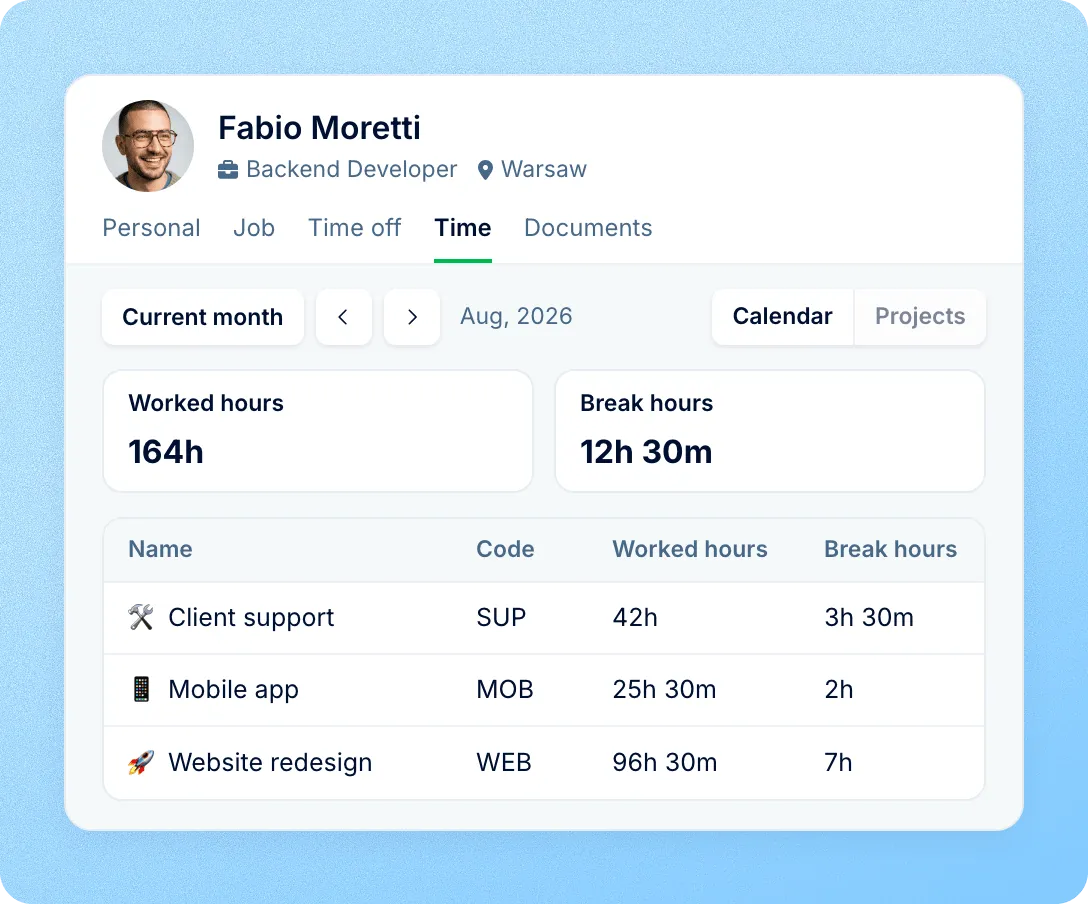
Project hours sit in the attendance record, so they follow the same rules, approvals and exports as every other hour, with no second system to reconcile.
A fixed project list for each person
People log time only to projects they're assigned to, so hours can't land on a project someone doesn't work on.
One approval for attendance and projects
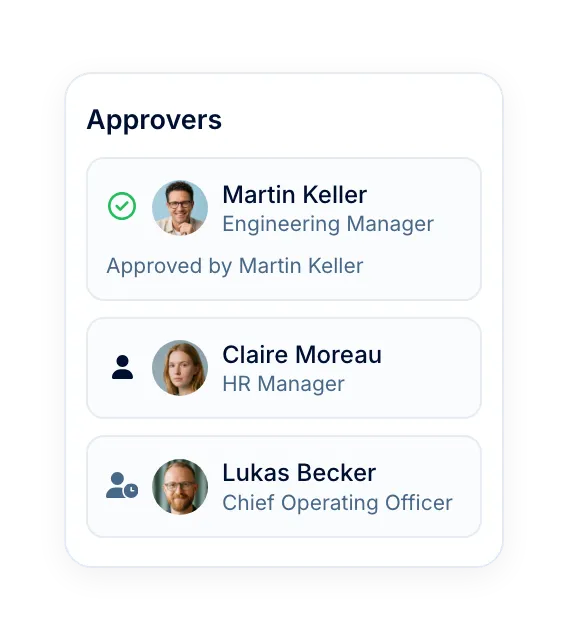
Project hours are part of the timesheet each employee submits, so the approvals in their attendance policy cover both.
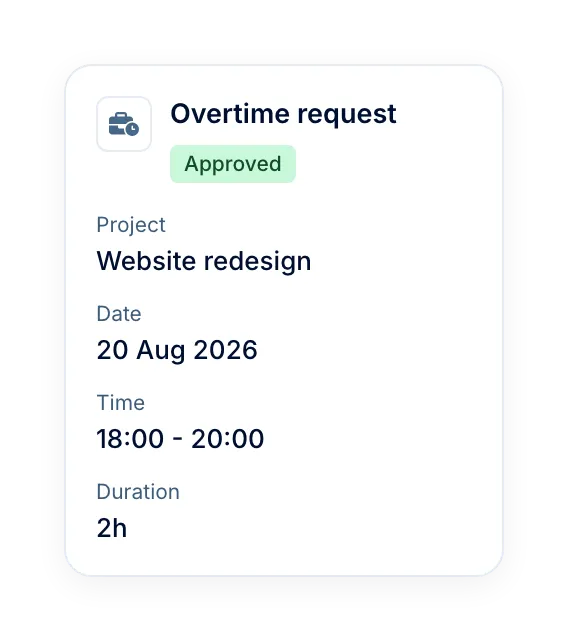
Overtime linked to projects
Where overtime tracking is on, an overtime request can carry a project, and the project export shows approved overtime next to worked hours.
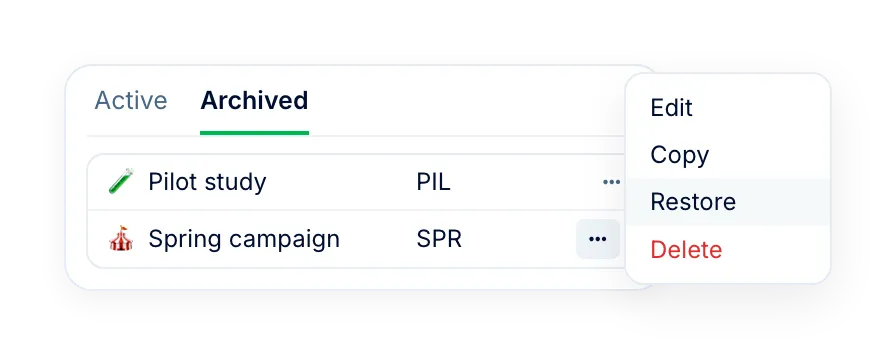
Archive for finished projects
Archived projects leave employees' project lists, and the hours logged to them stay for later reports.
More in Time
Timesheets, overtime and project hours share one attendance record, and attendance policies set the rules for all of them.
Monthly timesheets with approvals
Clock in and out, add entries or autofill working days where the policy allows it, then submit the month for approval.

Monthly timesheets with approvals
Clock in and out, add entries or autofill working days where the policy allows it, then submit the month for approval.

Leader

Users Love Us

Regional Leader

High Performer
Certifications, granular access and full control over what happens to your data and equipment.


 Best Support
In a demo, we'll walk you through Time from start to finish: projects and the Time tracker, monthly timesheets and their approval, overtime requests, and the attendance export grouped by project.