
HR workflow automation for every employee

Pick a profile date or a form to start a process, add tasks, emails and documents, and each employee gets their own run without anyone tracking dates by hand.

HR workflow automation for every employee

How it works

Workflow setup in three steps

Describe a process once. PeopleForce starts it for every employee it applies to and keeps a record of each run.

Step 1
Choose what starts it

Choose what starts it

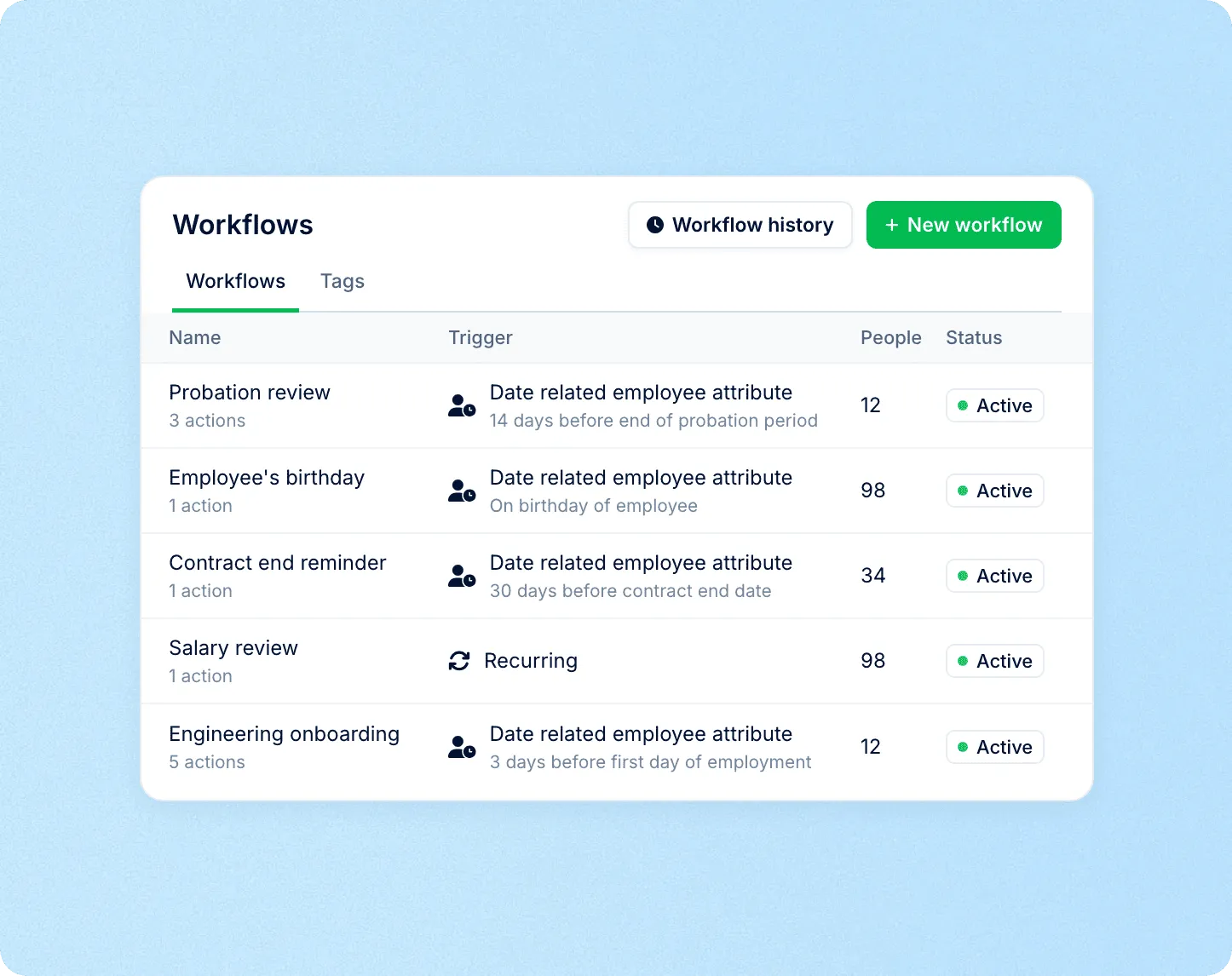
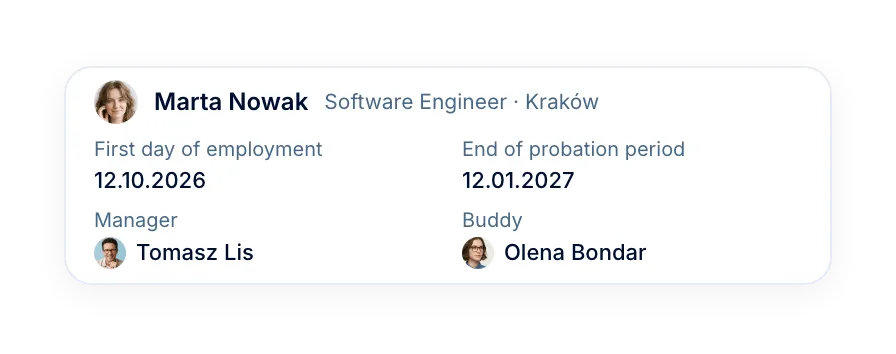
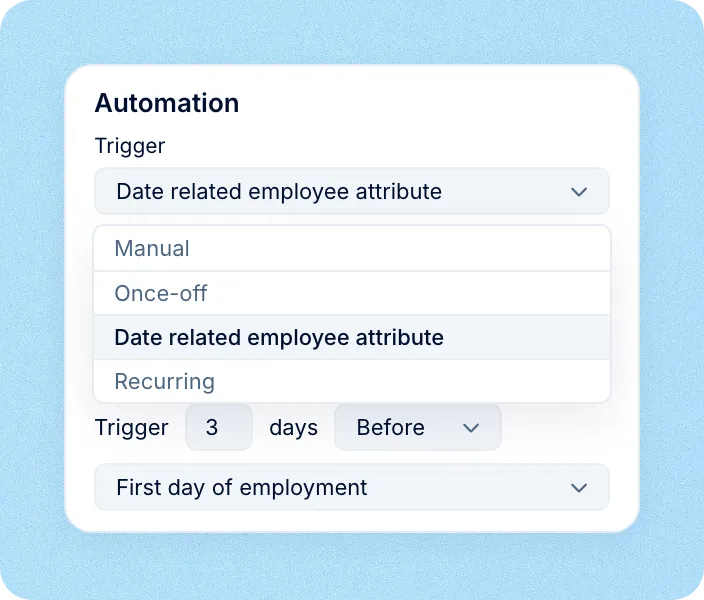
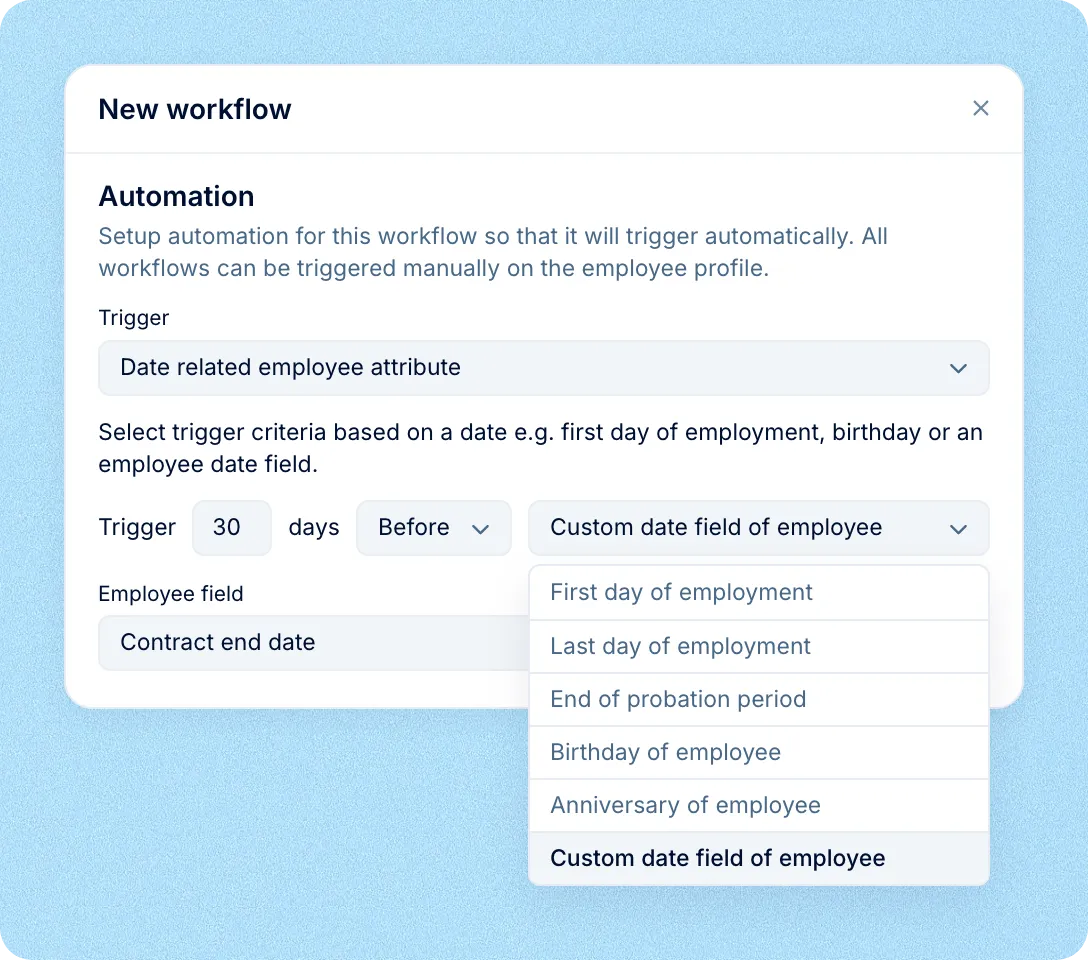
A date in the employee profile, such as the first day or end of probation, a submitted form, or a manual start.

Step 2
Add the steps

Add the steps

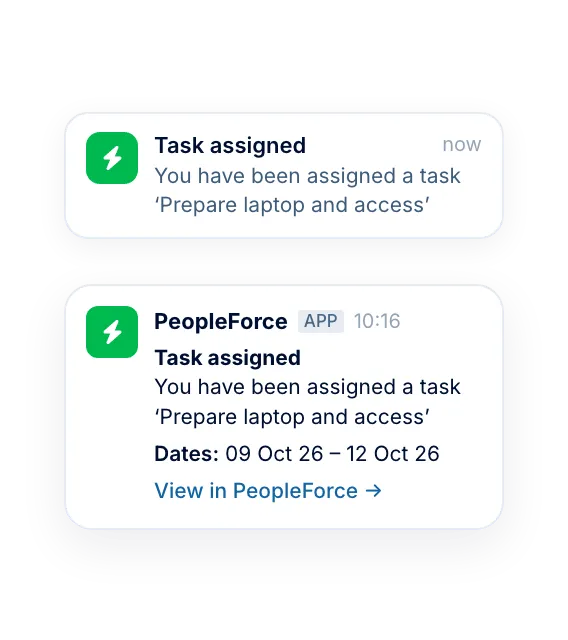
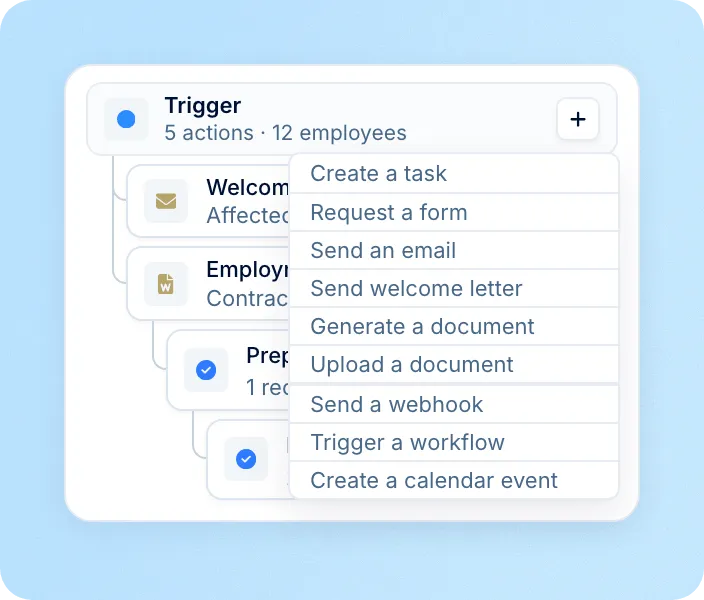
Tasks, emails, documents and calendar invites, each sent to its owner on the day you set.

Step 3
Follow every run

Follow every run

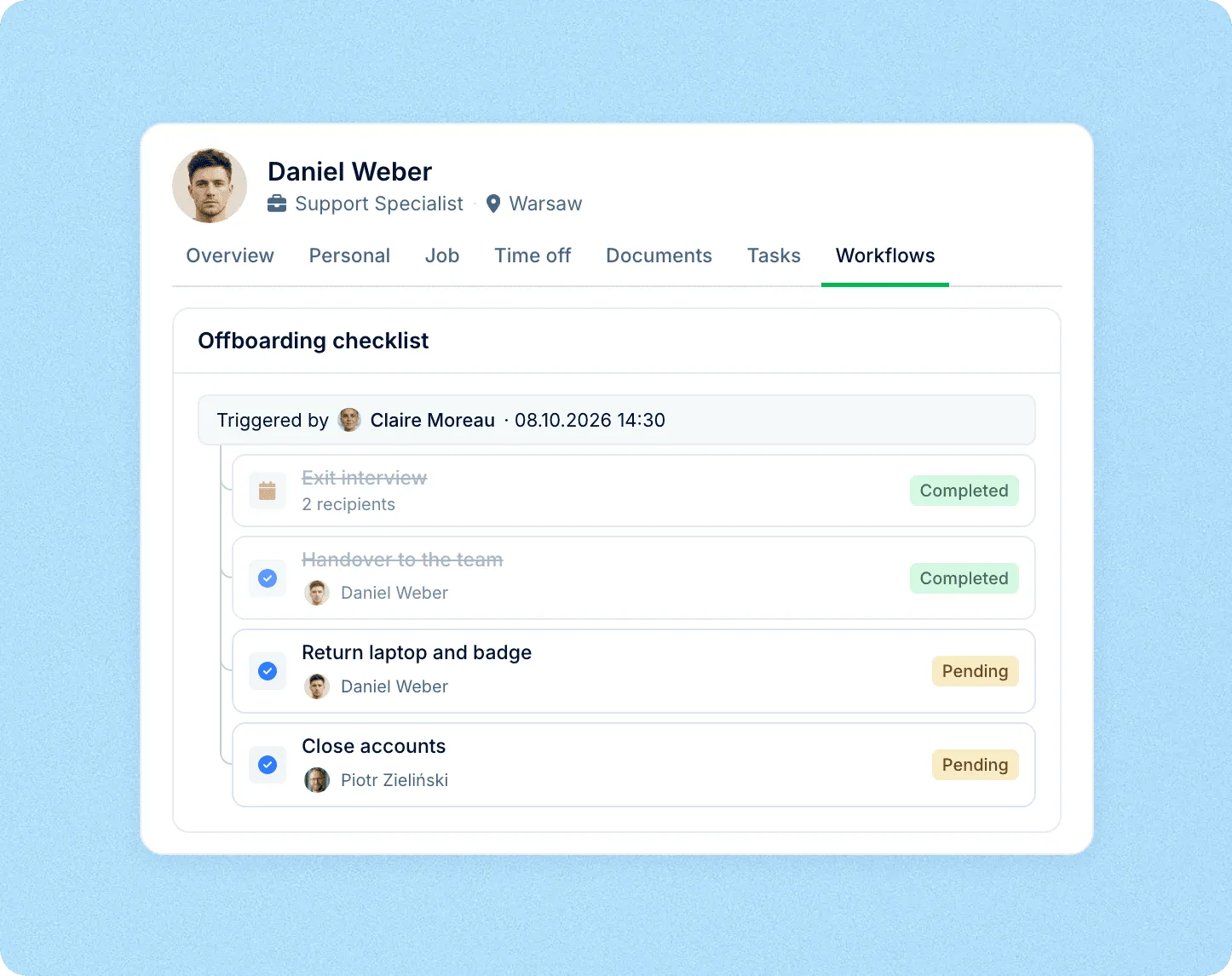
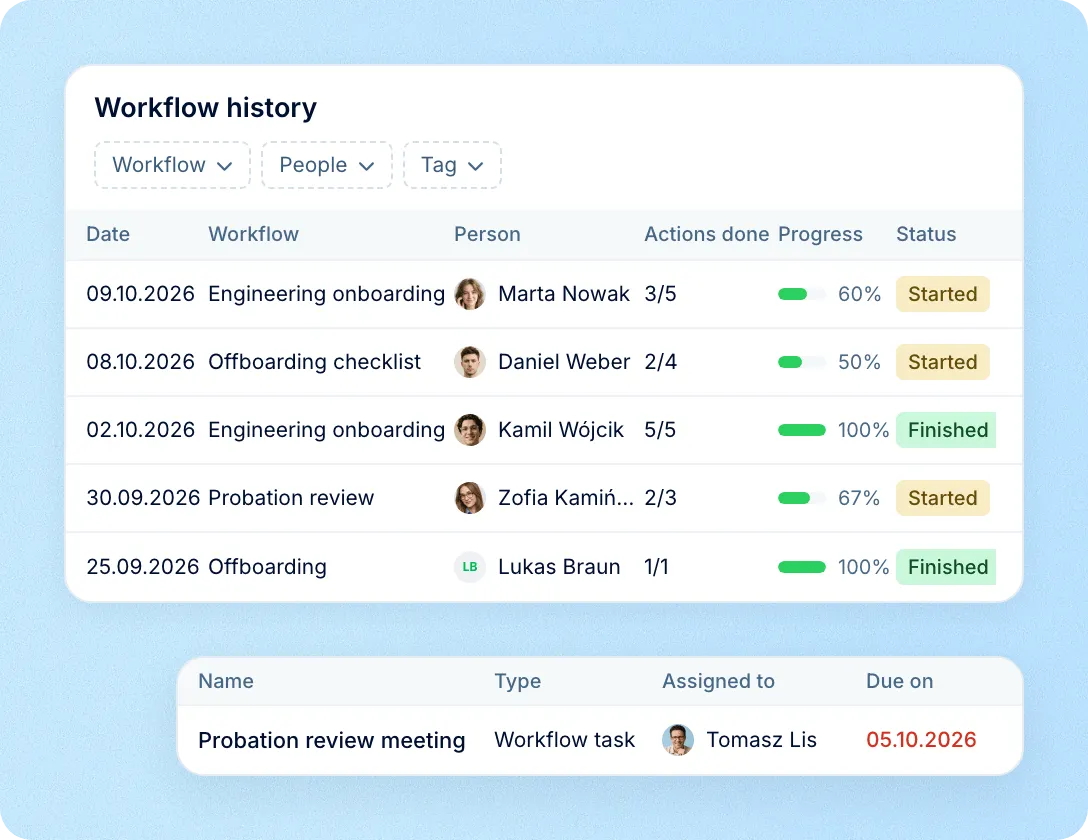
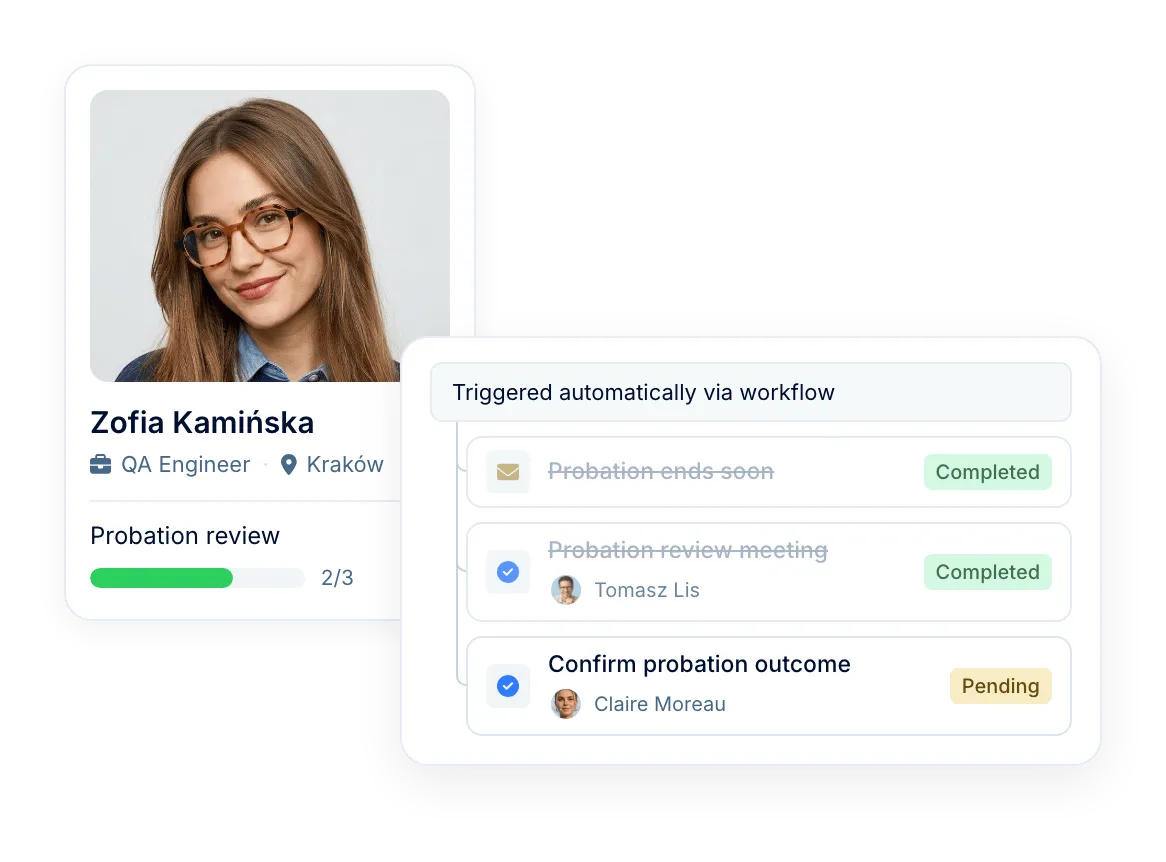
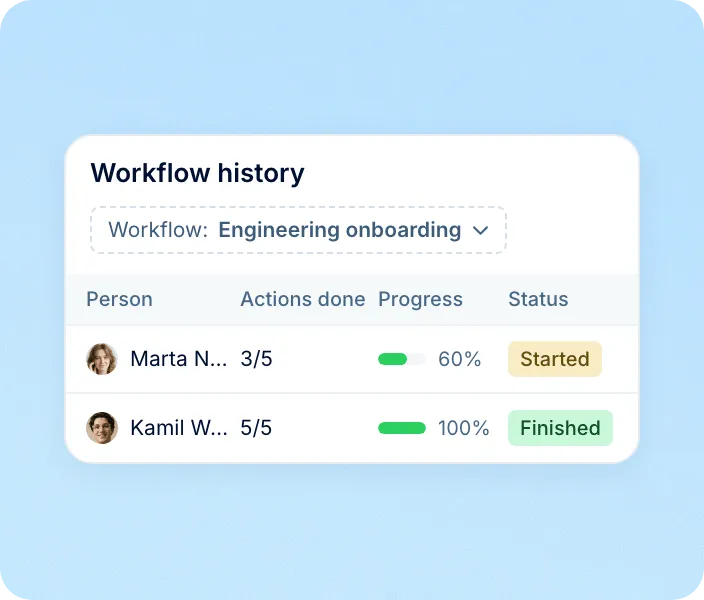
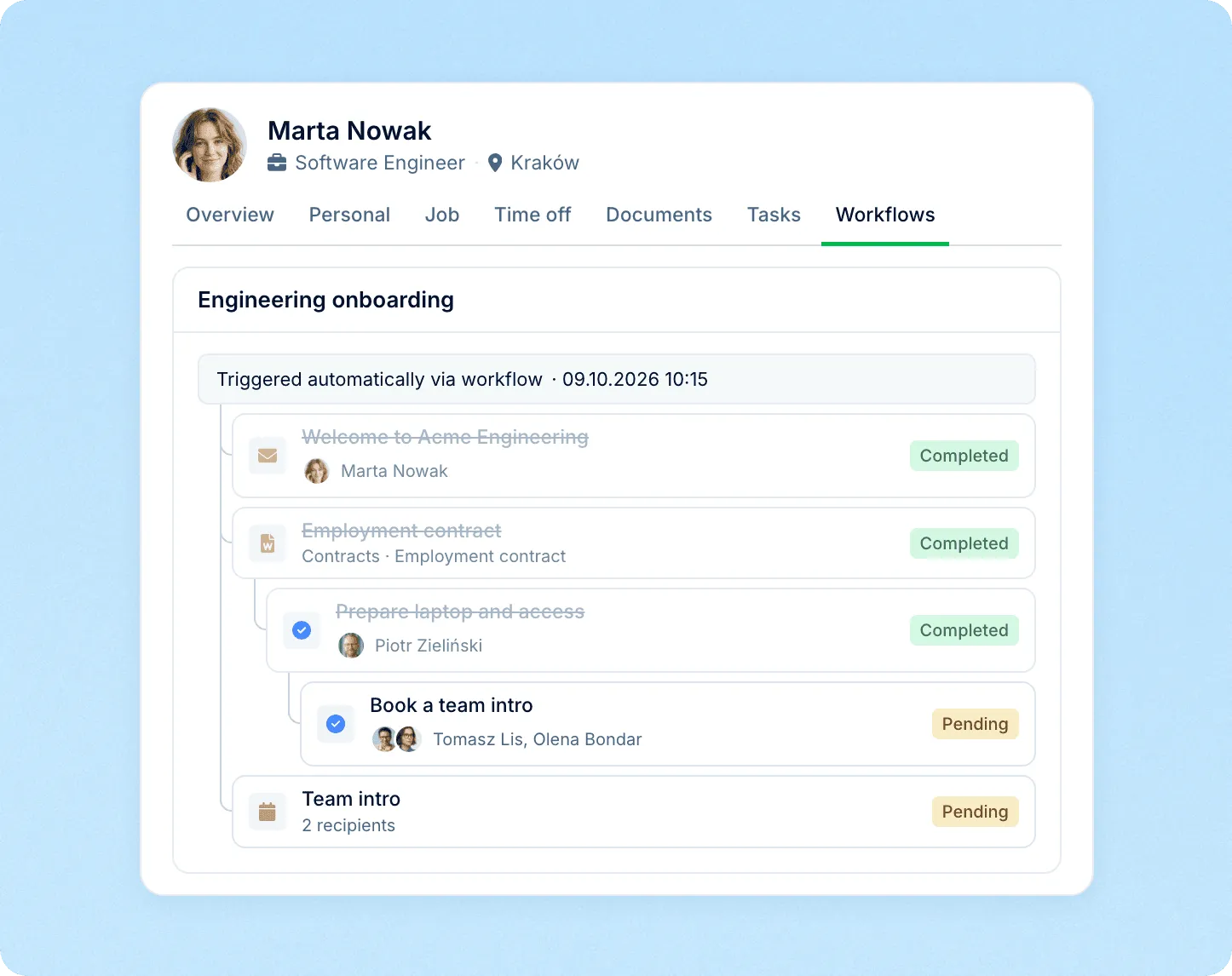
Workflow history shows each run and its progress. The employee profile lists every step and its status.

Triggers

Triggers from profile dates and forms

A workflow starts automatically for each employee: a set number of days before, on or after a date in their profile, or when a form is submitted or approved.

  • Dates from the employee profile

    First day, end of probation or last day, plus birthdays, anniversaries and custom dates on Professional.

  • New hire and termination forms

  • Only the people it applies to

preview

Steps

Step sequences with conditions

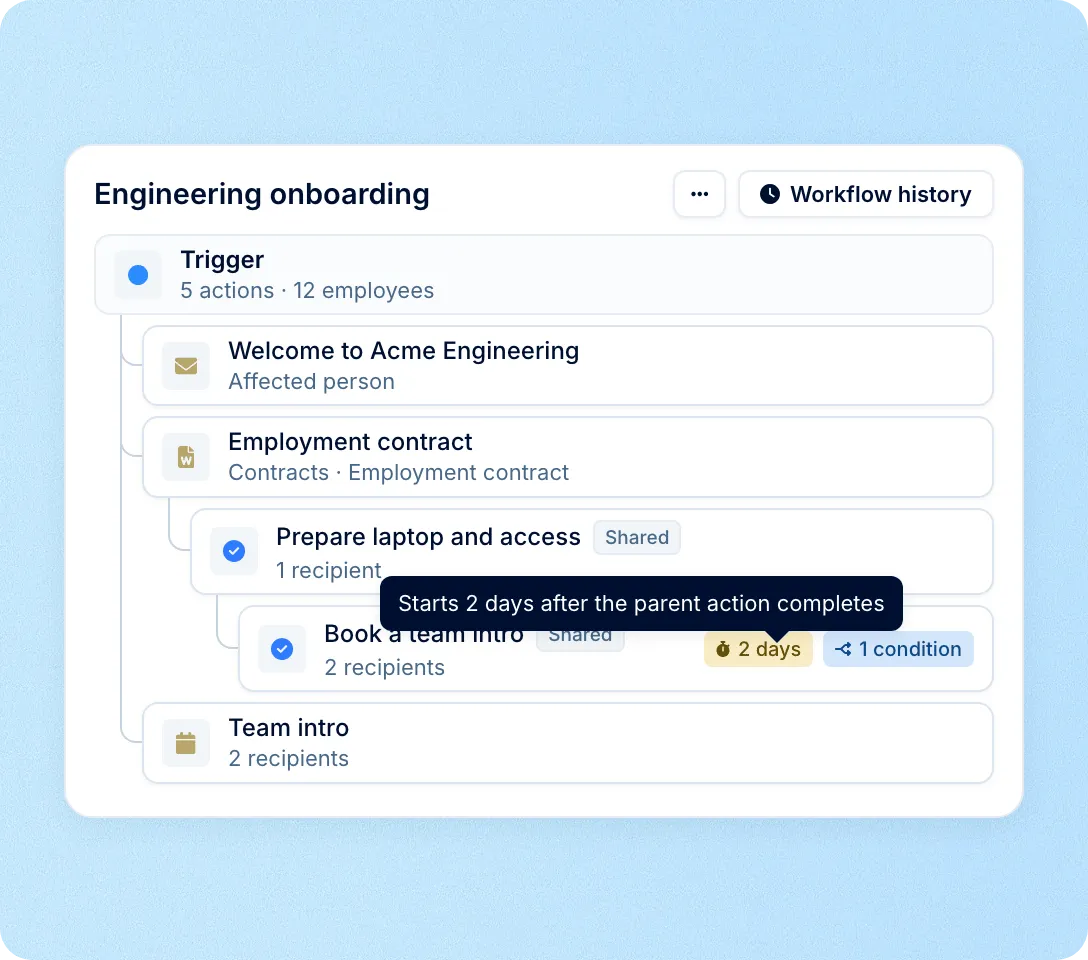
Each step starts when the one before it is done: a task closed, a form submitted or a document signed. Conditions decide which steps each person gets.

  • Next step after the previous one

    A child step waits for its parent and counts its days from the day the parent finished.

  • Conditions on any step

  • Workflows that start other workflows

preview

Owners

Task owners from your org structure

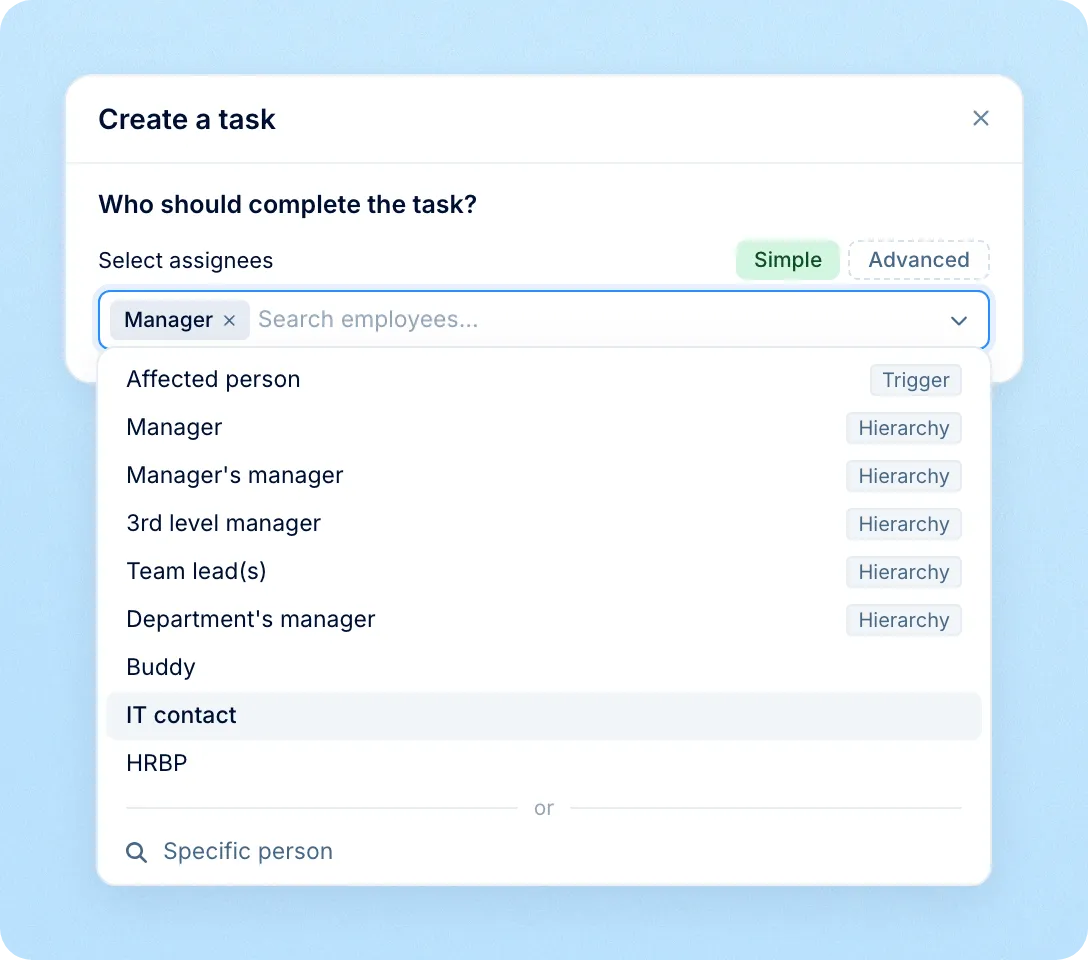
Steps go to the employee, their manager or a colleague named in a profile field, such as a buddy or IT contact, so no one assigns them manually.

  • Managers and profile-field owners

    Manager, manager's manager, team lead, department manager, or a person field like buddy, mentor or HRBP.

  • One shared task or a copy for each

  • Cover for people on leave

preview
See your own onboarding process built as a workflow

Scope

Request forms and workflows

Request forms collect a change and get it approved. Workflows run what happens next.

Request forms

  • A termination, a data change or a custom request is submitted
  • Approvers, if you add them, review it before anything changes
  • Approved data updates the employee profile

Change and custom request forms come with Professional. Termination forms are on both plans.
Workflows

  • Starts when the form is approved, or from a date in the profile
  • Tasks, emails, documents and calendar invites go out on their days
  • Each step goes to its owner and can wait for the one before

Use cases

Workflows for joining, staying and leaving

The same builder handles new hires, changes during employment and exits.

JoiningDuring employmentLeaving

Welcome email, a contract from your template, IT tasks for laptop and accounts, a buddy intro invite before day one and first-month check-ins.

Joining

Documents

Documents generated and sent for signature

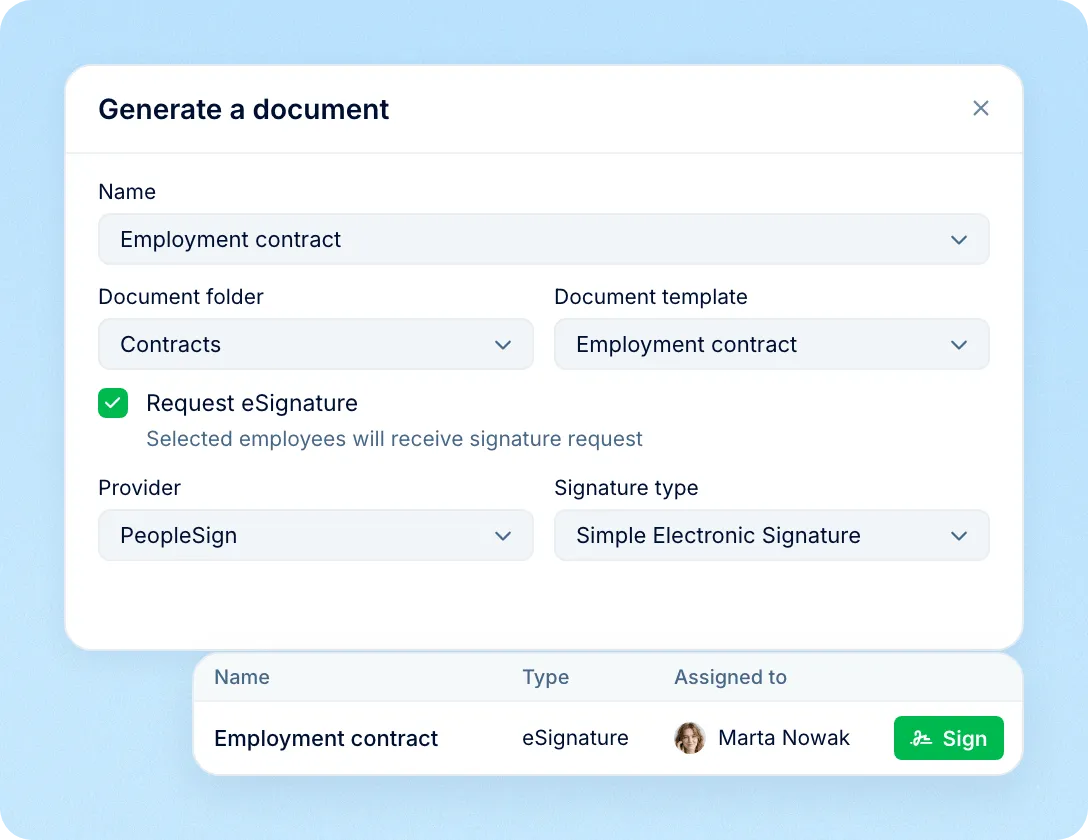
A step fills a contract or letter from your template with the employee's data, saves it to their profile and can send it for e-signature. The next step waits for the employee to sign.

See how electronic signature works
Documents generated and sent for signature

Tracking

Progress of every workflow run

Workflow history lists every run with the person, steps done and status. Each profile shows every step, its owner and its status, and overdue tasks stand out in Tasks.

Progress of every workflow run

How workflows fit into Core HR

Workflows use the same employee record, notifications and calendars as the rest of PeopleForce.

Data straight from Core HR

Dates, managers and profile fields come from the employee record, with nothing to sync.

Data straight from Core HR

Tasks where people work

Owners get tasks in PeopleForce, by email, in the mobile app and in Slack when connected.

Tasks where people work

Collaborators per workflow

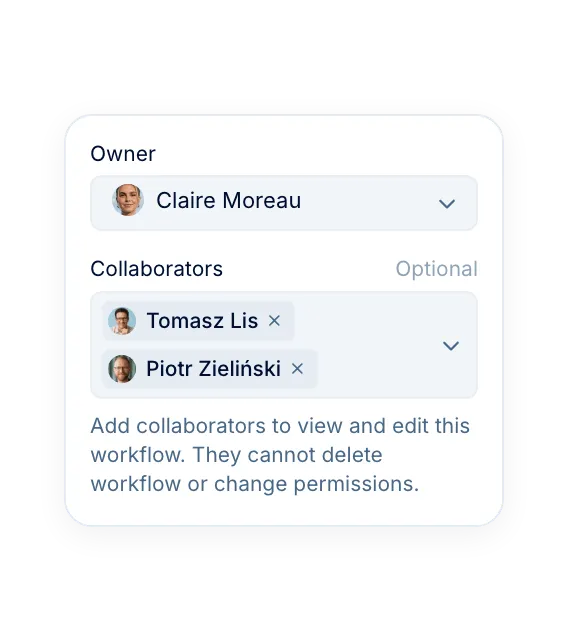
Add colleagues to one workflow so they can edit its steps without access to all the others.

Collaborators per workflow

Calendars and webhooks

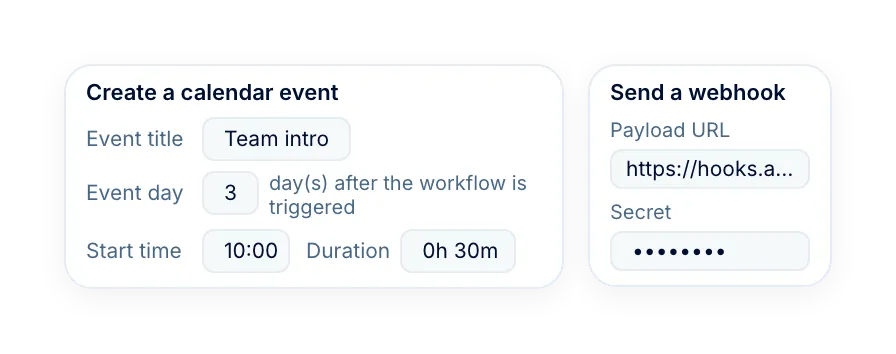
Steps can book Google or Outlook meetings and send employee data to your own systems.

Calendars and webhooks

More in Core HR

Explore the rest of Core HR

Every essential for managing your people — directory, time off, onboarding, requests and documents — in one connected system.

All employee data and structure in one place

A clear, organised profile for every employee and a visual org chart that shows reporting lines, departments, and team structure at a glance.

Learn more
Employee Directory & Org Chart

Beyond the features

Why HR teams choose PeopleForce

A dedicated team gets you live, real people keep answering after go-live, and there's room to add the rest of HR when you're ready.

Setup done with you

A dedicated success manager sets everything up with you — it's included in the plan, not a paid add-on.

Support in your language

Real people, not a ticket queue, from your first question onwards.

Room to grow

Start with Core HR and add recruiting or performance later — same employee record, no second system.

icon

Leader

Summer 2026
icon

Users Love Us

Milestone Summer 2026
icon

Regional Leader

Europe Summer 2026
icon

High Performer

Europe Summer 2026

Security and operational continuity

Certifications, granular access and full control over what happens to your data.

ISO 27001 certified, GDPR compliant, Google Cloud data centres in Europe
G2Best Support

Frequently asked

Do I need to code to build a workflow?

When does a workflow start?

Can a workflow start when someone changes role or salary?

What happens to workflows when an employee leaves?

Which plan includes workflows?

Who can build and edit workflows?

How do employees get their tasks?

Overpriced HR?
There's a Better Way.

Get the full HR suite — Core HR, ATS, Performance, Surveys and more — at a fraction of enterprise platform pricing. See exactly what you'd pay.