



Hiring team
Hiring team roles and comments
Hiring managers review candidates and leave their feedback in the candidate profile, where the recruiter and the rest of the hiring team read it.

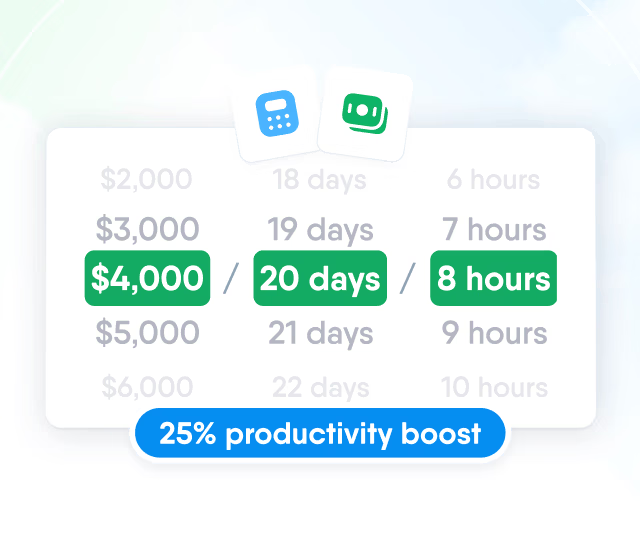
HR efficiency estimator
How does the HR efficiency estimator from PeopleForce work.
Calculate your impact
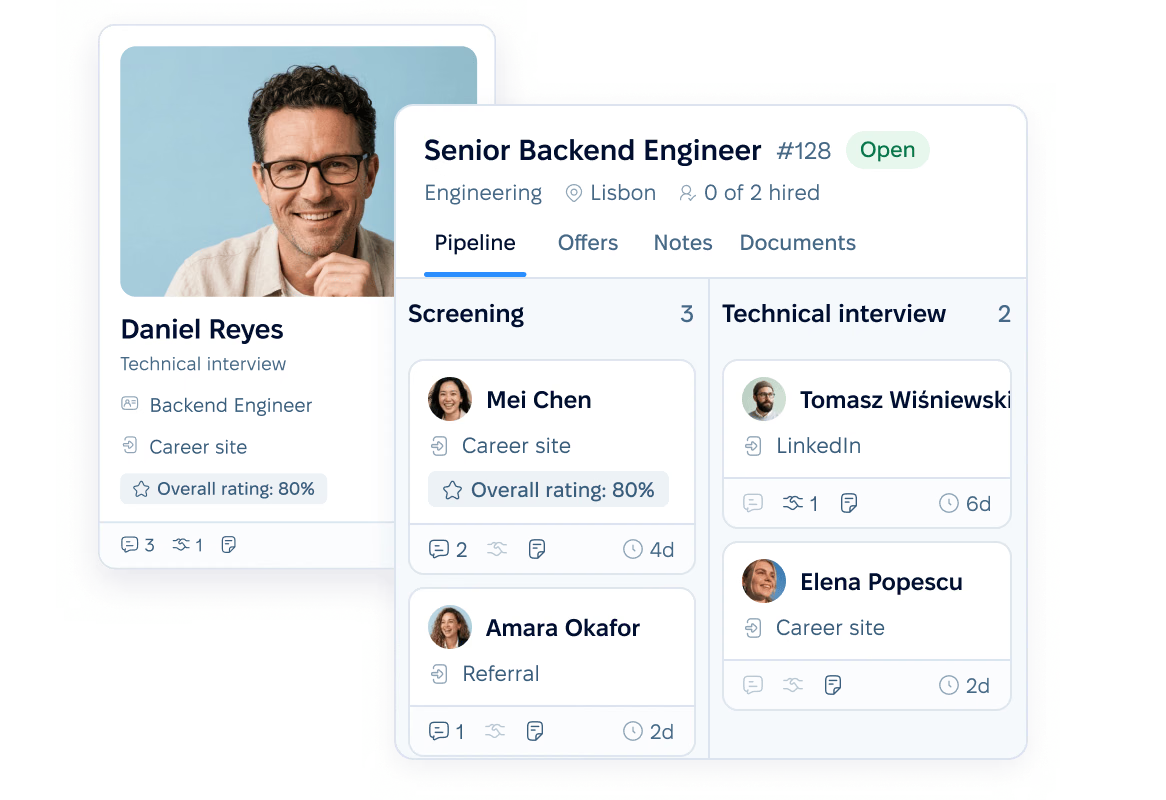
Every candidate's resume, emails, interviews and scorecards stay in one profile inside the vacancy, so recruiters and hiring managers work from the same pipeline.
Candidate database
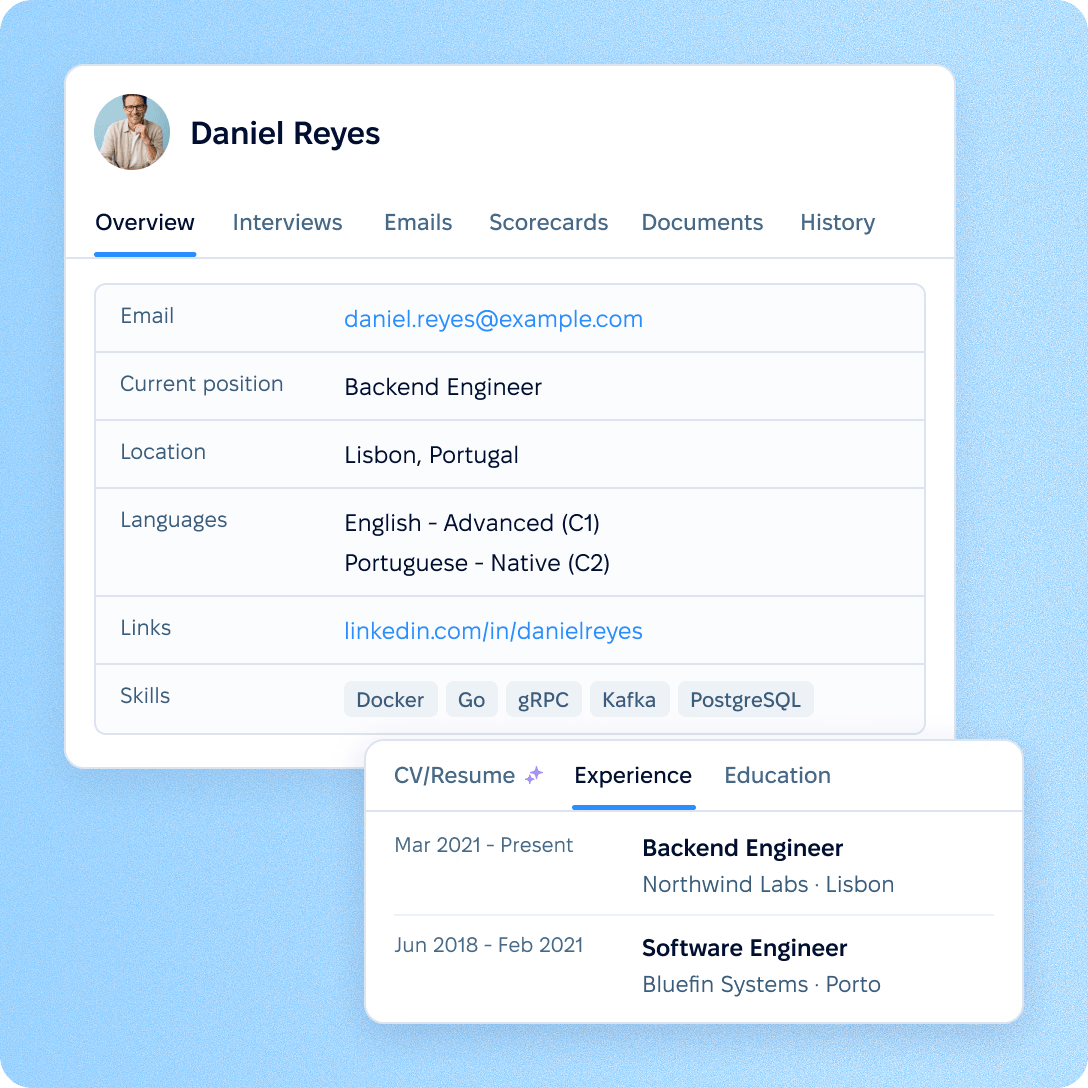
Each uploaded resume becomes a candidate profile with structured fields, a duplicate check and full-text search across the whole candidate database.
Screening
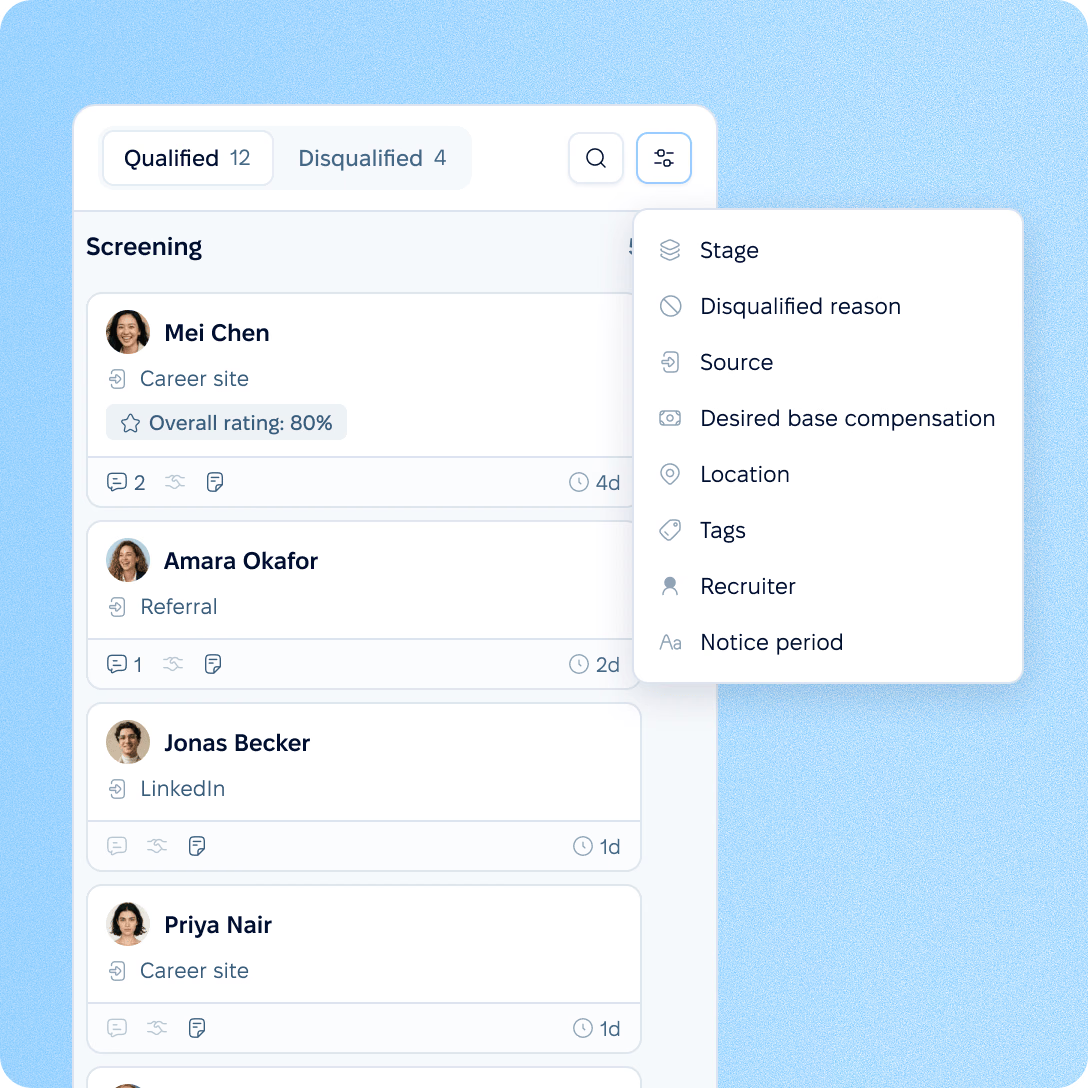
Filter the candidates of a vacancy, compare their scorecard evaluations and move or disqualify them stage by stage.
Pipeline
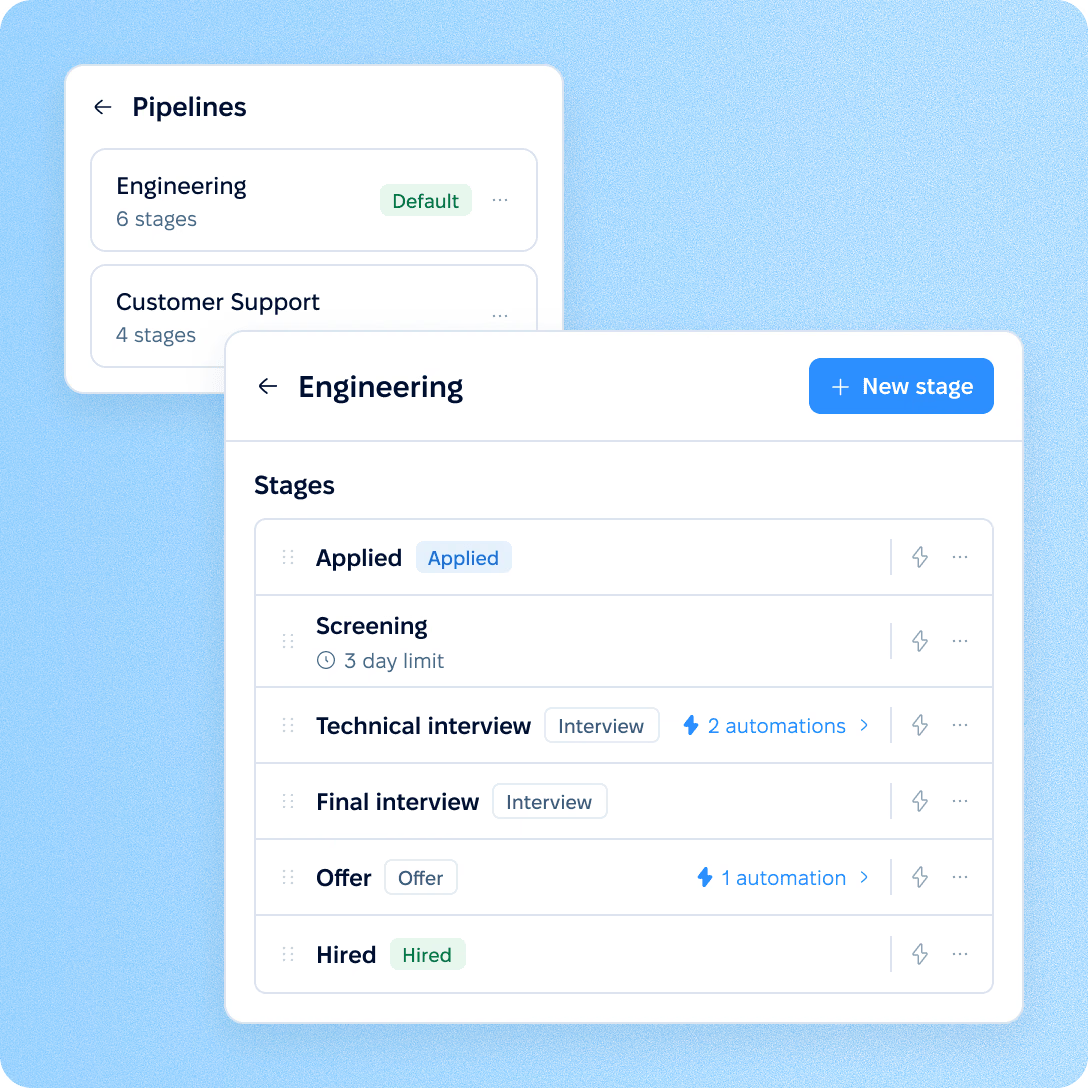
Each vacancy runs on a pipeline with its own stages, and the vacancy board shows the stage every candidate is at right now.
Hiring team
Hiring managers review candidates and leave their feedback in the candidate profile, where the recruiter and the rest of the hiring team read it.
Hiring lead and collaborators
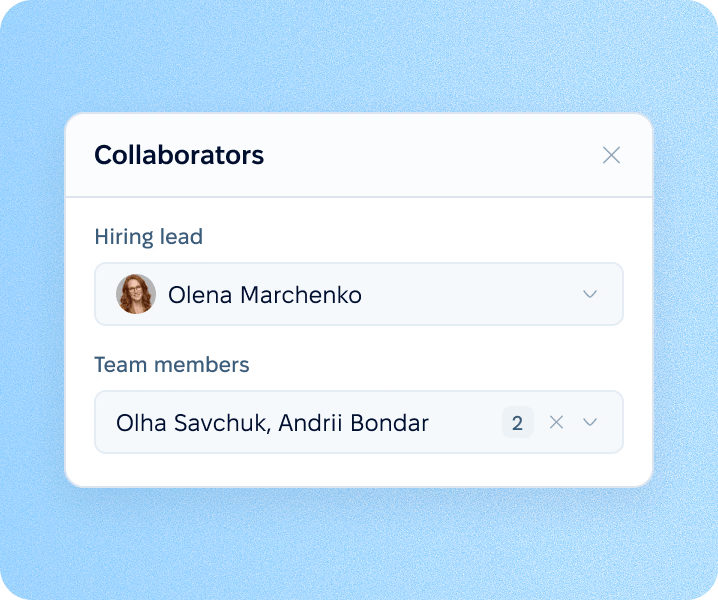
Assign a hiring lead and collaborators to each vacancy. They see the candidates of the vacancies they are assigned to, unless their role opens the whole candidate database.
Comments with @mentions
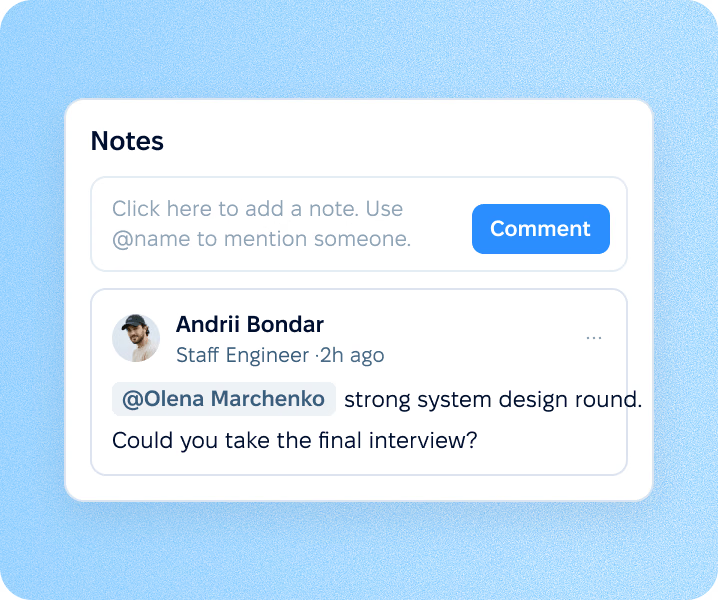
Comments on the candidate profile support @mentions of colleagues, and every employee with access to the candidate reads the same discussion.
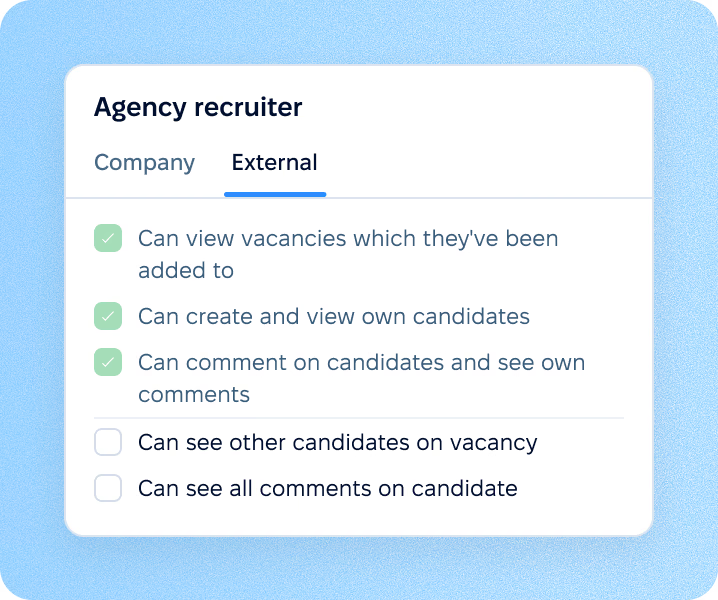
External recruiters
Agency recruiters can be added to a vacancy with their own set of permissions. By default, they see only the comments they wrote themselves.
Interviews
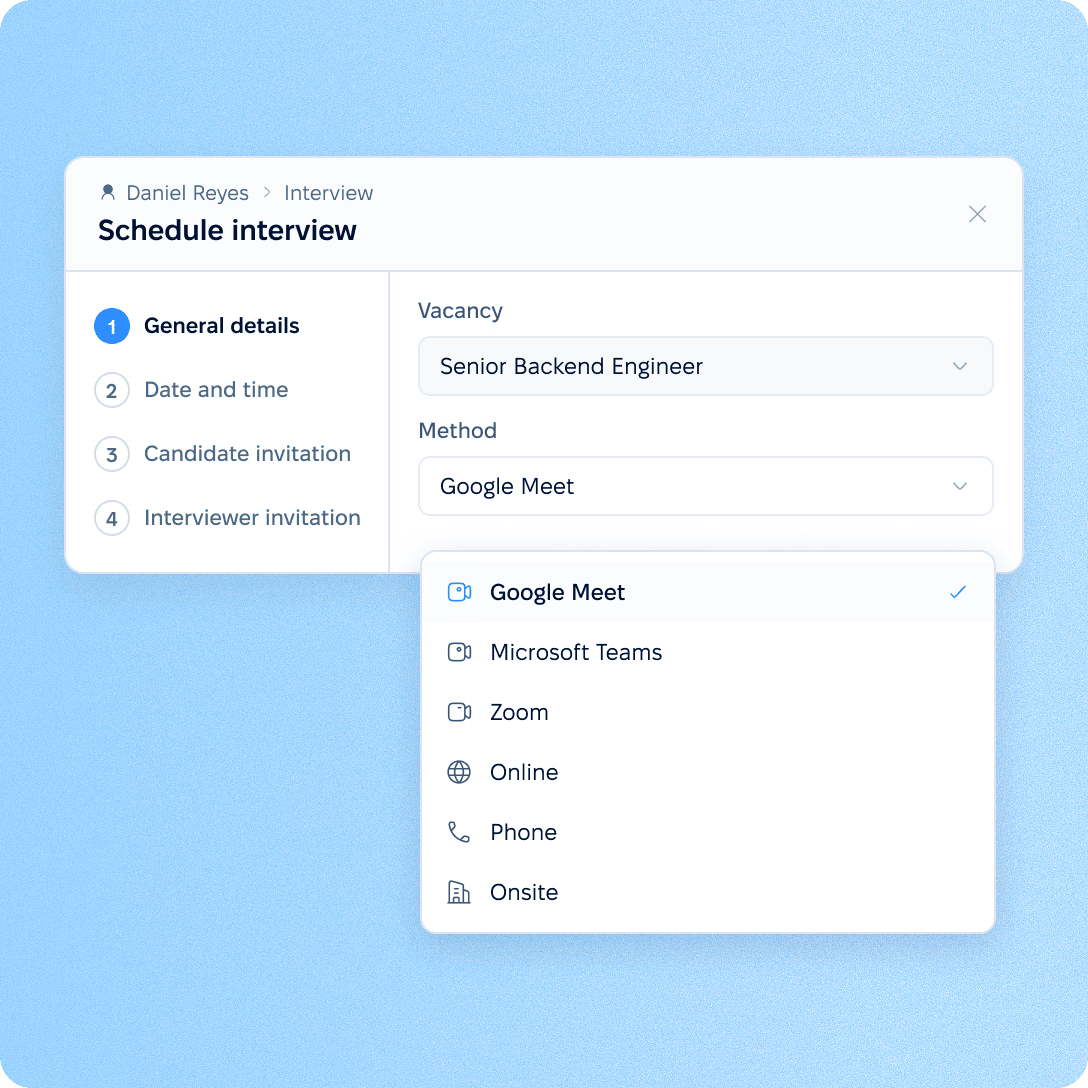
Schedule an interview from the candidate profile. With Google Calendar or Outlook connected, PeopleForce creates the event there and removes it if the interview is cancelled.

Interview formats. On-site, phone, online, Zoom, Google Meet and Microsoft Teams.
Interviewers and templates. Every interview has at least one interviewer and can start from an interview template.
Candidate notification. Choose whether the candidate is notified when the interview is scheduled.
Evaluation
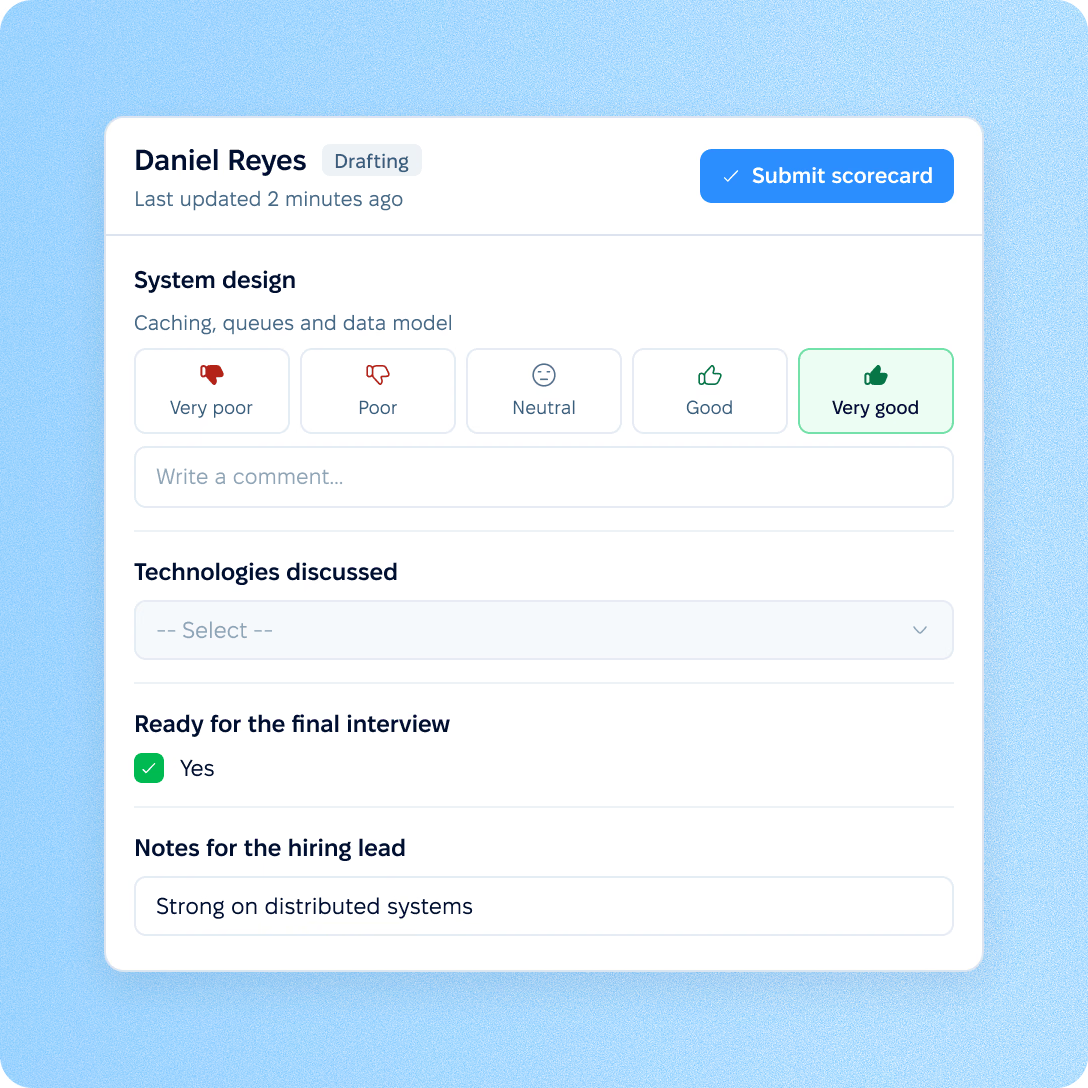
Interviewers rate the candidate on a scorecard after the interview, and the submitted results come together on the candidate profile.
Question types. Rating, single choice, multiple choice, checkbox, short text and rich text questions.
Overall rating. Every scorecard needs an overall rating from 1 to 5 before it can be submitted, and drafts are saved automatically.
Combined results. Submitted scorecards update the candidate's overall evaluation and can be exported to CSV. Only the interviewer who wrote a scorecard, or an administrator, can edit it.
Communication
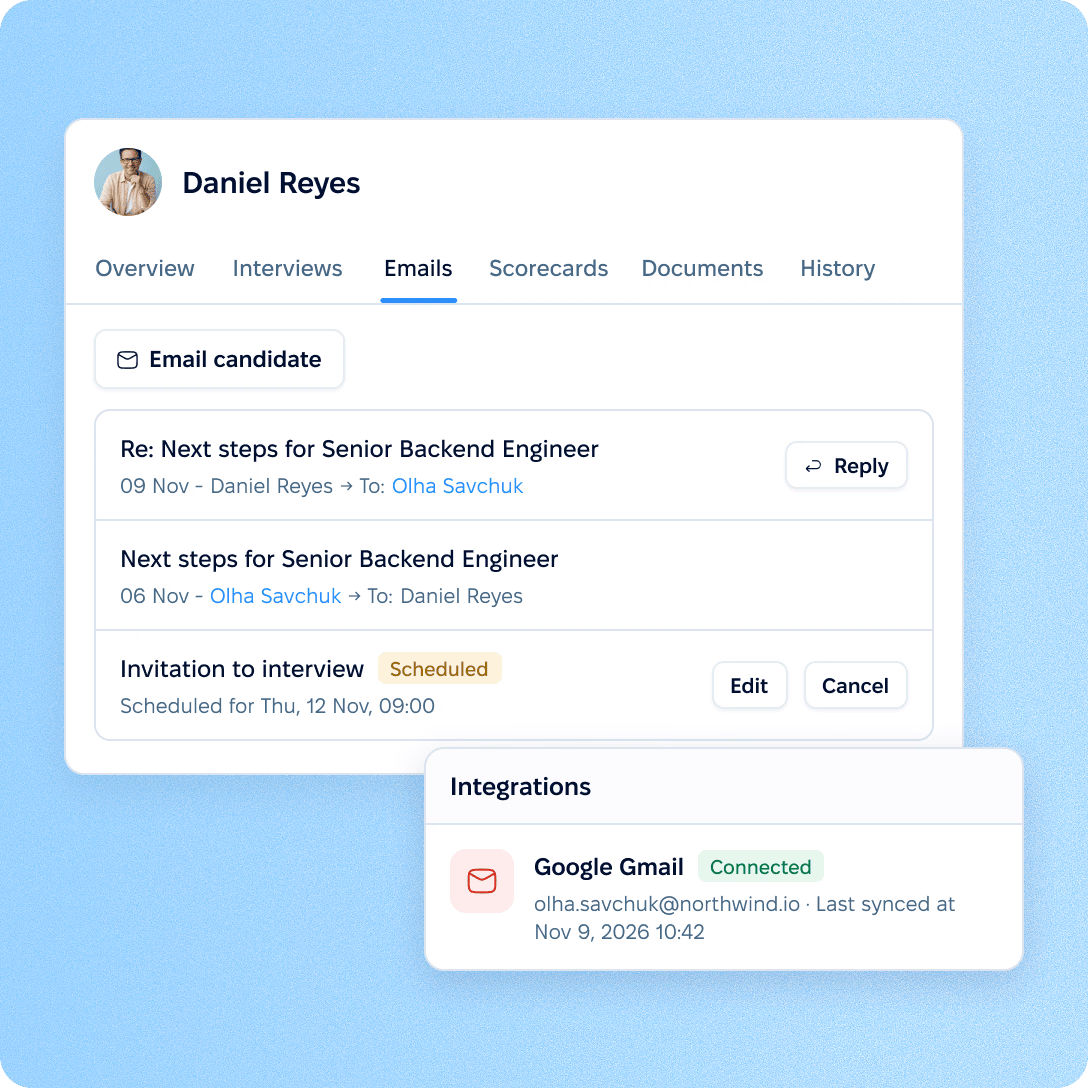
Emails to a candidate are kept in the candidate profile, so anyone working on the vacancy can see what was sent and when.
Gmail and Outlook connection. Each user can connect their own Gmail or Outlook account. Emails to candidates are then sent from that mailbox and correspondence with candidates is synced into their profiles; without a connection, emails are sent through PeopleForce.
Email templates. Templates use placeholders for the candidate, the sender, the hiring lead and the vacancy, so each email is filled in for its recipient.
Bulk emails with scheduled sending. Select candidates on the vacancy board, choose a template and send the email now or at a set date and time.
Automation
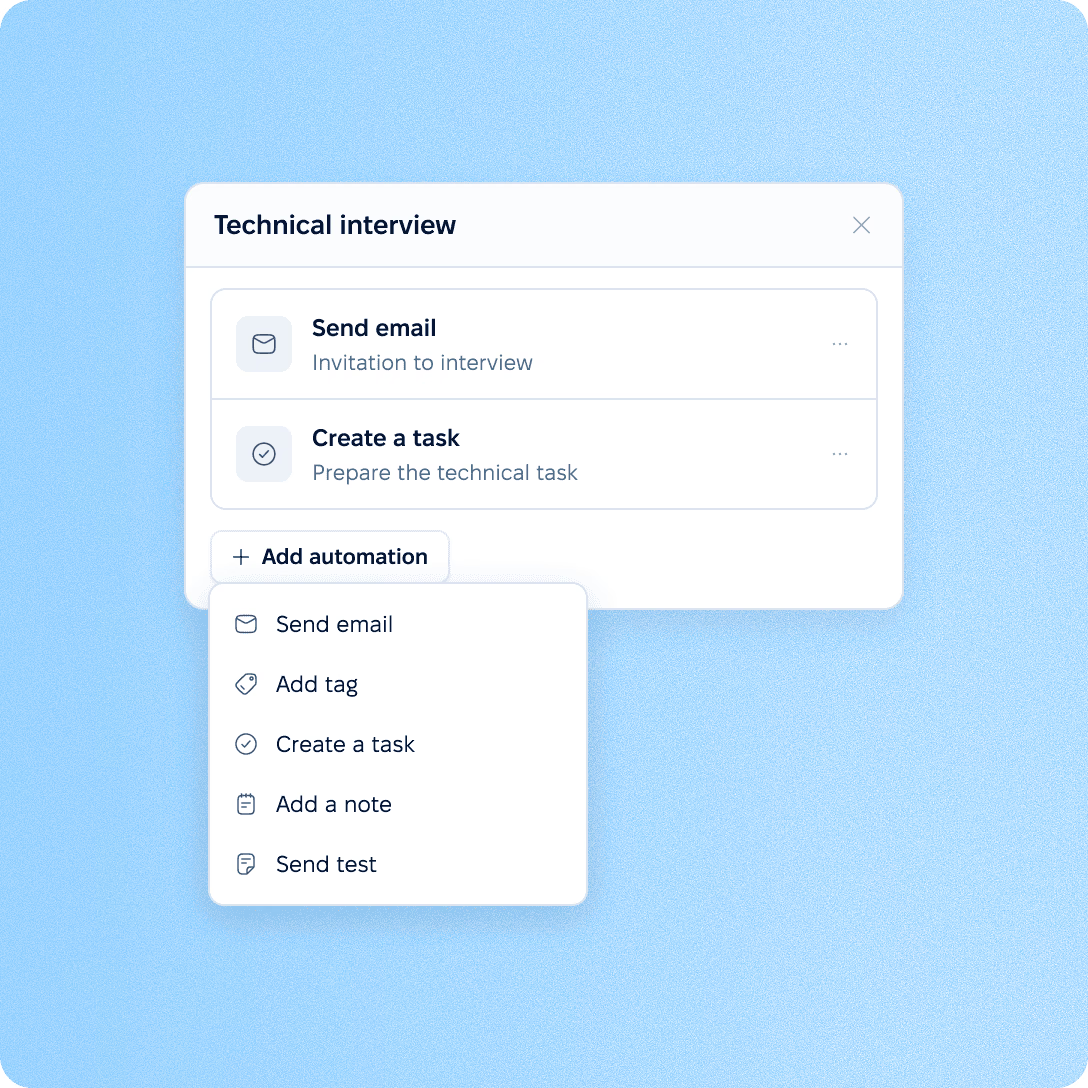
Automations run when a candidate enters a stage or is disqualified with a specific reason, so follow-ups and rejection emails go out without a recruiter writing each one.
Actions on stage entry. Send an email, create a task, add a comment or tag, or send a test when a candidate reaches the stage. Emails can be delayed by hours, days or weeks and sent on behalf of the recruiter, the hiring lead or a named colleague.
Actions on disqualification reasons. Attach a rejection email and other actions to each disqualification reason, and they run for every candidate disqualified with that reason.
Bulk disqualification. Disqualify a selection of candidates with one reason, and its automations run for each of them.
Access
Permissions decide which candidates each person sees and which parts of a candidate profile stay hidden from them.
All candidates
Email candidates
Export candidates
Delete candidates
Position, location, source and desired salary in the candidate profile
Candidates of their own vacancies
Position, location and source in the candidate profile
Migration
Move the candidate database from a previous system as a spreadsheet, together with the history the team relies on.
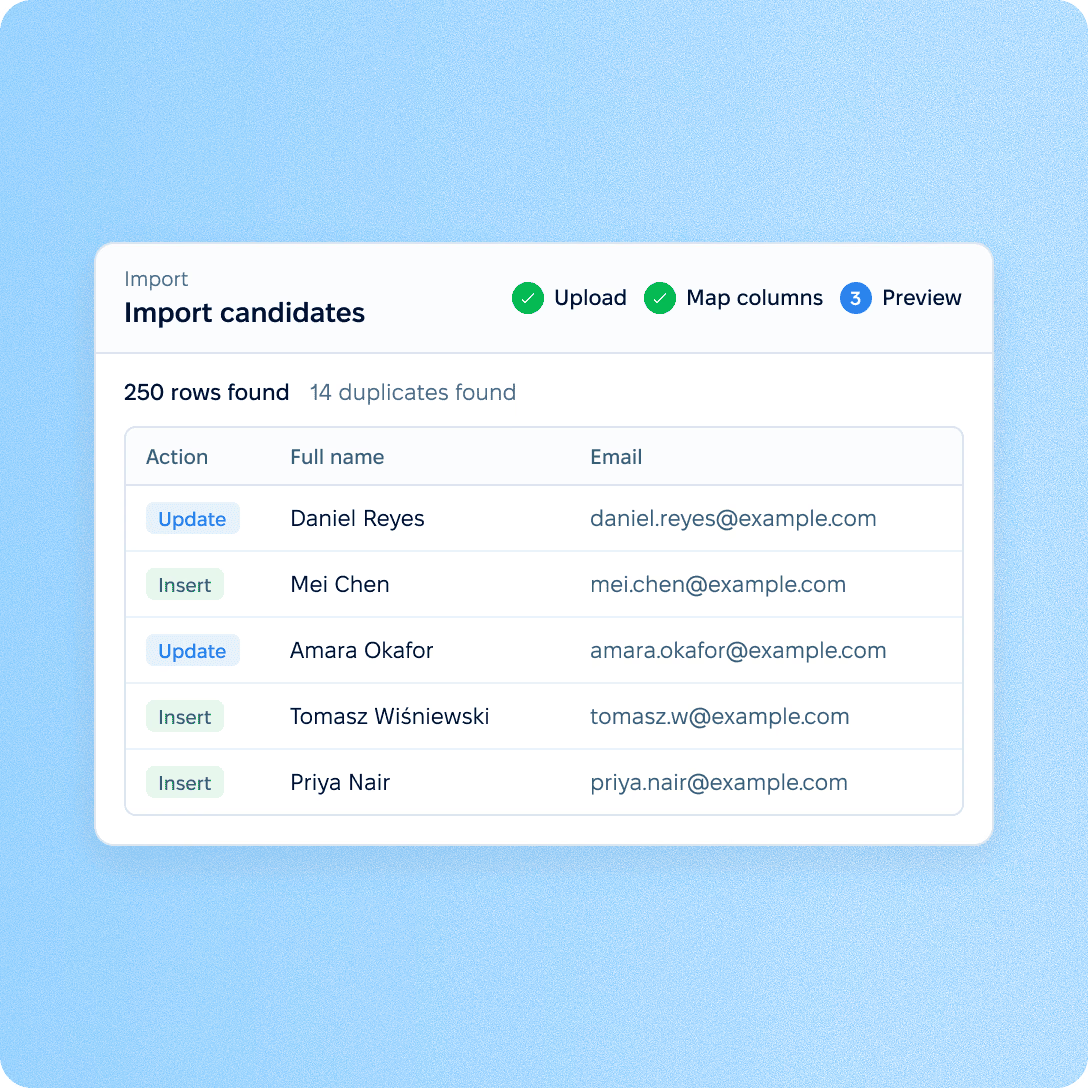
Matching with existing records. Rows are matched with existing candidates by PeopleForce ID, external ID, email or phone number, so a repeated import updates profiles instead of adding new ones.
Fields that carry over. Custom fields, tags that already exist in PeopleForce, sources, comments and the original date each candidate was added.
Resume files. Resumes are attached from file links included in the spreadsheet.
Get the full HR suite — Core HR, ATS, Performance, Surveys and more — at a fraction of enterprise platform pricing. See exactly what you'd pay.
More in Recruit
Sourcing, job posting, offers, testing and reporting that work on the same candidate profiles.
Candidates straight from sourcing
A Chrome extension for adding candidates to PeopleForce from the profiles you find while sourcing.

Candidates straight from sourcing
A Chrome extension for adding candidates to PeopleForce from the profiles you find while sourcing.
Beyond the features
Candidate import from spreadsheets, help center articles and more HR modules on the same platform.

Candidate import
Move the candidate database from a spreadsheet, and a repeated import updates existing profiles instead of adding duplicates.
Help center
Help center articles cover Recruit features such as job board integrations and Prospector.
One platform
Recruit, Core HR and performance management are modules of the same PeopleForce platform.

Leader

Users Love Us

Regional Leader

High Performer
Role-based permissions decide which candidates each person sees and which fields of a candidate profile stay hidden.
Separate permissions
Access to the whole candidate database, emailing, exporting and deleting candidates are separate permissions in a role.
Salary and sensitive fields
Desired salary and fields marked as sensitive are shown only to roles with the matching permission and to external recruiters on candidates they added.
External recruiters
By default, an external recruiter sees only the candidates they added and the comments they wrote.