
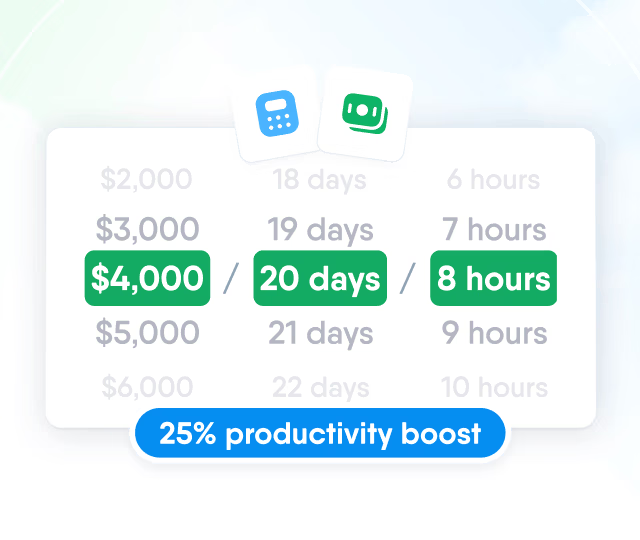
HR efficiency estimator
How does the HR efficiency estimator from PeopleForce work.
Calculate your impact



Connecting Claude or ChatGPT to your HR data in PeopleForce

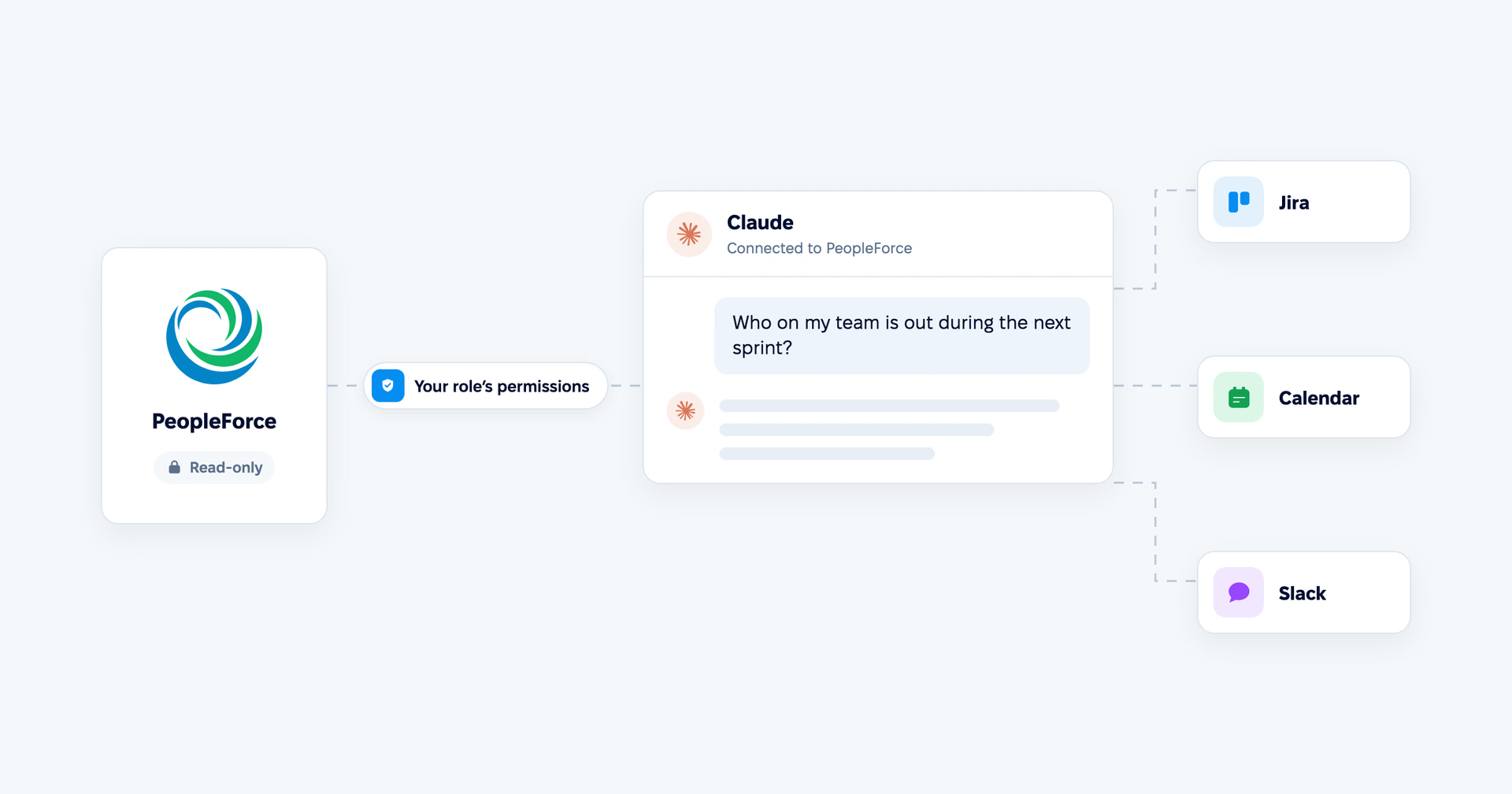
PeopleForce runs its own MCP server. MCP (Model Context Protocol) is the open standard that AI assistants such as Claude and ChatGPT use to read data from other systems. Once it is connected, an assistant can look up much of what you can see in PeopleForce (the people directory, the leave calendar, balances, the knowledge base) and combine it with the other tools you have connected to it: Jira, your calendar, your mailbox, Slack.
That combination is where the useful work happens. A list of who is on leave is something PeopleForce already shows on its home page. A sprint plan that subtracts that leave from the team's capacity in Jira is something neither tool does on its own. This article walks through five scenarios HR teams and managers can run today, four that are coming next, and the limits that keep the assistant inside each person's permissions.
How an assistant reaches your PeopleForce data
MCP is available on the Professional plan, and it is enabled per account. An administrator turns it on under Settings > Integrations > Model Context Protocol (MCP). If that page is not there, MCP has not been enabled for your account yet, and your account manager can switch it on.
Each person then connects their own assistant. In Claude or ChatGPT they add PeopleForce as a custom connector using your company's address followed by /mcp, sign in to PeopleForce as themselves and approve the connection. No API key is created or shared. From then on, every question the assistant sends to PeopleForce runs under that person's account.
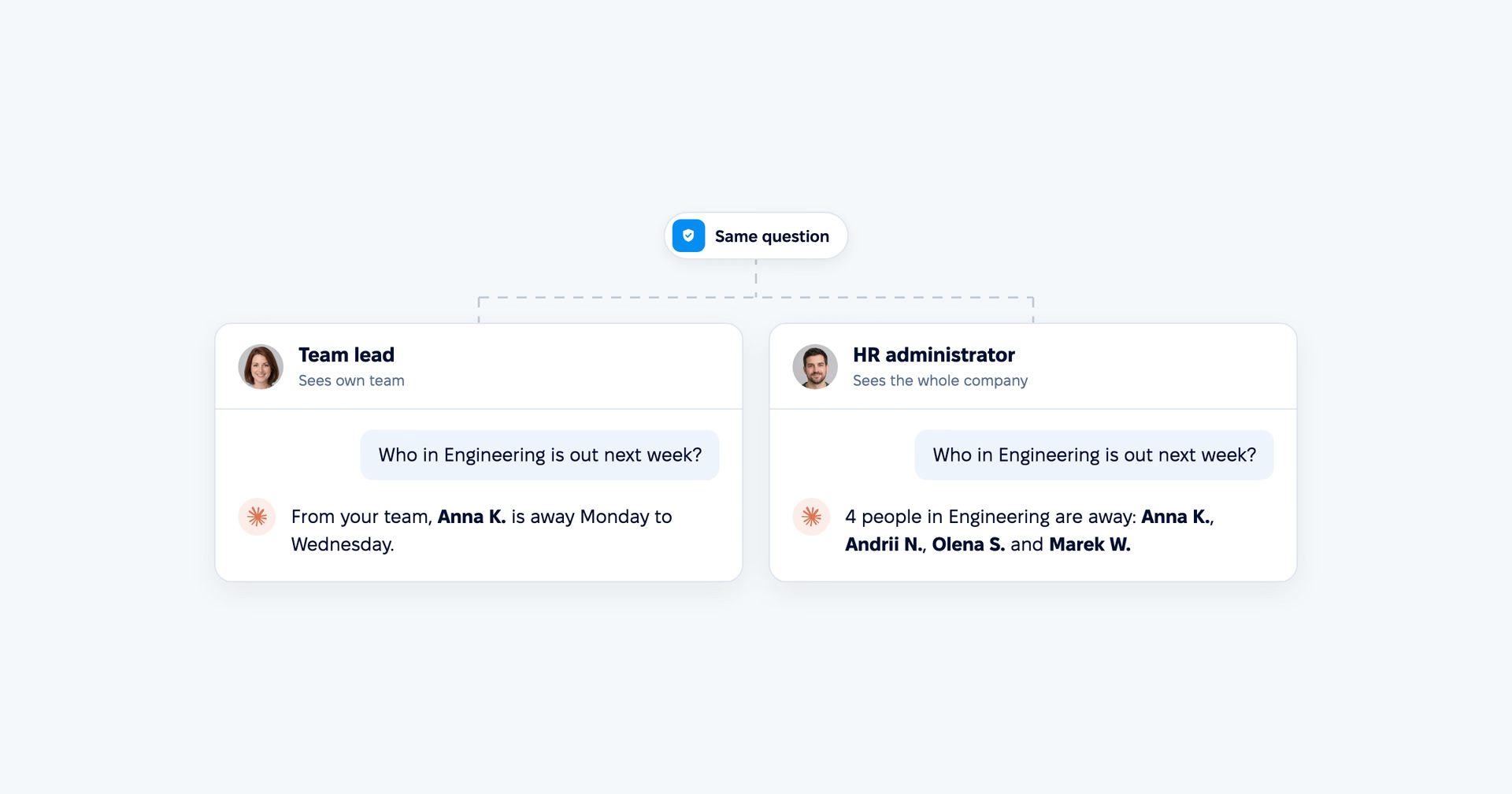
That last point decides what each scenario below can and cannot do. The assistant has no access of its own: it never sees more than the person sees in PeopleForce, with the same role, the same directory visibility and the same field-level restrictions. If compensation is hidden from a manager in PeopleForce, it stays hidden from the manager's assistant. Two people asking the same question can get different answers, and should.
Today, the assistant only reads. It cannot submit a leave request, edit a profile or approve anything, so every scenario ends with a person acting in PeopleForce. Each person can see and revoke their connections under Preferences > Security > Connections, administrators see every connection in the company, and when someone is terminated their connections are revoked automatically.
The scenarios below describe what the assistant can read and how it can combine that with other tools. Which of those tools you can connect, and whether you can add a custom connector at all, depends on your assistant and its plan, in Claude and in ChatGPT alike, so treat each combination as "if you have connected it".
Finding talent for a project
When a new project or role opens, the first shortlist usually comes from memory: the people a manager happens to know. An assistant connected to PeopleForce can build that shortlist from the profiles themselves.
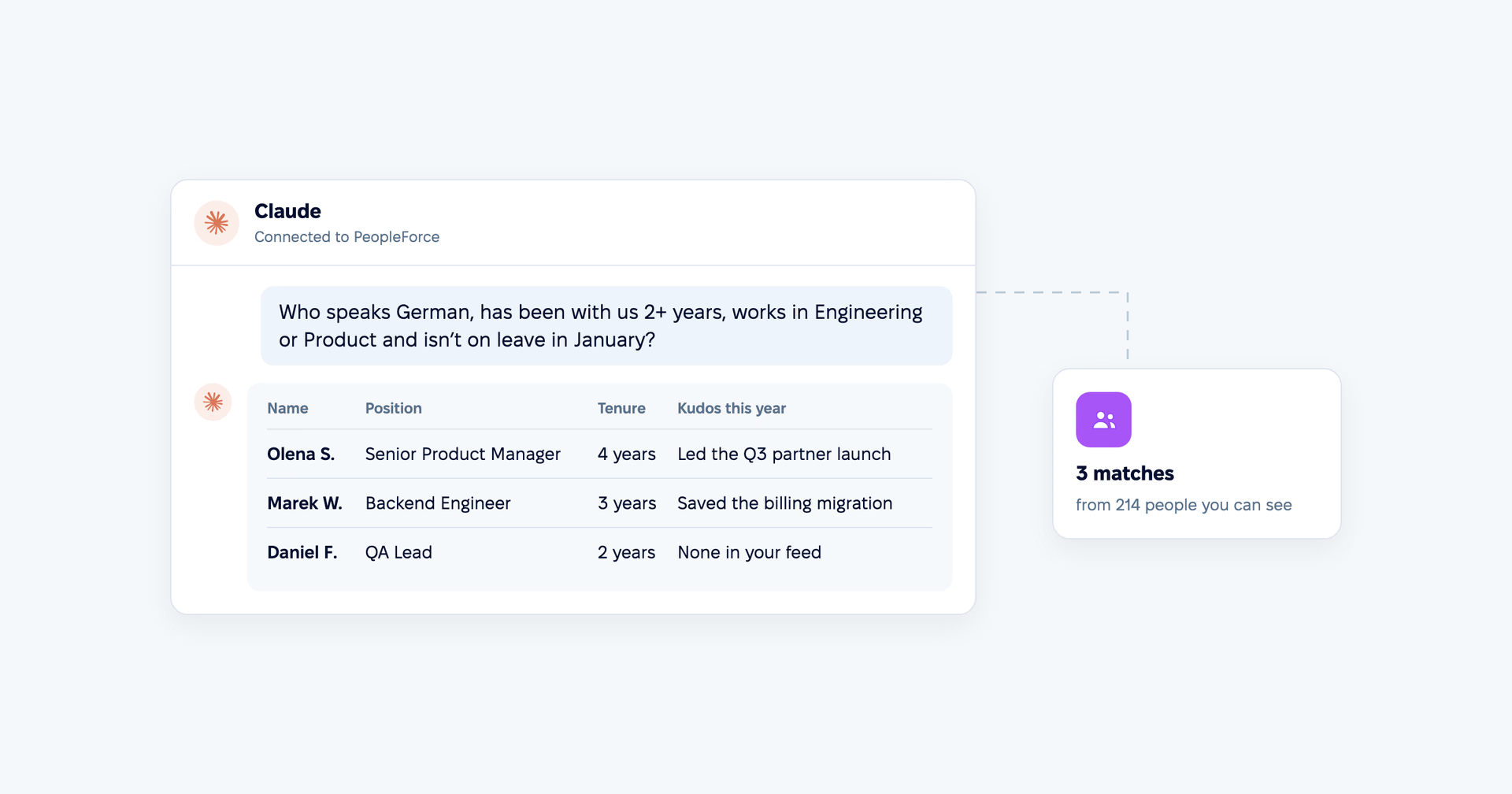
"We're starting a project for a client in Germany. Who speaks German, has been with us for at least two years, works in Engineering or Product, and isn't on leave in January? For each person, show their position, manager and any kudos for them in our feed this year."
To answer, the assistant searches your people directory. It can filter by skills, position, department, seniority, location, employment type, hire date and your own custom fields, so a language or a certification stored in a custom field counts as a real filter. It then checks who is away in the dates you named, and looks through the kudos in the PeopleForce feed you can see. The result is a short table with a reason next to every name.
If you have also connected Jira, GitHub or Confluence to the assistant, it can add the evidence those tools hold: which epics a person delivered, which repositories they contribute to, which documentation they wrote. That is the difference between "senior and available" and "senior, available, and has shipped something like this before".
Two limits shape the answer. Most of these filters (skills, seniority, employment type, hire date and custom fields among them) need the advanced directory search permission in your role, and the assistant only returns people you can see, so a manager's search covers less of the company than an HR administrator's. And the shortlist is only as good as your profiles: if skills and languages are not filled in, they cannot be searched. That is the next scenario.
Auditing HR data for completeness
Missing data rarely announces itself. It shows up later, as a headcount report that does not add up or an approval that goes nowhere because an employee has no manager. An assistant can do the audit nobody has time for.
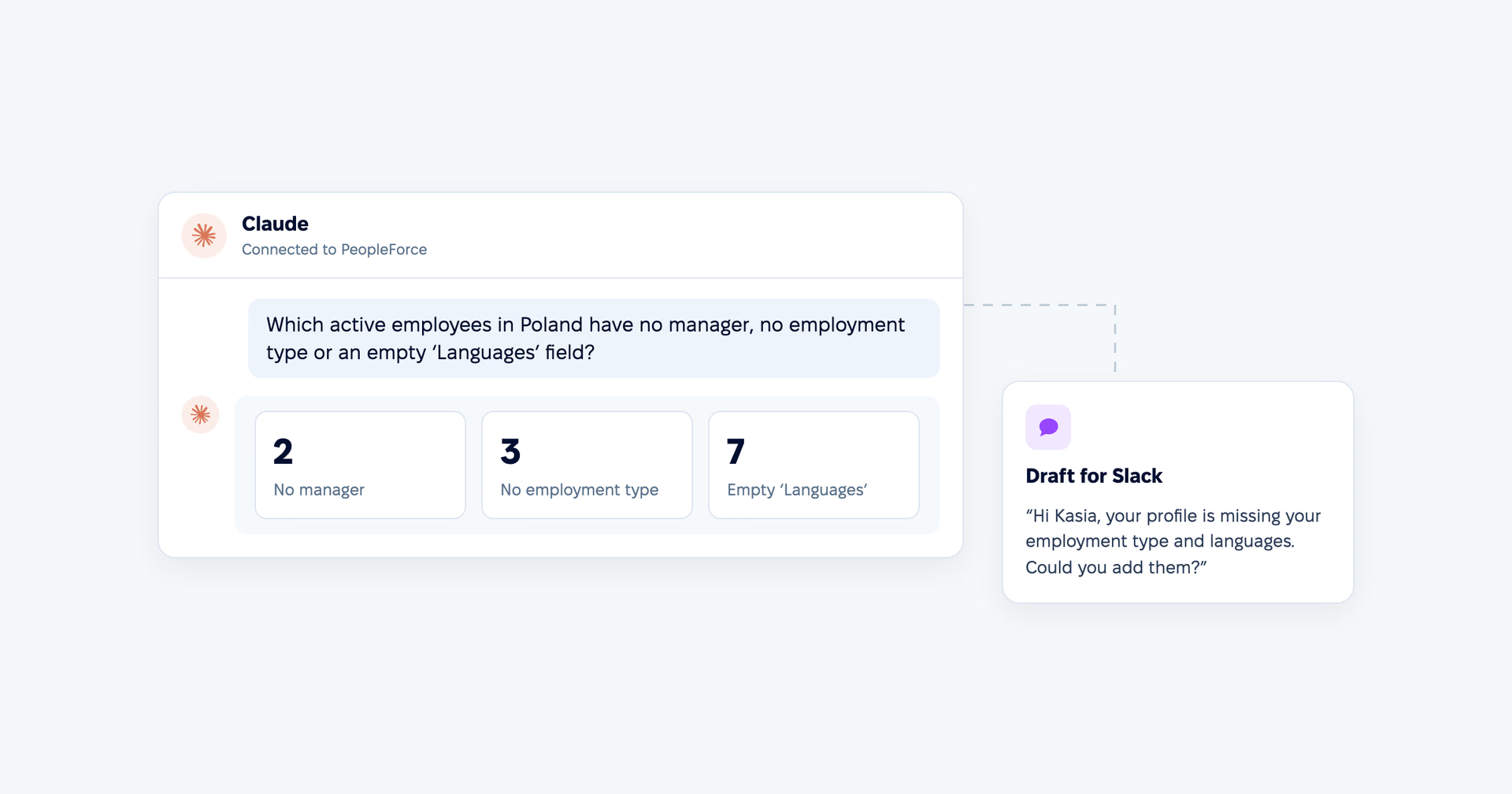
"Check every active employee in Poland. Who has no manager, no department, no employment type, or an empty 'Languages' field? Group them by what is missing, and draft a short Slack message to each person asking them to update their profile."
The assistant reads each person's profile with every field your role can see, including custom fields, and lists the gaps. It can also compare PeopleForce with another source you have connected: people who have a Google Workspace or Microsoft account but no PeopleForce profile, or a team page in Confluence that no longer matches the departments in PeopleForce.
The output is two things: a list for HR, and a draft message for each person, with what is missing and a link to their profile. Sending the messages stays with you, in Slack or your mailbox.
The assistant cannot ask for the data inside PeopleForce, because it does not create requests. When you want the update to go through approval and land in the profile with a history, PeopleForce has people data change requests and self-service forms for that: use the assistant to find the gaps, and a request form to collect the answers.
Preparing a newcomer's first day
A good first day is mostly small, specific things: a message from the manager that mentions the actual team, a plan for the first week, the three articles worth reading first. Each is quick on its own, and together they are what slips when a manager is busy.
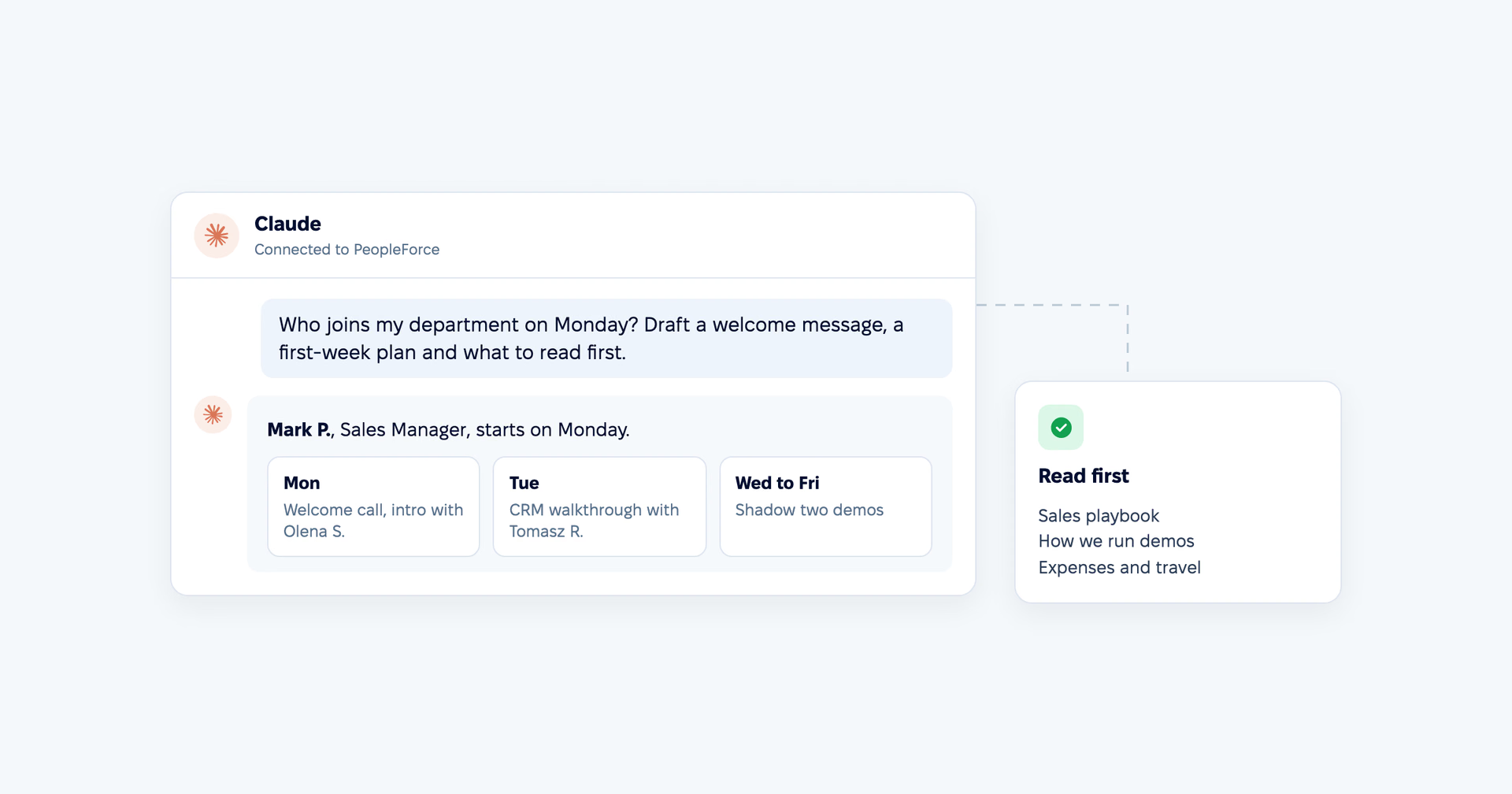
"Who joins my department on Monday? For each person, draft a welcome message from me, a plan for their first week, and a list of knowledge base articles they should read first. Suggest which colleagues they should meet."
The assistant finds the people whose hire date is that Monday, with their position and department. For people who have not started yet, it searches the directory by hire date, which needs the advanced directory search permission. It reads who else is in the department, so the meetings it suggests are with real colleagues rather than "someone from the team". It looks through your knowledge base for the articles that fit the role and the first week, and can quote from them.
With your mailbox or calendar connected, the assistant can turn the result into a drafted welcome email and a set of introduction meetings for you to check and send. The newcomer's first impression then carries your company's names, documents and habits instead of a template.
This complements onboarding in PeopleForce rather than replacing it. Onboarding workflows still assign the checklist, the equipment and the documents to sign, and track who has done what. The assistant adds the personal layer around them, and it can only read what the manager can: if a knowledge base article is restricted to HR, it will not appear in the plan.
Planning a sprint around approved leave and public holidays
Sprint planning in a distributed team runs into the same question every two weeks: who is actually here? Someone in Kraków has a public holiday the team in Kyiv does not. Someone booked three days off last week and nobody adjusted the plan.
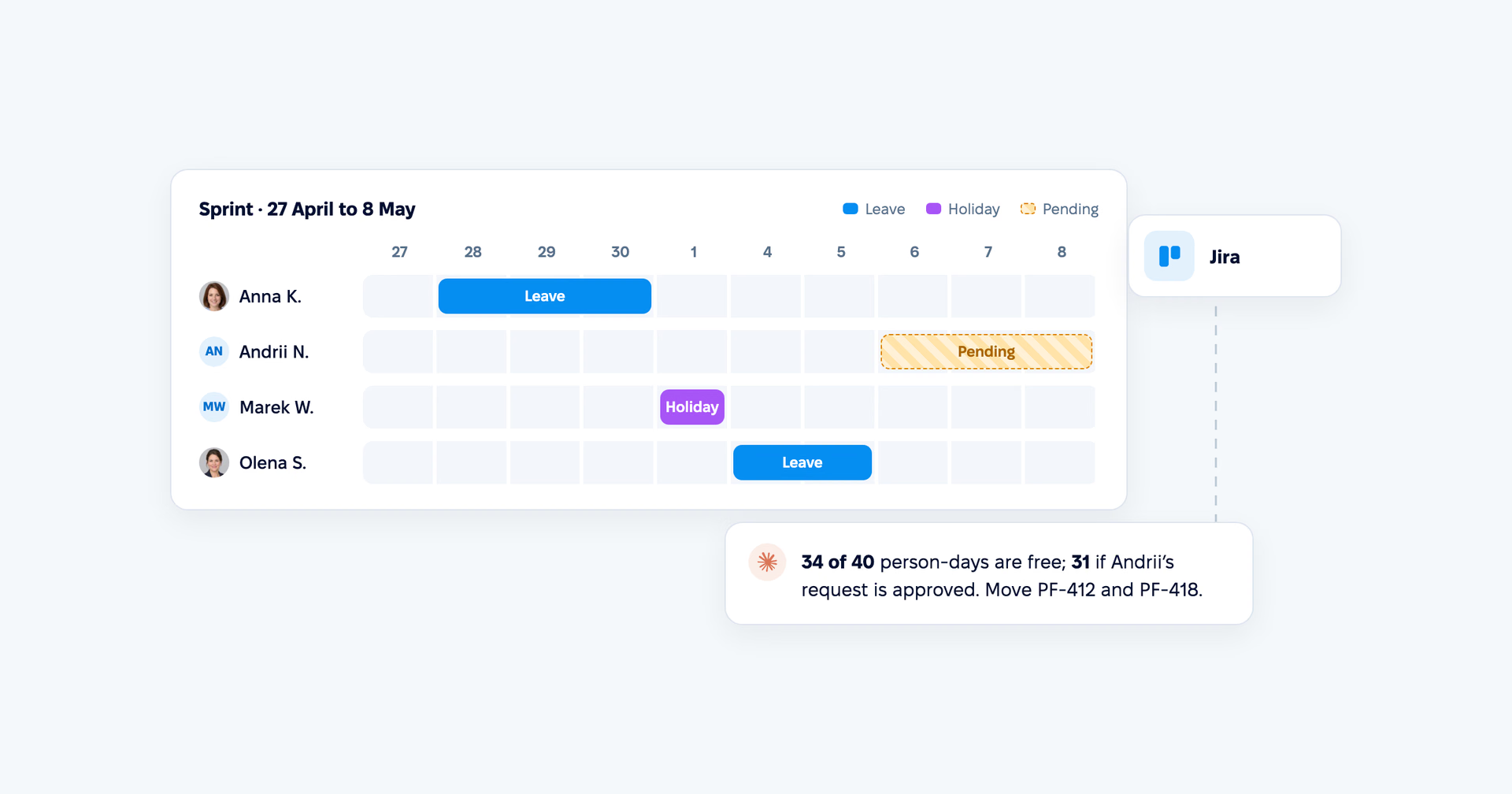
"Our next sprint runs from 27 April to 8 May. Who on my team is away, including public holidays and leave that is still waiting for approval? Compare the available days with the sprint scope in Jira and tell me what doesn't fit."
The assistant reads who is away in the sprint window, together with the public holidays PeopleForce holds for your team, and the leave calendar, which also shows requests still waiting for approval. A private leave type appears without its name, the same way it does in PeopleForce. From there it counts the working days each person has in the sprint, assuming a full working week: other people's work schedules are not visible to it, so mention part-time colleagues in your question. The leave calendar needs leave calendar access in your role and is read up to 60 days at a time.
With Jira or Linear connected, the assistant puts that number next to the estimated work. The answer reads like a planning note rather than a list of absences: "The team has 34 person-days instead of 40. Two of the stories assigned to Anna land on days she is away; here are three candidates to move."
One detail matters for the result. Pending requests are not yet decisions, so ask the assistant to show them separately. The plan it suggests is a draft for the team to agree on: it does not reassign anything in Jira or change any leave in PeopleForce.
A rest radar: who is due for time off
The people who stop taking time off are rarely the ones who complain. A simple signal is often enough to start the right conversation: a long stretch without leave and a large balance still waiting to be used.
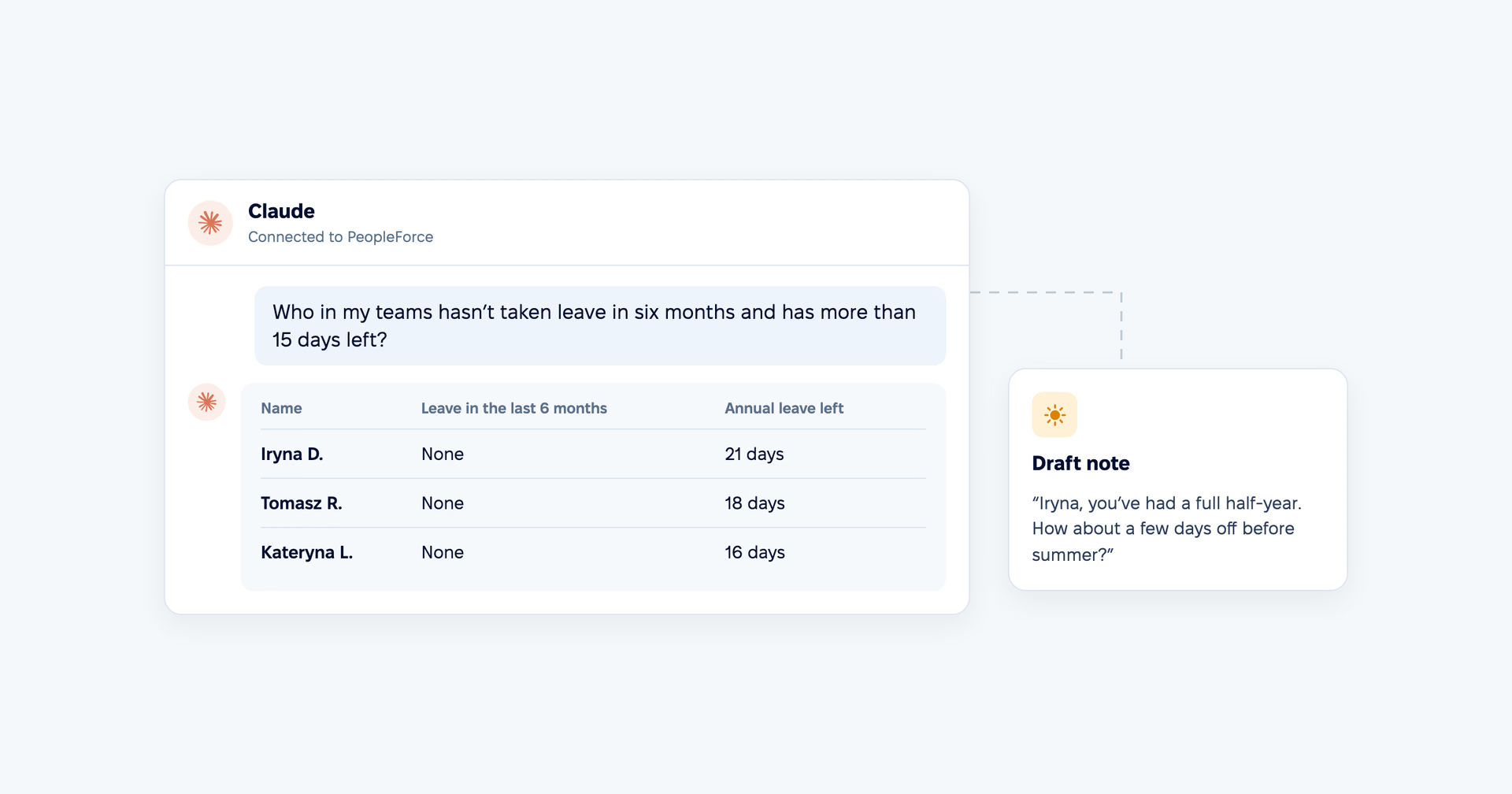
"Which people in my teams haven't taken any leave in the last six months and have more than 15 days of annual leave left? For each one, draft a short, friendly note suggesting they plan some time off."
The assistant reads the leave calendar month by month for the period you name, and the leave balances of the people whose leave you manage. It returns a short list that confirms no leave in that period and shows each person's remaining balance, with a draft note for each, which you can send from Slack or your mailbox, or keep for your next one-to-one.
This is a reason to talk, not a diagnosis. The assistant works from leave data alone, so it has no basis for saying that anyone is burning out, and it should not be asked to. What it can do is make sure that nobody's year goes by without someone noticing they never took a break.
Which people appear depends on your role. A manager usually sees their own teams; in accounts where the leave calendar is limited to direct reports, that is all the assistant will cover. Balances appear only for people whose leave you are allowed to manage.
Coming next: performance data and answers in Slack
The scenarios above use the data an assistant can read today. The next releases extend it to performance data, and with it come the scenarios HR teams ask about most. Each will follow the same rule as everything else: the assistant reads what the person asking is allowed to see, and nothing more.
Preparing a one-to-one. "I have a 1:1 with Anna tomorrow. What are her current goals and their progress, what feedback has she received recently, and what did we agree last time?" The manager walks in with the facts already gathered.
Calibration after a review cycle. "Where do manager and peer ratings differ most in this cycle? Which departments rated noticeably higher than the rest?" HR prepares the calibration meeting from the cycle's actual scores rather than from impressions.
Who is ready for the next role. "Which senior engineers consistently meet their goals, have strong leadership ratings in recent reviews, and receive the most recognition from colleagues?" This is the shortlist from the first scenario, with performance evidence added.
HR answers in Slack. "How many days of sick leave can I take without a certificate, and how many vacation days do I have left?" Employees ask where they already work, and get an answer from your knowledge base and their own PeopleForce data.
Calibration and role readiness are decisions about people, so the assistant's job in them is to gather the facts in one place. The judgement, and the decision, stay with the managers and HR who make it today.
Where employees fit: AI Companion, with nothing to connect
The scenarios in this article are written for HR teams and managers, the people who already work with an AI assistant all day and need to combine HR data with everything else. Most employees need something simpler: quick answers to the questions they would otherwise send to HR.
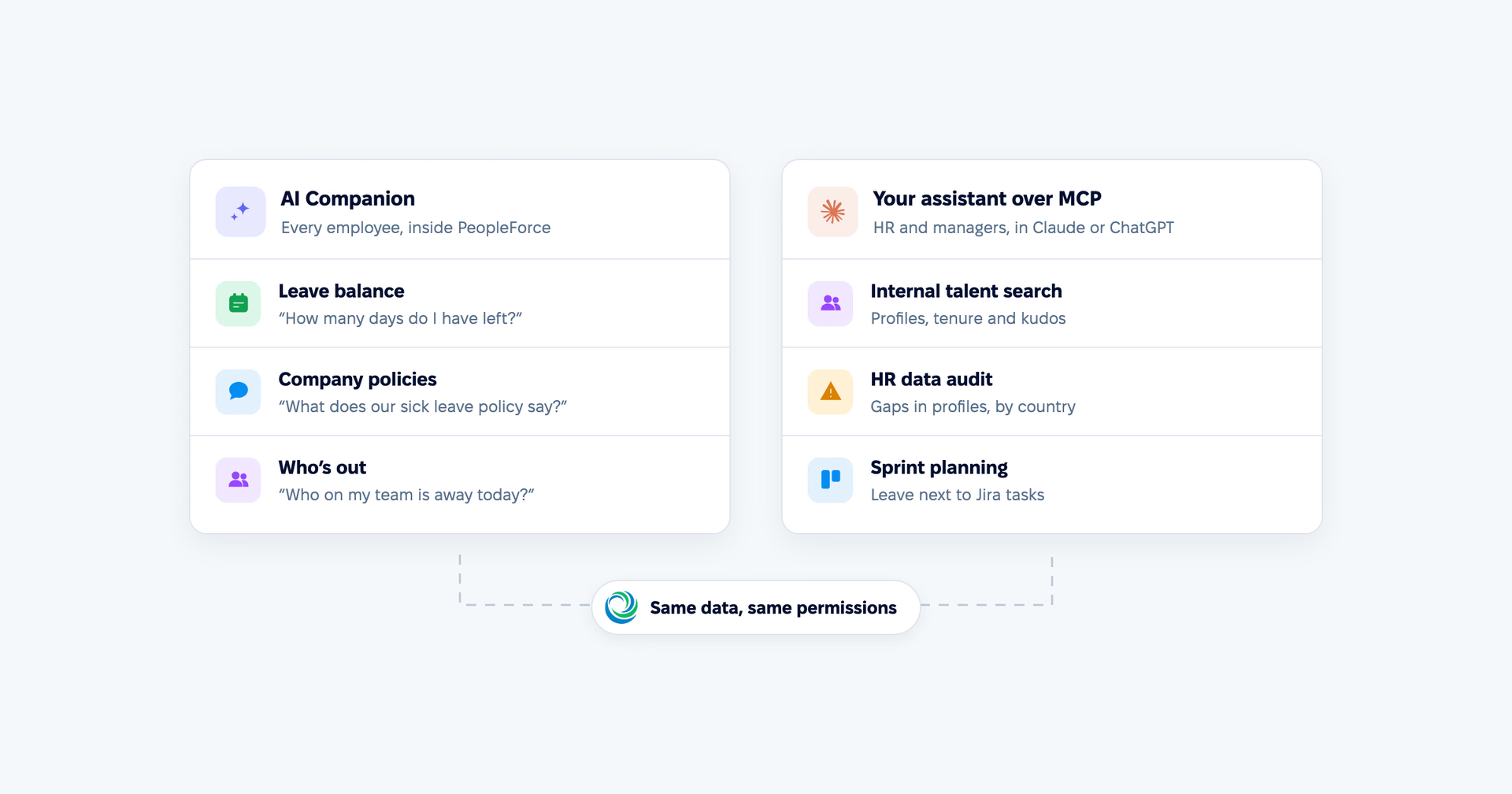
For them, PeopleForce has AI Companion, the assistant built into PeopleForce itself. An employee opens it in PeopleForce and asks: "How many vacation days do I have left?", "What does our sick leave policy say?", "Who on my team is out today?" Companion answers from your PeopleForce data and your knowledge base, within that employee's permissions, and links to the article it used.
Nobody has to install a connector or own an AI subscription, and it is built into PeopleForce at no extra cost. Companion is switched on per account on request: ask your account manager.
The two answer different needs. Companion gives every employee answers inside PeopleForce. MCP lets the people who manage others bring PeopleForce data into the assistant where they plan, write and decide.
How permissions keep the assistant inside each person's access
Whoever signs off on connecting an AI assistant to HR data usually asks the same thing first: what stops it from showing people what they should not see? The answer is that the assistant has no permissions of its own. It borrows them, one person at a time.
Every request runs as the person who asked. The assistant signs in with that person's PeopleForce account and reads through the same rules PeopleForce applies everywhere else. If a role cannot open a profile, the assistant cannot read it either.
Field-level access applies to every answer. In PeopleForce each role has None, View or Edit access to every profile field. The assistant gets exactly the fields the role can view, so a manager who cannot see a colleague's compensation or passport details will not get them by asking a different way.
Directory visibility decides whose data appears. If a role can see only its own legal entity or department, every search, count and list the assistant builds is limited to those people. A manager's question and an HR administrator's question can return different answers, and they should.
What is private stays private. A leave type marked as private appears without its name, as it does in the rest of the product. Private messages between colleagues and anyone's conversations with AI Companion are not available to the assistant at all.
You change access in one place. Because the assistant follows roles, adjusting what it can read means adjusting the role in PeopleForce, not configuring a second set of rules. As new areas of PeopleForce become available to assistants, they follow the same model.
Every connection is visible and can be ended. Each person sees their connected assistants under Preferences > Security > Connections and can revoke any of them; administrators see every connection in the company; terminating someone in PeopleForce revokes their connections automatically. Today the assistant only reads: requests, approvals and edits happen in PeopleForce, where they are recorded against a person.
What the assistant receives becomes part of the conversation in your AI tool, under that tool's data settings. PeopleForce does not use your data to train AI models; for work with people data, choose an assistant plan where conversations are not used for training either.
FAQ
Which PeopleForce plan includes MCP? The Professional plan. MCP is enabled per account; if you don't see it under Settings > Integrations, your account manager can switch it on.
Which assistants can I connect? Any assistant that can connect to a remote MCP server and sign you in. Customers already connect Claude (on the web, in Claude Desktop and in Claude Code), ChatGPT, OpenAI Codex and Mistral's Le Chat. Because MCP is an open standard, an assistant that adds support later works without anything changing on the PeopleForce side.
Can a manager see salaries through the assistant? Only if their role can see compensation in PeopleForce. The assistant has no access beyond the person who connected it.
Can the assistant create a leave request or update a profile? Not yet. Today the assistant reads and answers, and requests, approvals and edits happen in PeopleForce. Acting on your behalf, such as creating a request, is coming in future releases, and it will follow the same permissions as everything else.
Do employees need to connect their own assistant? No. For everyday questions, employees use AI Companion inside PeopleForce. MCP is for people who want PeopleForce data in the assistant they already work in.
What happens when someone leaves the company? Terminating a person in PeopleForce revokes their MCP connections automatically.
How do I see what the assistant can look up? Once connected, ask it which PeopleForce tools and data it can use. The answer reflects your own permissions.
Trying the scenarios on your own account
Every scenario in this article starts from data you already keep in PeopleForce and ends with a person making the call: who joins the project, who gets a nudge to rest, what moves to the next sprint. The assistant does the gathering in between. If you would like to see the five scenarios on your own data, the PeopleForce team can walk you through them on your account.
Svitlana leads marketing at PeopleForce and is responsible for how HR professionals, managers and business owners learn about what the product can newly do. Svitlana's product articles start from how features actually work and explain them in the language of the people who run HR processes every day.


One login. Every HR tool you'll need.
Manage the full employee lifecycle — from first interview to final offboarding — without switching tabs or losing data.
Recent articles
 2026-11-12
Reference check: how to verify a candidate and what to ask
What a reference check is, when to run it, how to get candidate consent, which questions to ask referees and how to read their answers.
2026-11-12Types of organizational charts: vertical, horizontal, matrix and circular, with examples
Which org chart types exist, what each one looks like, when to use it and how to build yours so it does not go out of date.
2026-11-10Workplace climate: what it is, types, how to measure it and what to do next
What workplace climate means, the main types and dimensions, sample climate survey questions and how to turn the results into an action plan.