


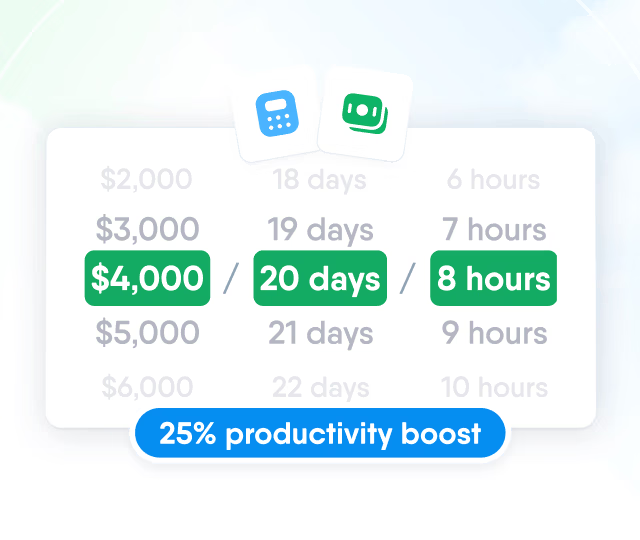


What the integration adds to your calendars
Scheduling in PeopleForce is enough: nobody copies a meeting into a calendar or pastes a video link by hand. More than 500 companies have the integration connected.
Workflows can add events too, with the Create a calendar event step: for example, a welcome meeting in a new hire's first week.
Interviews with a Google Meet link
Recurring 1:1s with their talking points
Approved time off in the employee's calendar
Free slots from everyone's calendars
Mechanics
What moves between PeopleForce and Google Calendar
Almost everything moves one way. PeopleForce creates each event a moment after something is scheduled or approved, and keeps interviews and 1:1s up to date as they change. What comes back is the Google Meet link, which PeopleForce shows as a Join button, and busy time for the time picker.
| What is transferred | Direction | When | Data |
|---|---|---|---|
Interviews Scheduled in Recruit | PeopleForce Google Calendar | when scheduled updated on reschedule, removed on cancel | subject as title, time, location, interviewers, candidate if invited, vacancy and candidate details, CV, Google Meet link |
1:1s Set up in Perform | PeopleForce Google Calendar | when set up one recurring event for weekly and monthly 1:1s | "1:1: name <> name", time, attendees, talking points except private ones, Google Meet link |
Approved time off Leave requests | PeopleForce Google Calendar | on approval removed if withdrawn | leave type as title, dates or hours, busy or free, public or private |
Workflow events Create a calendar event step | PeopleForce Google Calendar | when the step runs | title, description, time or all day, location, guests, busy or free |
Google Meet link Interviews and 1:1s | Google Calendar PeopleForce | when the event is created or when an interview is switched to Google Meet | the Meet link, shown as Join on the interview and the 1:1 |
Busy time For the time picker | Google Calendar PeopleForce | while picking a slot | busy periods per person on the chosen day, without event details |
Move an event in Google Calendar and PeopleForce keeps the original time. Reschedule the interview or 1:1 in PeopleForce, and the calendar follows.

Setup
How the connection is set up
One connection covers the whole company. A Google Workspace super admin authorises a key, someone with access to PeopleForce's Integrations settings installs it, and nobody has to connect their own calendar.
Create a key and authorise it
The authorisation needs a Google Workspace super admin.
- Create a service account in Google Cloud with the Google Calendar API enabled, and download its JSON key. In Cloud organisations created on or after 3 May 2024, an Organization Policy Administrator first has to allow key creation
- Authorise its client ID for domain-wide delegation with the scope https://www.googleapis.com/auth/calendar, under Security → Access and data control → API controls
- Delegation can take up to 24 hours to apply, and a second super admin confirms it if multi-party approval is on
Paste the key and install
Settings → Integrations → Google Calendar, by a PeopleForce administrator or anyone whose role includes the Integrations settings.
- Paste the contents of the JSON key into the JSON field and click Install
- PeopleForce tests the key on the installer's own calendar, so the installer's PeopleForce email must be an account in that Workspace
- Everyone whose PeopleForce work email is in your Workspace is then covered
Integration conditions
Whose calendars it reaches, what the access is used for, and which side stays the source of truth.
It works with Google Workspace accounts
What the key gives access to
PeopleForce stays the source of truth
Frequently asked questions
Step-by-step guide in the help centreIf I move a meeting in Google Calendar, does PeopleForce change too?
No. Events are written from PeopleForce to Google Calendar, so a change made only in Google Calendar isn't copied back and can be overwritten the next time PeopleForce updates the event. Reschedule the interview or 1:1 in PeopleForce, and the event updates for everyone invited.
Do we need a Google Workspace super admin?
Yes, once, to authorise the key for domain-wide delegation. Then someone who can open the Integrations settings in PeopleForce, and whose PeopleForce email is an account in that Google Workspace, installs it.
Does it work with personal Gmail accounts?
Not through the company connection: it reaches only accounts in your Google Workspace. Candidates and guests still get invitations at any address.
Will colleagues see why I'm off?
Yes, if the leave policy is Public (the default when you create a policy) and they can see your calendar. Time off is a regular event in your own calendar, titled with the leave type; with a Private policy, the event is private in Google Calendar, so colleagues who only view your calendar don't see the details. Your manager and team aren't invited.
What happens if we disconnect the integration?
Items stop reaching Google Calendar through the company connection. Events already added stay, but they are no longer updated or removed, and PeopleForce goes back to its own email invitations for interviews and workflow events, and to a plain date and time field. Anyone who has connected their own Google Calendar separately keeps that connection.
What does PeopleForce do with access to our calendars?
It adds, updates and removes its own events, receives their Google Meet links and reads busy time for the time picker. The only other read is a check of the installer's calendar: once at install, and again if Google refuses to let the key act for someone, to confirm the key still works.


